Hands-on: Creating workflows from local files
- 20 min
- Easy
If you have a workflow, script or notebook (e.g Jupyter) on your local machine that hasn't been saved or published to any of the supported repositories (Galaxy, Git, WorkflowHub), you can still register it in LabID by creating a workflow and version "from scratch".
Creating workflows and versions directly in LabID can be convenient if you are not familiar with Git, or for workflows for which version control systems are not appropriate (ex: workflows including binary files such as KNIME, or even notebooks). It can also be a quick way to keep track of test workflows for which creating a repository is not worth the effort.
Concepts: Workflow, Workflow Version, Workflow Run
- Workflow
- A top-level identifier for one or multiple Workflow Versions. It carries metadata common to all versions (name, license, programming language...). This is what we create in Step 1.
- Workflow Version
- A specific version of a Workflow, with its own set of files. Here, instead of being imported from a Git/WorkflowHub/Galaxy repository, its files are uploaded directly. This is what we create and populate in Step 2.
- Workflow Run
- Documents the execution of a Workflow Version on some input data — covered in the Workflow Run hands-on.
See Workflows and Workflow versions for the full reference.
To create a new workflow from local files:
- Go to the workflow list page
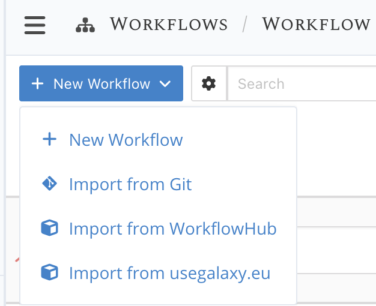
- At the top left, click the New workflow dropdown, then select New workflow.
Start by clicking the New Workflow button
Step 1 : Fill in workflow information
The first step is the creation of a parent Workflow, to which a first Workflow Version will then be associated with a specific set of files.
We will use here a simple bash script that split a csv file with 2 columns, into 2 separate files, one per column.
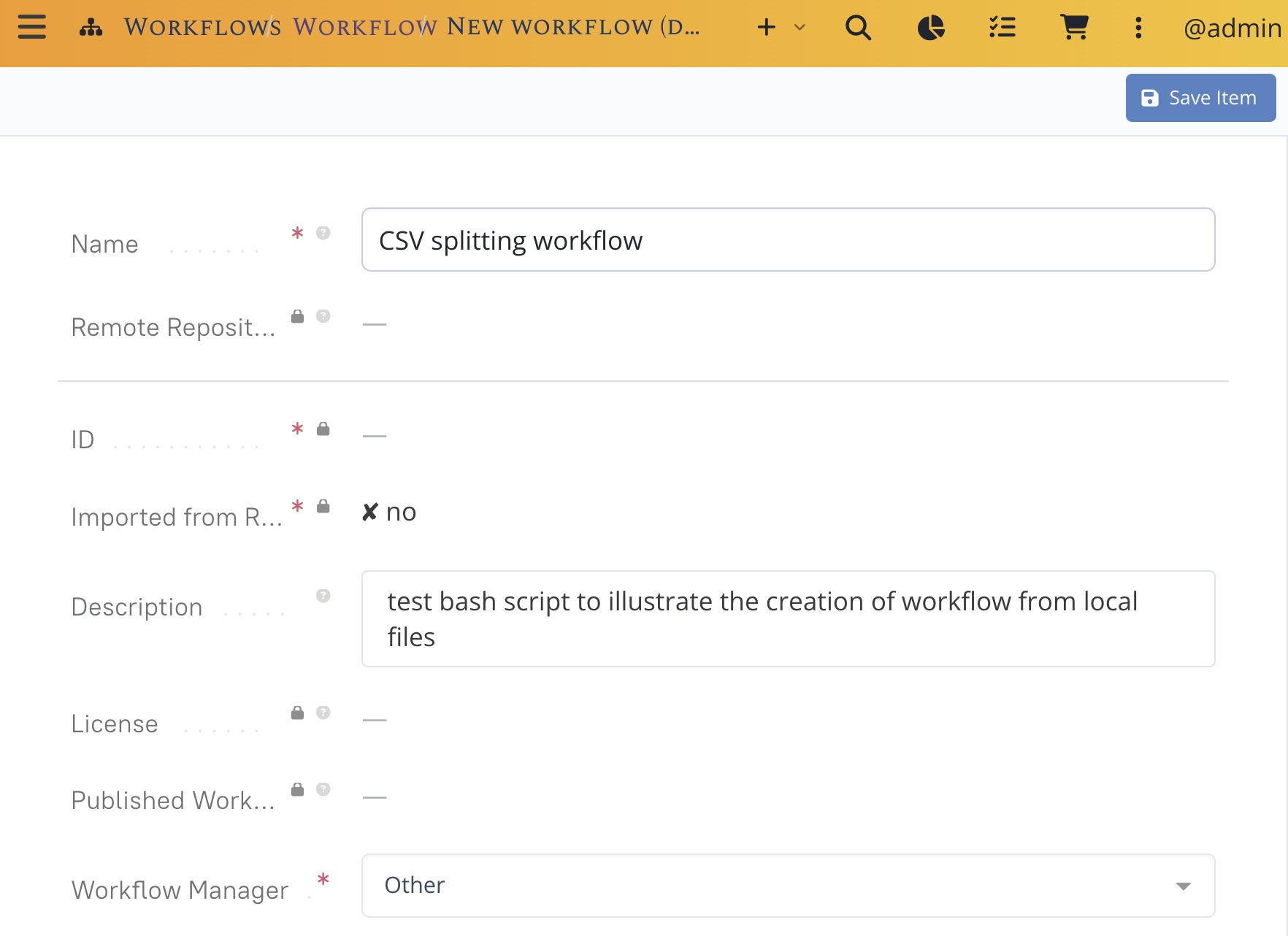
For the Workflow, provide the required information:
- a name (ex: "CSV splitting workflow")
- an optional description of what this workflow is doing (ex: "test bash script to illustrate the creation of workflow from local files")
- for Workflow Manager, select "Other" (Bash scripts are not workflows in the traditional sense)
- click the Save item to the top right corner, which will take you to the first Workflow Version for this Workflow.
First fill-in the information for the parent workflow
Step 2 : Edit the workflow version
The new workflow version has a default name and no associated files, so let's edit it.
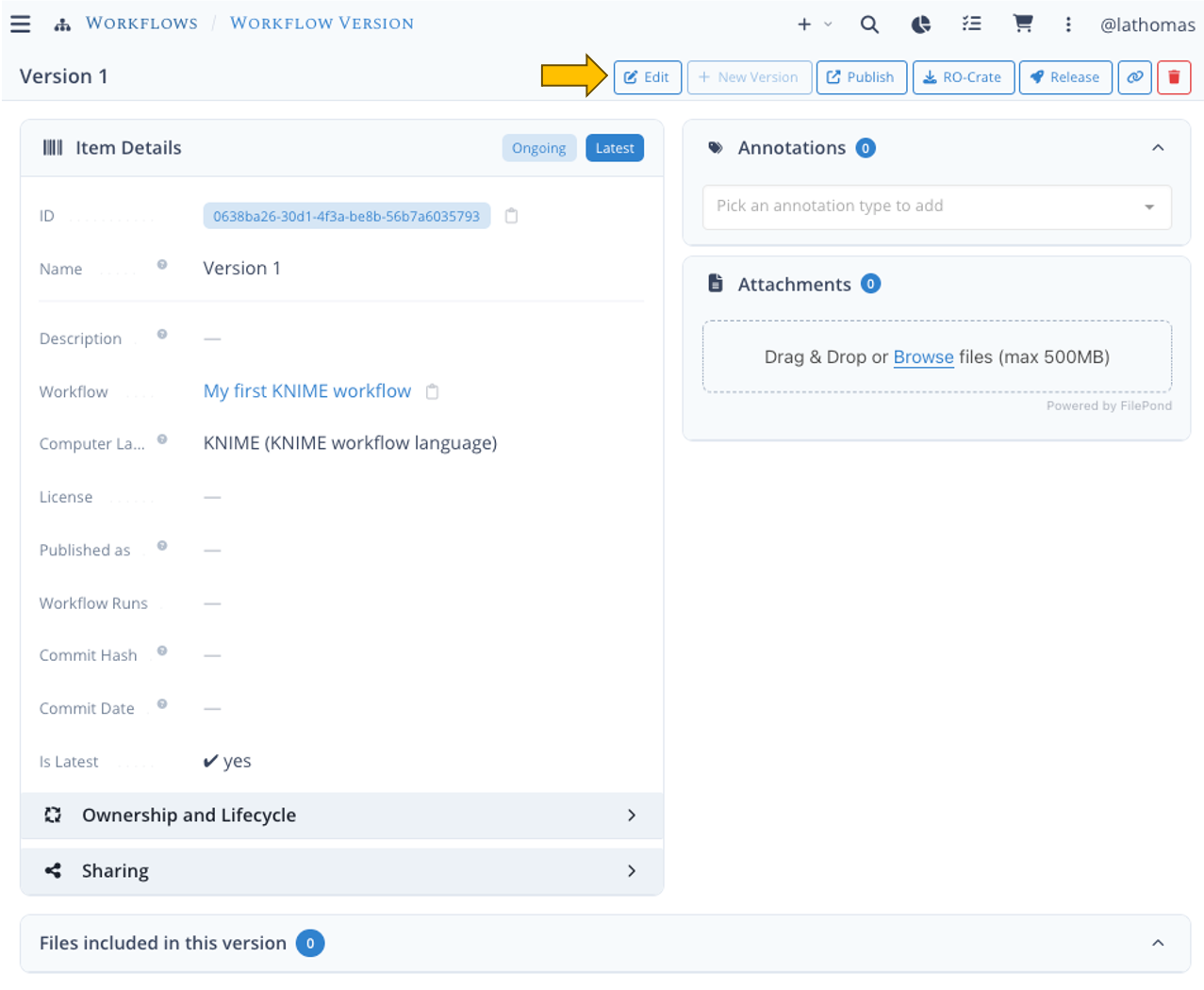
Start by clicking the Edit button at the top right corner.
Click Edit at the top-right
Edit metadata
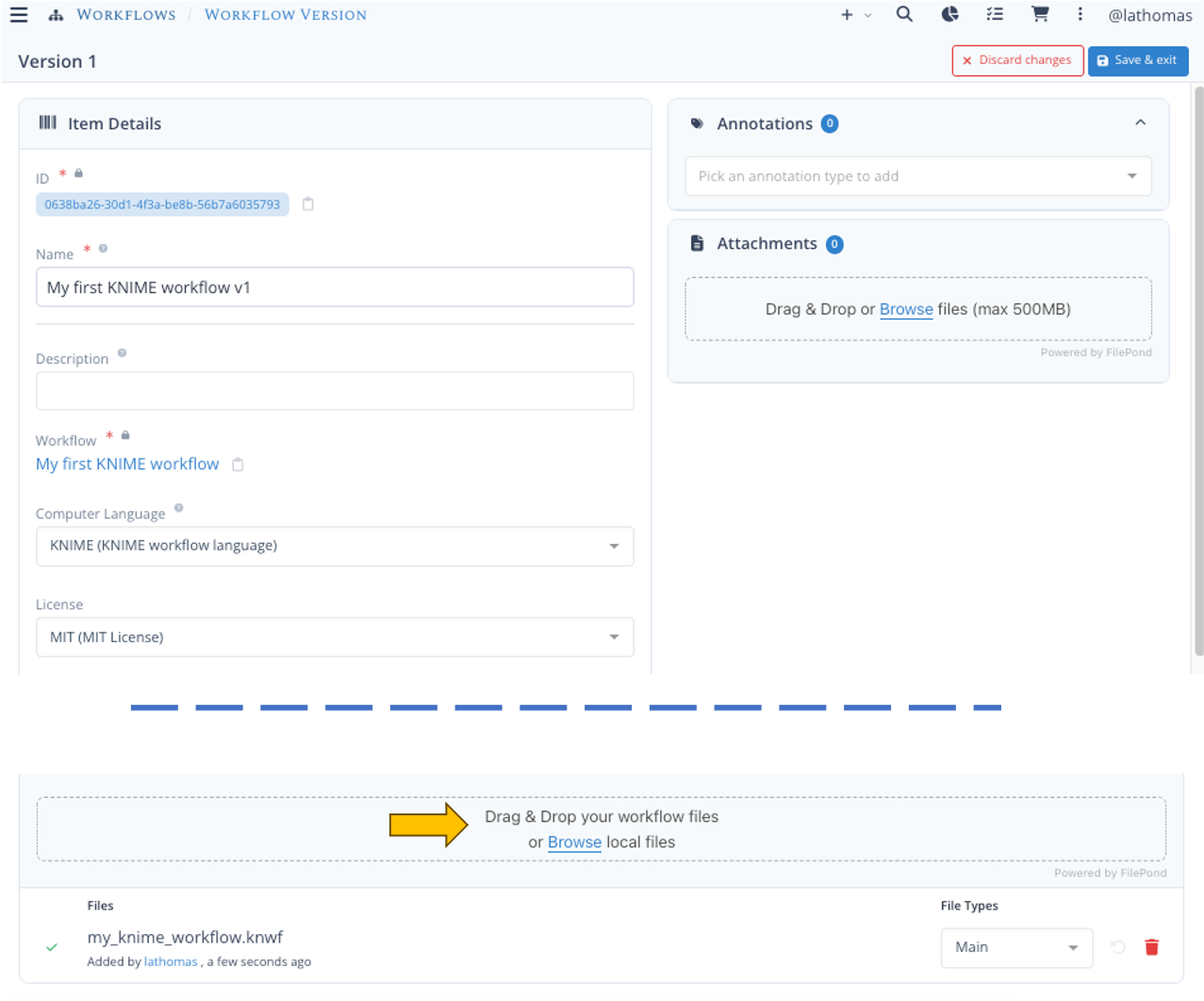
- edit the default name to easily recognize it in the list of workflow versions, we recommend including the name of the parent workflow and a version indicator (such as CSV Splitter - v1).
- set the Computer language to
Bash - you can also select a license for this workflow version, or leave it for now. You can always come back and edit this — or any other field — later.
Associate files to the version
For this example, we just have a single bash script that you can download here.
For a real workflow, you should associate any file needed to run the workflow, but also configuration files, environment files or a list of dependencies (ex: requirements.txt), a README and a License file.
- at the bottom of the workflow version page, in the section Add files, click the Browse button and select the file you just downloaded, or drag and drop the file directly
- In the dropdown, File Types select
mainwhich indicates that this is the main or entry point script or main workflow file
Once you are done, click the Save and exit button at the top right.
Editing the workflow version
Which files should I select ?
Files associated to a workflow version should be the scripts and other files that compose this version and might change with new versions. You can add individual files but no directories. You could also add a single zip file representing the full version, but you won't be able to preview the files in LabID.
Configuration files in Workflow versions and Workflow runs
Configuration files stored at the Workflow Version level are typically environment files with all the dependencies required by this workflow version. The configuration files used when executing the workflow should be associated with the Workflow Run, just like inputs, outputs and logs/reports files.
Releasing a workflow version
Before referencing this workflow version in workflow runs, we recommend you first release it in LabID.
To do so, from the workflow version page,
- exit the edit mode
- click the Release button in the top right corner
The workflow version should now be labeled as "Released".
Released workflow versions cannot have their files edited or removed (only the metadata can be edited); adding new files is also not possible. The idea is to ensure that a workflow version associated with a workflow run cannot be changed, so it always corresponds to the version that was executed. In practice, it is common to test a workflow with some test runs before releasing a workflow version, so LabID does not enforce using released workflow versions for workflow runs, it is only recommended once the workflow version is stable.
Release vs Publish
The Publish button is used to publish the workflow version to WorkflowHub (or dev.WorkflowHub). See Export workflows to WorkflowHub. Workflow versions that were imported from external repositories (ex: Git) or have been published from LabID into WorkflowHub have a "Published" label similar to the "Released" one.
Creating new versions
Creating new versions
You cannot create additional versions of a workflow while the current version is not released!
To create a new version, make sure to release the current version, then click the + New version button at the top right.
The new workflow version page is initialized with the set of files from the previous version.
You can replace those files with new versions, remove them if they became obsolete, and add new files as needed.
Make sure to rename the workflow version to something meaningful, as described in the section Edit metadata.
Once you start using this new version with workflow runs, don't forget to release it!
Overview of registered versions
From a workflow version page, click on Workflow to be taken to the parent workflow page. The workflow page lists all versions registered for this specific workflow.
Exporting workflow versions from LabID
Once you have created some workflow versions in LabID, you can share them with other LabID users, so they can register workflow runs with those. For this, simply adjust the visibility in the Sharing panel of the workflow and workflow version pages.
To share workflow versions with others out of LabID, you have 2 options :
-
exporting the workflow version to WorkflowHub (or dev.WorkflowHub)
-
exporting the workflow version as a Workflow RO-Crate
From the workflow version page in LabID, if the workflow was imported as a RO-Crate (ex: from WorkflowHub) you can directly download the attached RO-Crate.
Otherwise, you can trigger the generation of a Workflow RO-Crate by clicking the Generate button in the RO-Crate panel. The Workflow RO-Crate is basically a zip file containing all files composing the workflow, together with a json file describing the content of this zip.
Such file can be used for instance to import the workflow version in another RO-Crate-capable software.
Export as RO-Crate also available for workflow runs
You will find a similar "Export to RO-Crate" button for workflow runs.
This uses the Workflow Run RO-Crate profile, which is an extension to the Workflow RO-Crate profile mentioned above.