Hands-on: Exporting a workflow version to WorkflowHub
- 15 min
- Medium
To share a workflow version more broadly, you can publish it publicly to Workflow Hub, which is a recommended FAIR repository for workflow deposition.
LabID has a built-in integration with both Workflow Hub and its twin testing platform dev.workflowhub.de.
The instructions below are written for WorkflowHub, but works the same for the testing platform, only substitute the workflow hub account for an account on the testing platform.
The publication process requires creating an account on WorkflowHub and connecting it to your LabID user profile. This should be done once only, and is detailled in step 1 and 2 below.
You can jump to step3 if you already configured your WorkflowHub account in LabID.
Workflow versions are exported as Workflow RO-Crates
Under the hood, LabID will generate a so-called Workflow RO-Crate for the workflow version, with all the files and metadata composing this version, and export it to WorkflowHub.
The workflow version page in LabID also has an "Export RO-Crate" button, that lets you directly download such crate, for instance to import the workflow version in another RO-Crate-capable software. This export to RO-Crate file is also available for workflow runs.
Step 1 : WorkflowHub account creation
While you can import public workflows from WorkflowHub, the publication of workflow versions requires having an account on WorkflowHub, and associating this account with LabID.
If you already have an account for one of the WorkflowHub repository, you can go to step 2.
Otherwise, to create an account:
- first go to Workflow Hub (or dev.workflowhub.de)
- at the top right, click register then fill the informations required
- once you completed the account activation, click on "Join or Create a Team" on your profile page, you might find a team for your lab or institution
Step 2 : Setup LabID with your WorkflowHub token
- go to Workflow Hub, login and under your profile go to Actions > API tokens
- click on New API token, provide a name for the token (ex: "LabID") and validate
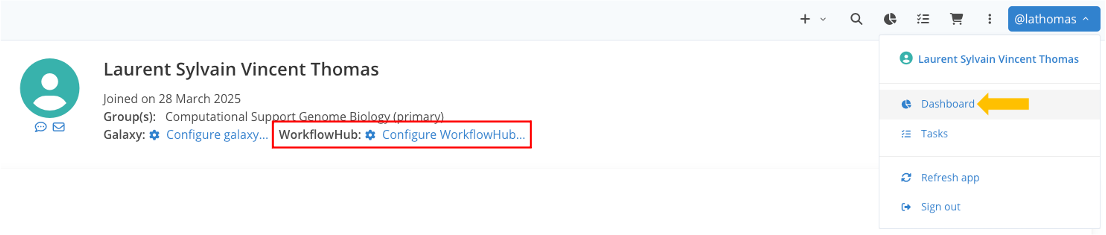
- copy the token, go back to LabID, and navigate to your user dashboard by clicking on your username at the top right, then clicking on your fullname
- select the tab "WorkflowHub configuration"
- paste the API key for the corresponding WorkflowHub instance and click Save
Your LabID account is now configured to publish workflow versions to WorkflowHub (or dev.workflowhub).

Step 3 : Export a workflow version
Once your WorkflowHub account is set up, you can publish workflow versions to WorkflowHub.
- go the list of Workflow versions registered in LabID (from the left menu, under Workflows > Workflow versions)
- click on a Workflow version you would like to publish to get to its detail page
Now make sure the following requirements are fulfilled, Edit the workflow version if needed:
- the version has a license, this can be either via the dedicated License field of the workflow version, or by having a file with type
LICENSEas part of the workflow files. - among the workflow files, a main file is defined. This should be the main workflow file, or entry point script.
-
the field Computer Language of the workflow version should be populated
-
if the version is not marked as Released, click Release
You can now click Publish at the top right, select your team in the pop-up dialog and validate.
The files composing the workflow version are then transferred to WorkflowHub, and the published workflow version on WorkflowHub is linked back to the workflow version in LabID.

Only released workflow versions can be published !
Only workflow versions that are "released" within LabID can be published to WorkflowHub, this is to ensure the exact correspondence between the version published to WorkflowHub and registered in LabID.
Reminder : it is not possible to add or remove files associated to a released workflow version, only metadata can be edited.