Hands-on - Derive Sample from Specimen with ELN
- 80 min
- Easy
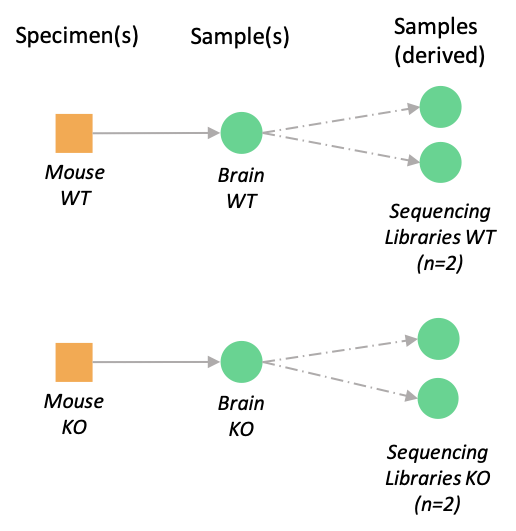
The general context of this tutorial is a fictional project that compares Brpf1 knockout (KO) versus wild-type (WT) neurons derived from BALB/c mouse brain tissue using both imaging and sequencing technologies. The project can be split in two studies (the material of each study can later be re-used independently):
- the imaging of the neurons to e.g. evaluate morphological defects (2 samples, each derived from a mouse specimen),
- the analysis of gene expression in these neurons, with two biological replicates per condition (4 libraries in total).
This tutorial guides you through the process of creating specimens for the mouse lines, and deriving samples (the dissected brains) from these specimens. We will also connect these to an experiment of your personal Electronic Lab Notebook (ELN).
After creating the Strain specimens reflecting the mouse lines, two different types of samples will be created:
- a primary Sample corresponding to the mouse brain (or a tissue section)
- secondary (or derived) sample: Sequencing libraries prepared from the tissue section
The result of this tutorial is graphically summarized in the following figure, which shows the specimen and samples created during this tutorial.
Overview of the experimental flow between specimen and samples
Learning Objectives
In this tutorial you will learn how to:
- Create a project
- Register specimens
- Derive samples from a specimen
- Use the clone feature to create, e.g., a new sample from an existing sample
- Create an experiment in your ELN from an existing protocol
- Connect samples as the output of an experiment using the sample editor
Walkthrough
Pick one trainee and keep it for all steps and all the hands-on sessions
Add your name in front of your trainee username in the shared trainee allocation table shared before this training.
In this tutorial, you should replace the XX with your trainee number to customize specimen, sample and study names. This will make it easy to locate your items in selection dropboxes. For example, if you picked trainee44 (as shown throughout this tutorial), you should use a project name like Trainee 44 Brpf1 KO vs WT neurons (pattern: Trainee XX Brpf1 KO vs WT neurons)
Step 1. Create two mouse specimens (1 WT, 1 KO)
In LabID, a Specimen represents the living source of samples. It can be a patient, a mouse, a fly line, bacteria, viruses, a cell line... Although not mandatory, there should always be a specimen at the origin of a sample e.g. a blood sample comes from a patient; and we encourage you to maintain the list of your biological sources as specimens.
Let's create our first mouse specimen under the Strain Specimen type.
-
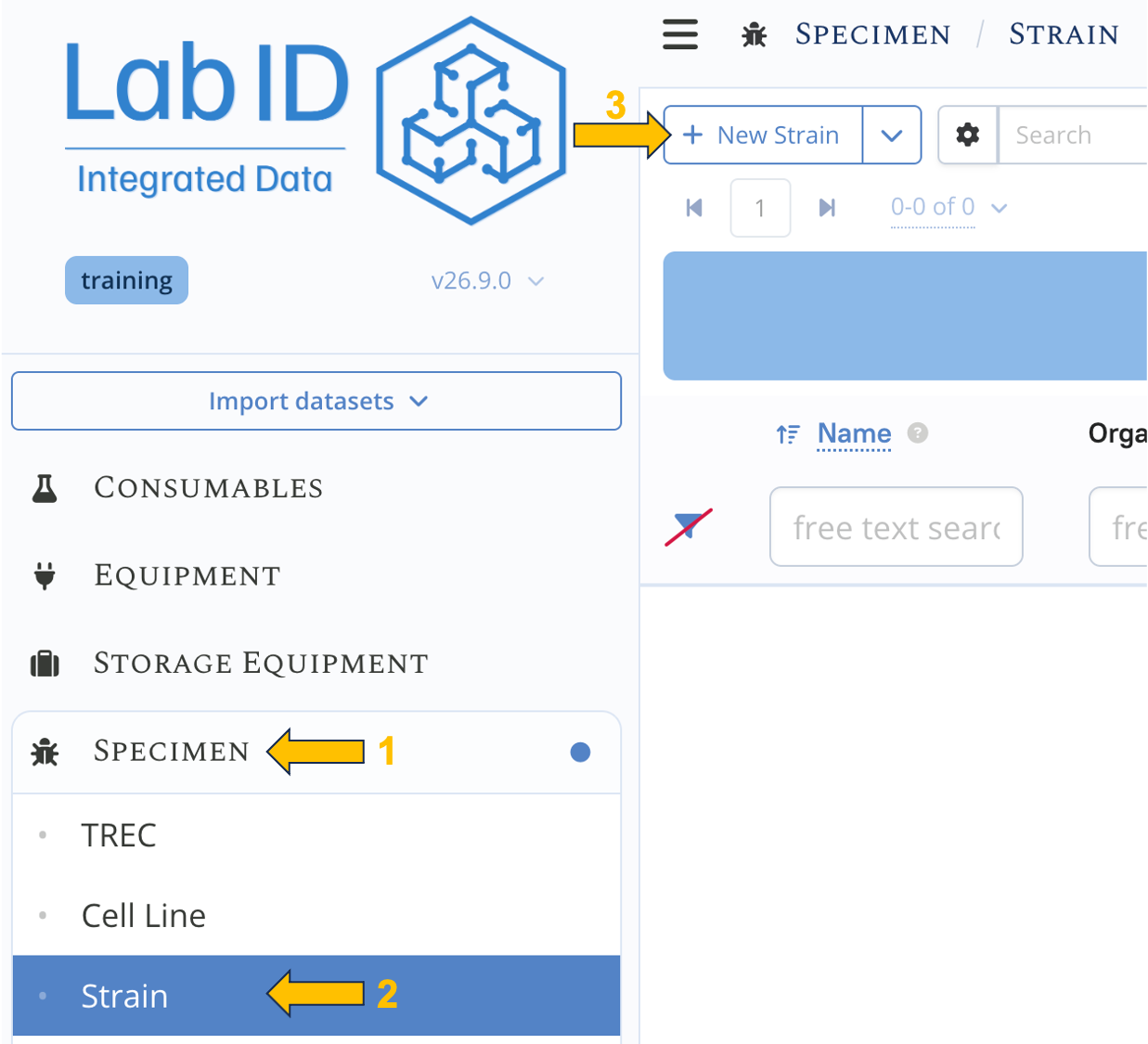
Navigate to the Specimen menu and click the Strain sub-menu.
-
Bring up the new Strain creation form using the New Strain available at the usual place (top left of the list page).
The Strain list page and the New Strain button
-
Fill in all the properties you like with at least:
- Name : Trainee XX Mouse BALB/c WT (use your own trainee number in place of the XX)
- Organism : Mus musculus
-
Click Save Item
-
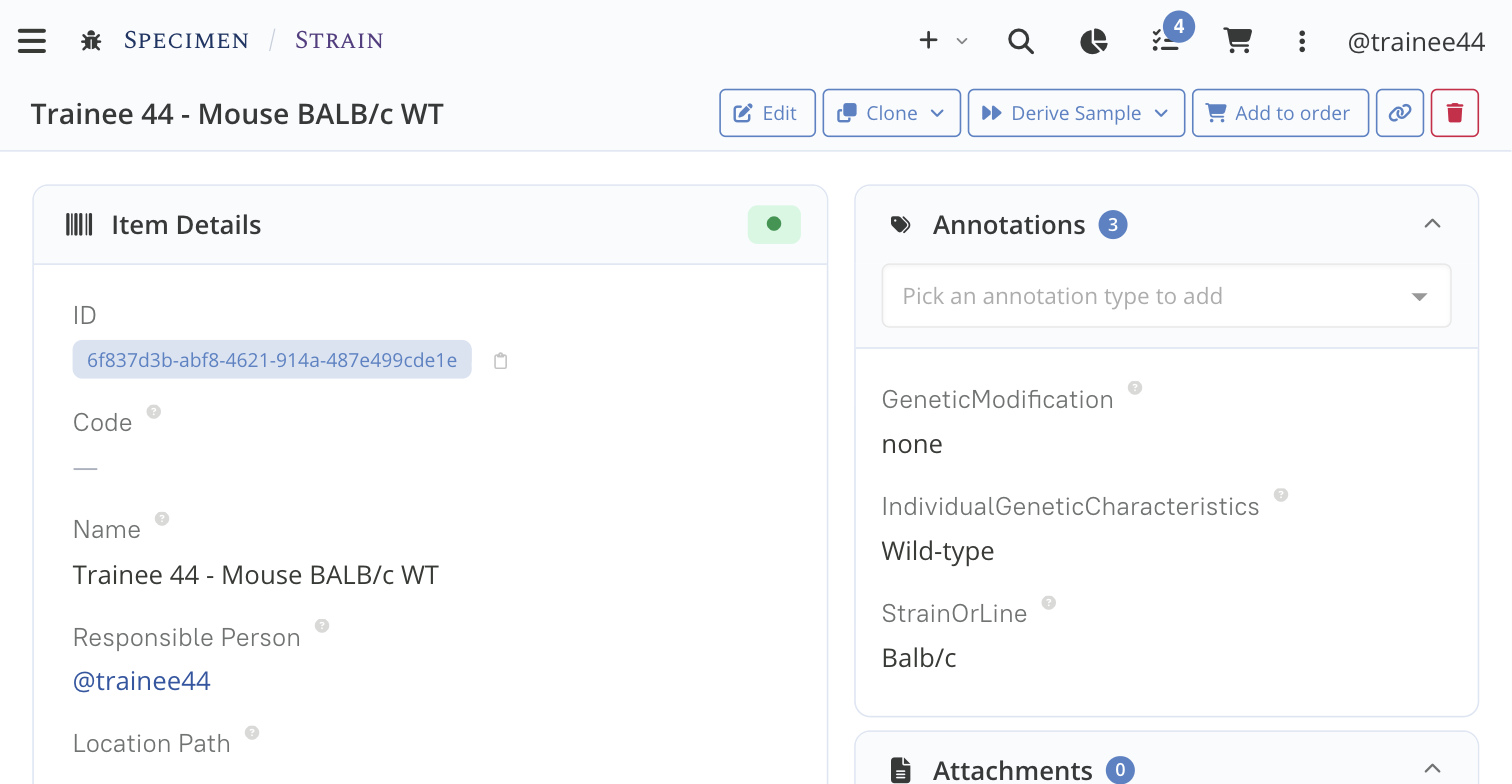
Once saved, you can add annotations to the specimen:
- Set the StrainOrLine annotation to
BALB/c - Set the IndividualGeneticsCharacteristics annotation to
wild-type - Set the GeneticModification to
none
- Set the StrainOrLine annotation to
-
Click Save & Exit
Specimen detail page with the annotations panel open
We will now create a second specimen representing a mouse strain with a different genetic variation: a Brpf1 knockout, using the convenient Clone feature.
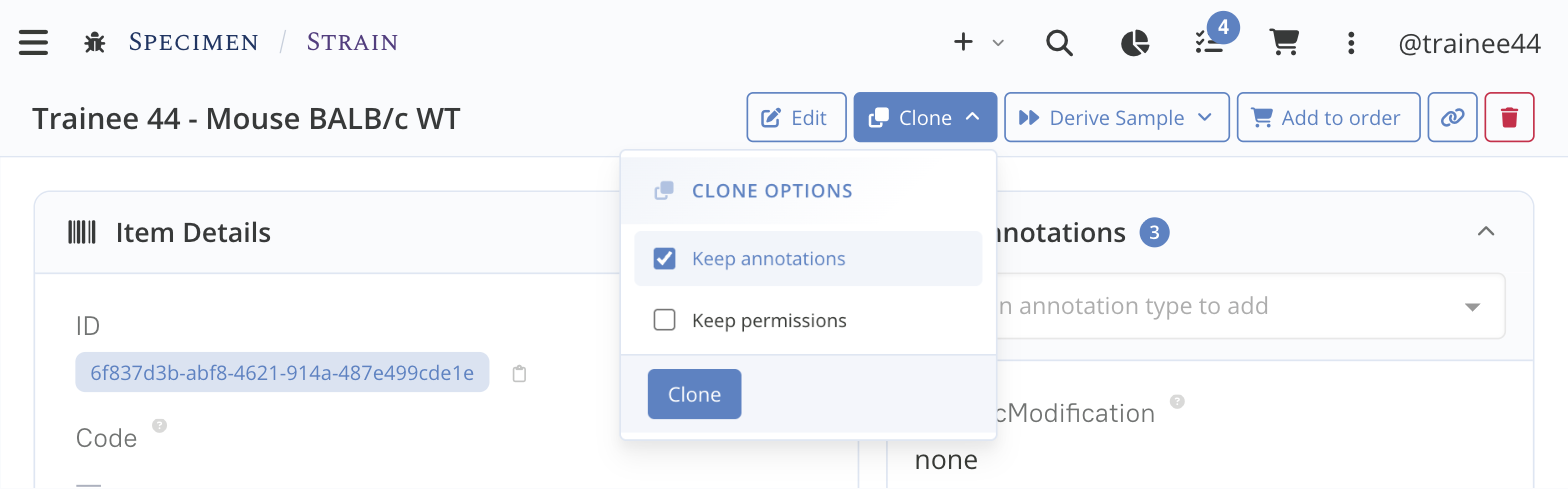
- Click the Clone button available on the top. Note that you must be in view mode i.e. click & exit if needed. This will open a dropdown where you can choose to clone the annotations as well (should be the default). Leave the box checked and click Clone .
The Clone dropdown, with the Keep annotations option checked
-
Fill in the new specimen's properties:
- Change Name to Trainee XX Mouse BALB/c KO (use your own trainee number in place of the XX)
- Click the Save Item
-
The annotations are now automatically copied from the original specimen. While the StrainOrLine annotation (
BALB/c) is still correct, you need to correct the GeneticModification and the IndividualGeneticsCharacteristics annotation values:- Set the GeneticModification annotation to
gene knock out - Set the IndividualGeneticsCharacteristics annotation to
Brpf1- - Click the Save button in the annotations panel.
- Set the GeneticModification annotation to
-
Click & exit at the top of the page if needed
We now have 2 Strain specimens representing two specific mouse strains i.e. not single individuals. These specimens are not scoped to any projects as they can be the starting point of many projects.
Step 2. Create the project
We next want to derive samples from our specimens. In LabID, samples are always created in the context of a project: the sample's primary project. We therefore need to create a project first.
-
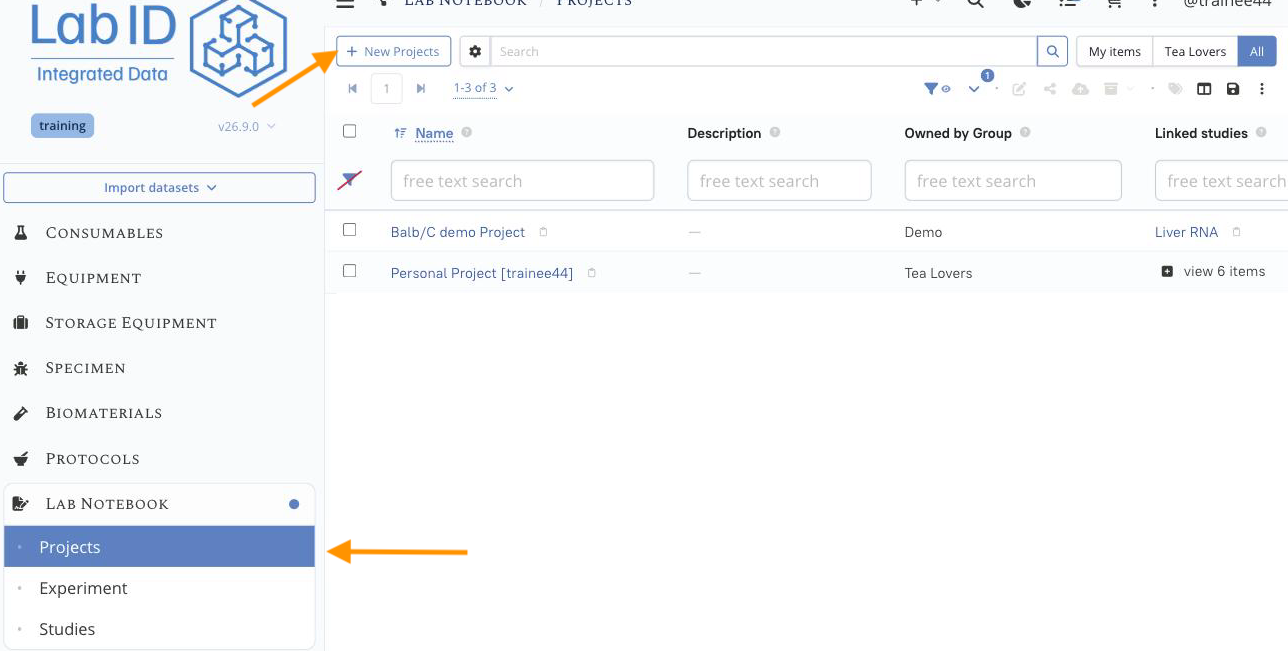
Navigate to the Lab Notebook menu and click the Projects sub-menu.
-
Bring up the new Project creation form using the New Projects available at the usual place (top left of the list page).
Locating the Projects menu
-
Fill in all the properties you like with at least:
- Name : Trainee XX Brpf1 KO vs WT neurons (use your own trainee number in place of the XX)
-
Click Save Item
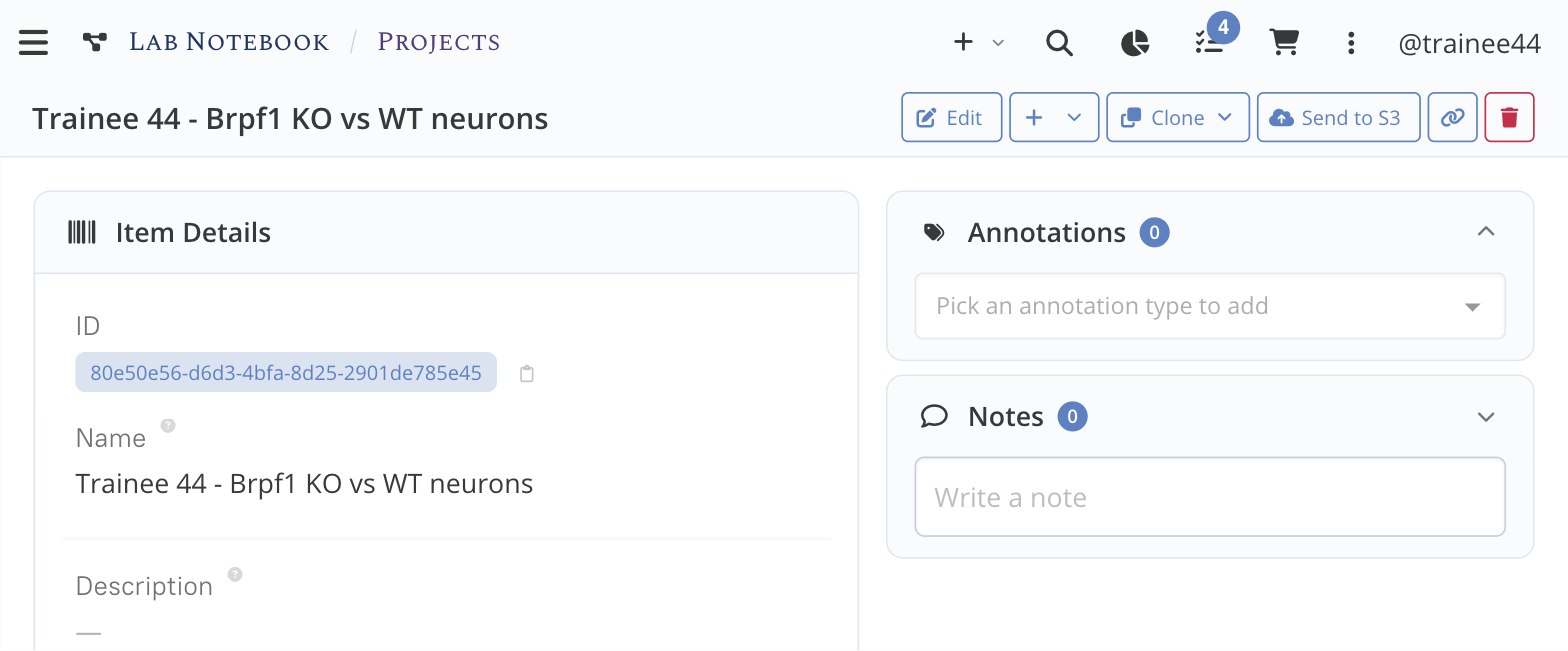
The newly created project
Step 3. Create the derived brain samples
We now derive one brain sample from each mouse specimen: one from the WT strain and one from the KO strain. Both samples should belong to the project created in the previous step.
We use the Derive Sample button available on the specimen detail page: it opens the sample creation form with the lineage already pointing to the current specimen, and propagates the specimen's organism and annotations.
3.1 Derive the WT brain sample
-
Navigate to the Specimen menu, open the Strain sub-menu and click your Trainee XX Mouse BALB/c WT specimen to open its detail page.
-
Click Derive Sample at the top of the page, and select the Sample option from the dropdown.
Deriving a sample from a specimen
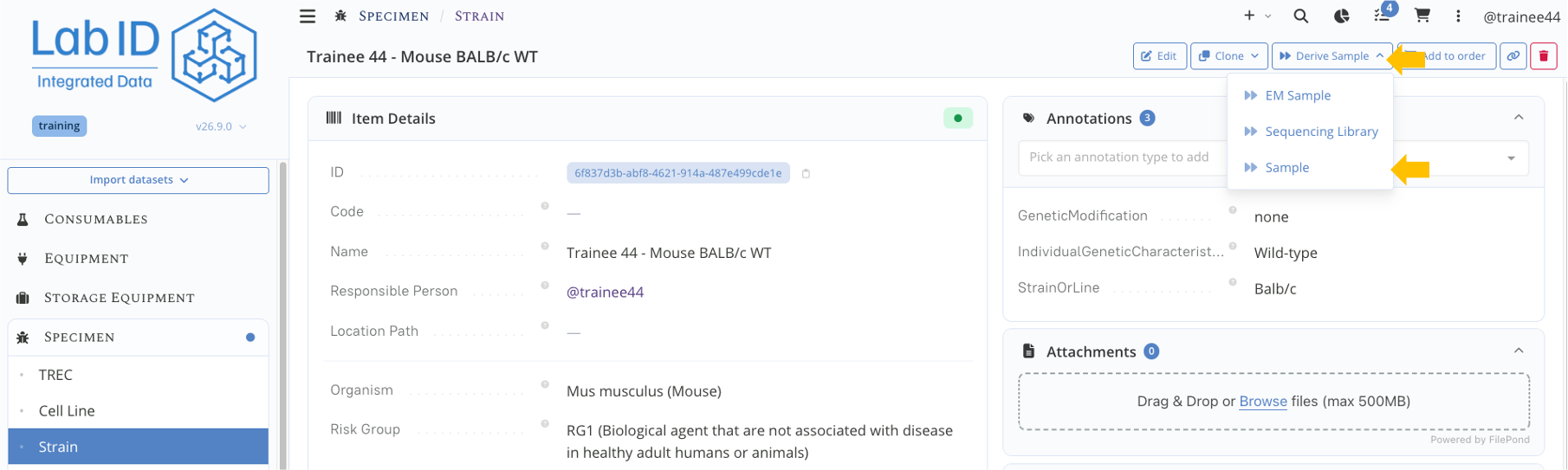
One can directly derive a sample from a specimen. Here we will create a "brain" sample from a mouse specimen
Which sample type should I use?
LabID ships a generic Sample type, suitable whenever there is no specialised type for your material. Specialised sample types (like Sequencing library or EM sample, used later in this tutorial) exist to record process-specific information tied to a particular assay. Start from the generic Sample and derive/specialise it once you know which assay it feeds into. See Sample Types for the full list.
The sample creation form opens with a few predefined values:
-
The Organism (Mus musculus) is propagated from the specimen. Further down the page, under the Sample Lineage section, the Derives from is already set to Specimen and Origin Specimen is set to your Trainee XX Mouse BALB/c WT
Deriving a brain sample from the WT specimen
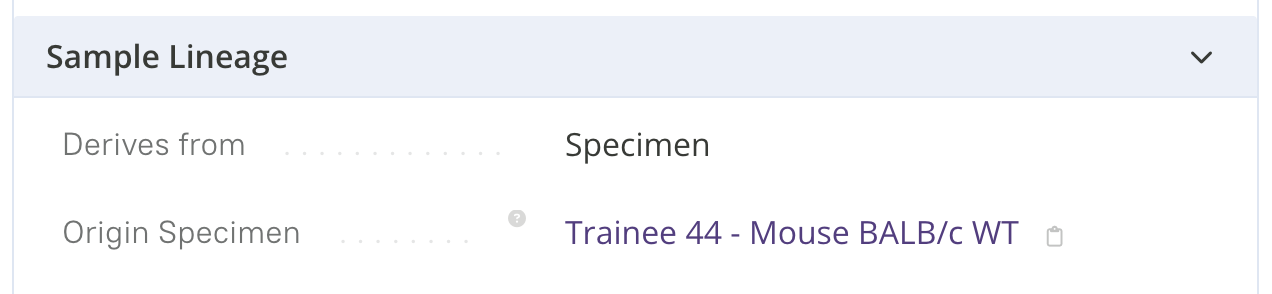
The sample creation form pre-filled with the WT specimen as lineage parent -
Fill in the remaining properties with at least:
- Name : TXX_brain_WT (use your own trainee number in place of the XX)
- Project : Trainee XX Brpf1 KO vs WT neurons
- Material type : organism part
-
Click Save Item
Deriving a brain sample from the WT specimen
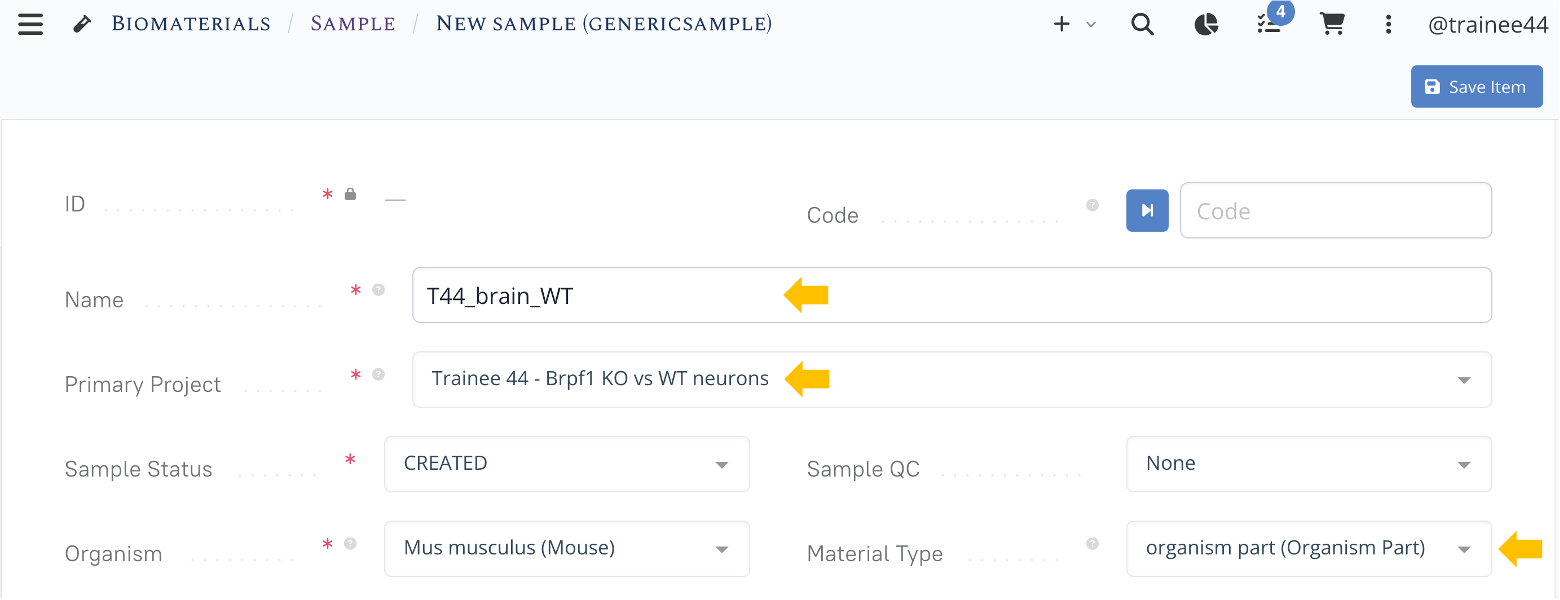
The sample creation form pre-filled with the WT specimen as lineage parent -
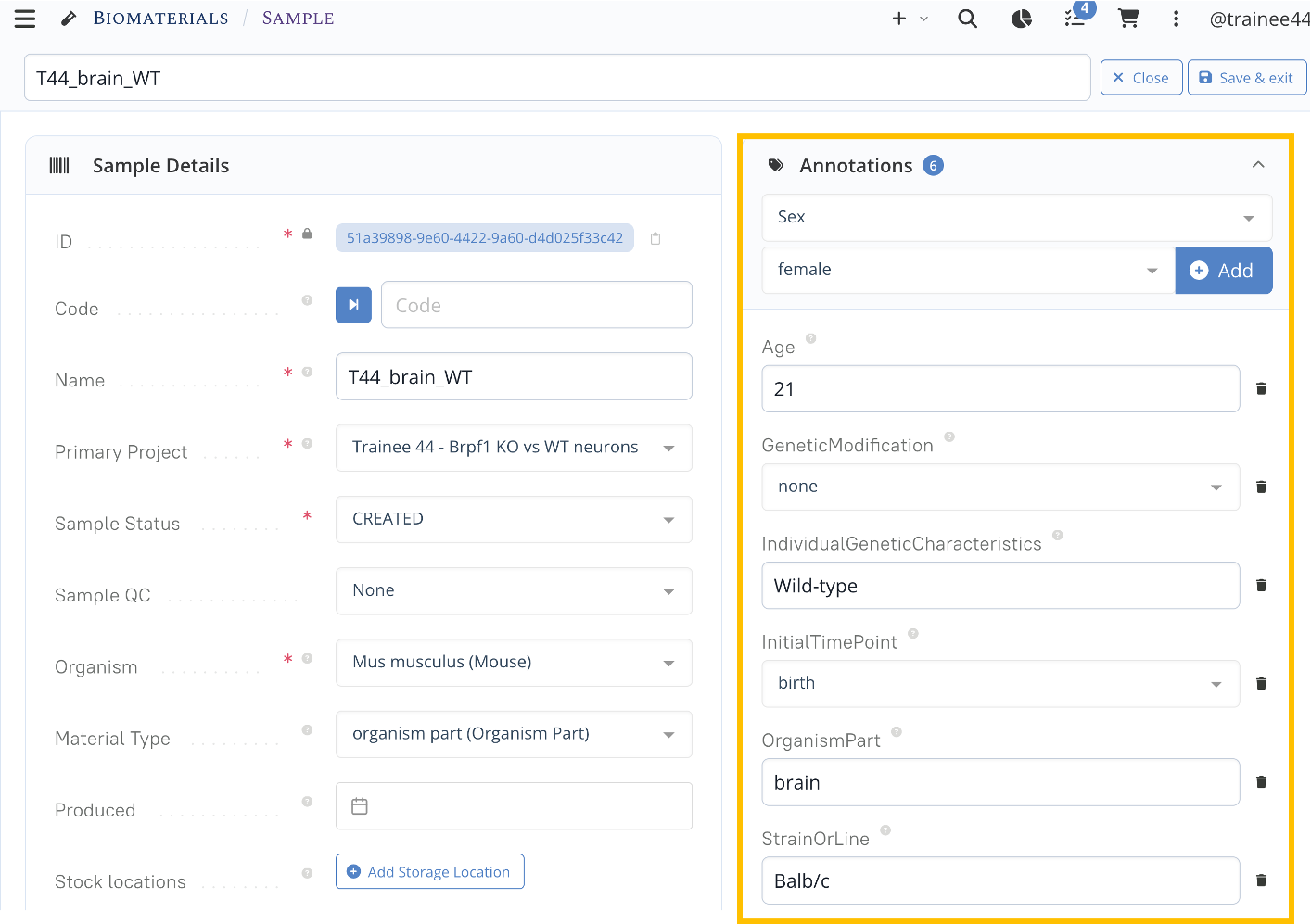
After saving, the annotations are automatically copied from the original specimen. We can now add any other relevant annotations, for example the age at which the sample was dissected. Using the annotation panel, set the following annotations:
- Set the Age annotation to
21 weeks - Set the InitialTimePoint annotation to
birth(an age annotation should always come with an initial time point annotation clarifying the reference time point for the age) - Set the OrganismPart annotation to
brain - Set the Sex annotation to
female
- Set the Age annotation to
-
Exit the edit mode with Save & Exit at the top of the page.
The brain sample with its annotations set
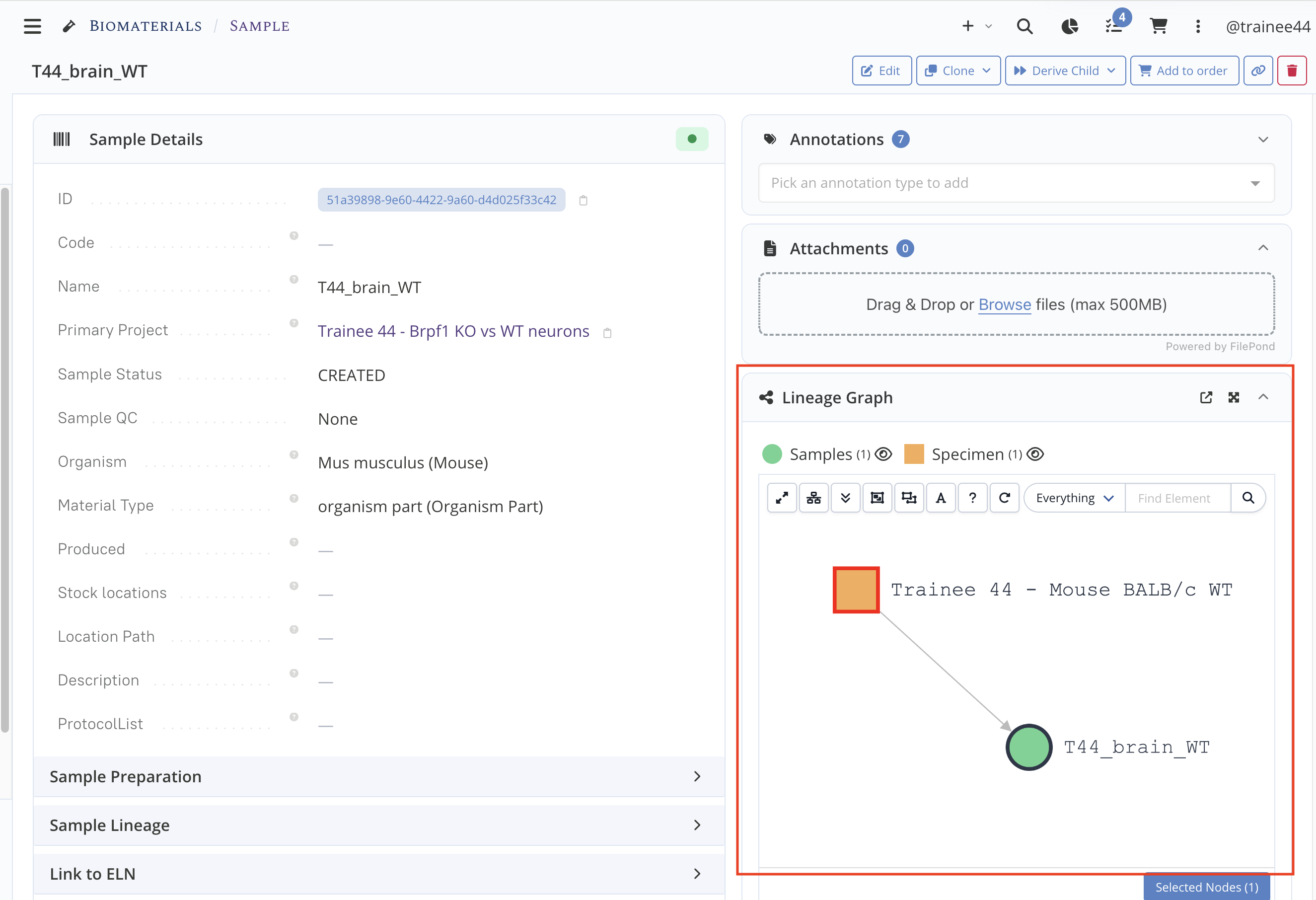
Opening the Lineage Graph section on the sample's details page shows you a visual representation of the sample provenance
The sample's lineage graph
Annotation field types
Each annotation is configured by an admin with a specific field type — free text, number, date, a linked user, a linked object, or a vocabulary term. Vocabulary-term annotations (like the ones we just set) draw from a Controlled Vocabulary (CV): a local list of terms grouped into a CV Category, which can itself be mapped to an ontology (e.g. EFO, Cell Ontology, CHEBI) so your local terms stay connected to standard, official terminology. See Annotations and Vocabulary Management for details.
3.2 Derive the KO brain sample
Repeat the operations of 3.1 starting from your Trainee XX Mouse BALB/c KO specimen, this time naming the sample TXX_brain_KO. All other properties are identical (same project, same material type).
You now have two brain samples, each deriving from its respective mouse strain, and both attached to your project. You can check the lineage from either sample's detail page.
Step 4. Create the "brain extraction" experiment from an existing protocol
The brain samples we just created were obtained by dissecting the mice following a Mouse brain extraction protocol, which is already available as a public protocol in LabID. Rather than only linking to that protocol, we can record the actual dissection as an experiment in our ELN, derived from the protocol. The experiment holds a full copy of the protocol text, which we can then adapt to describe exactly what was done.
- Navigate to the Protocols menu, open the Extraction sub-menu and locate the public Mouse brain extraction protocol. Open its details page.
Selecting the extraction protocol
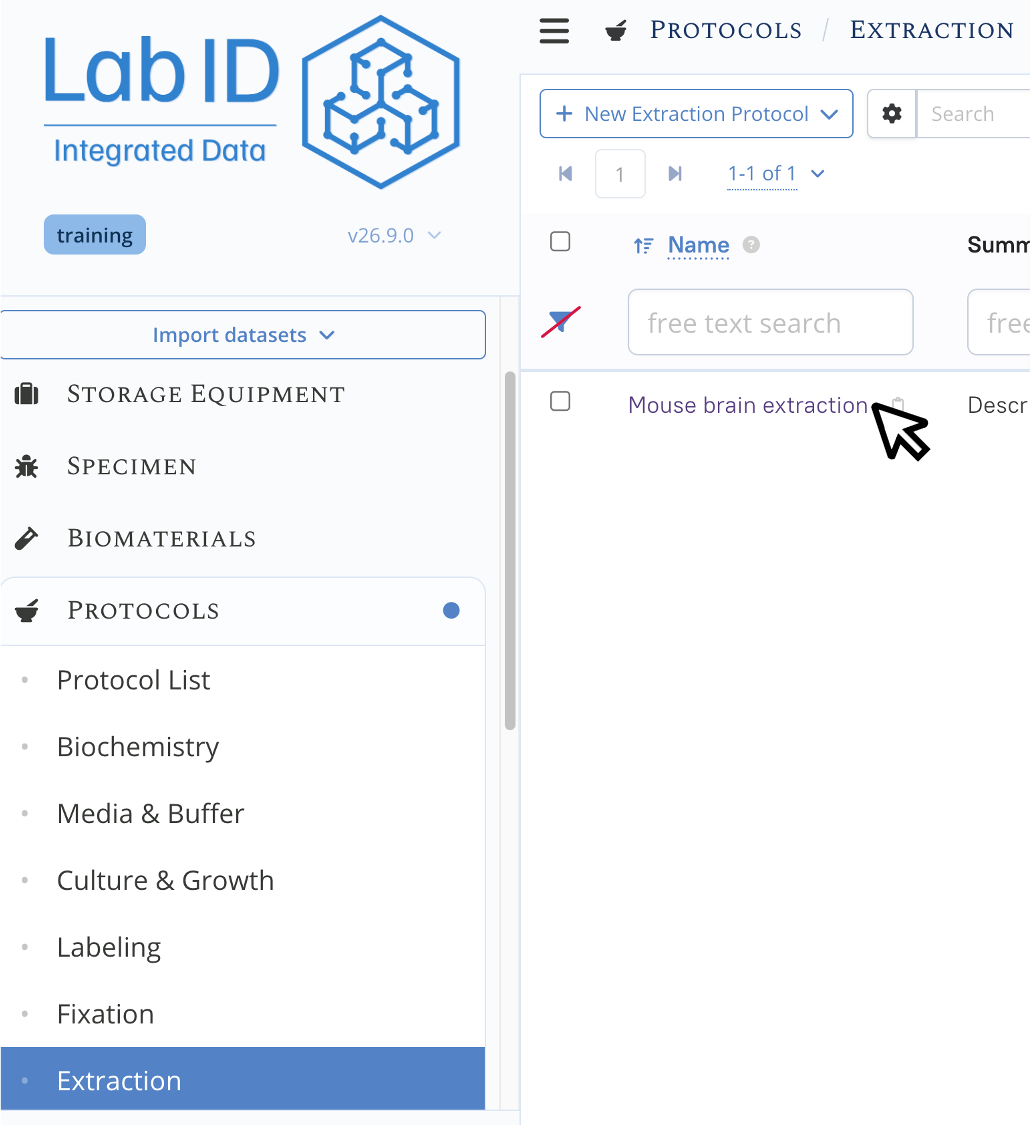
Finding a protocol if you don't know its type
Note that if you don't know the protocol type (here Extraction), you could also open the All sub-menu and search for the protocol name.
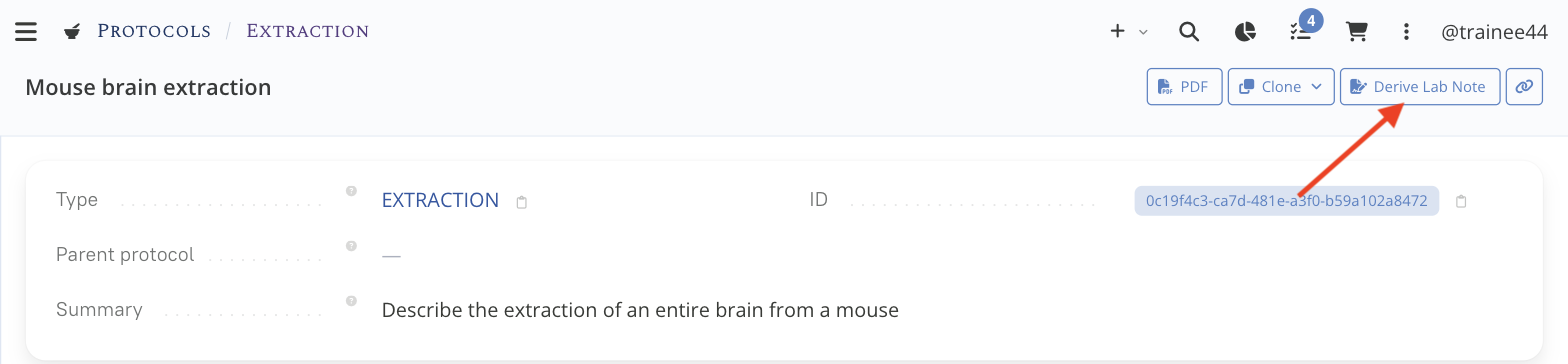
- From the protocol page, click the Derive Lab Note button available at the top right
The Derive Lab Note button on the protocol detail page
-
A new Experiment is created using the protocol as a template: the full text, embedded images, links and attached documents are duplicated into the new experiment. Notice the name is suffixed with a timestamp to make it unique, let's change it:
- Change the Name to TXX Mouse brain extraction experiment (use your own trainee number in place of the XX)
- Set the mandatory Project to the Trainee XX Brpf1 KO vs WT neurons created earlier.
'Derive Lab Note' creates an experiment from the protocol template
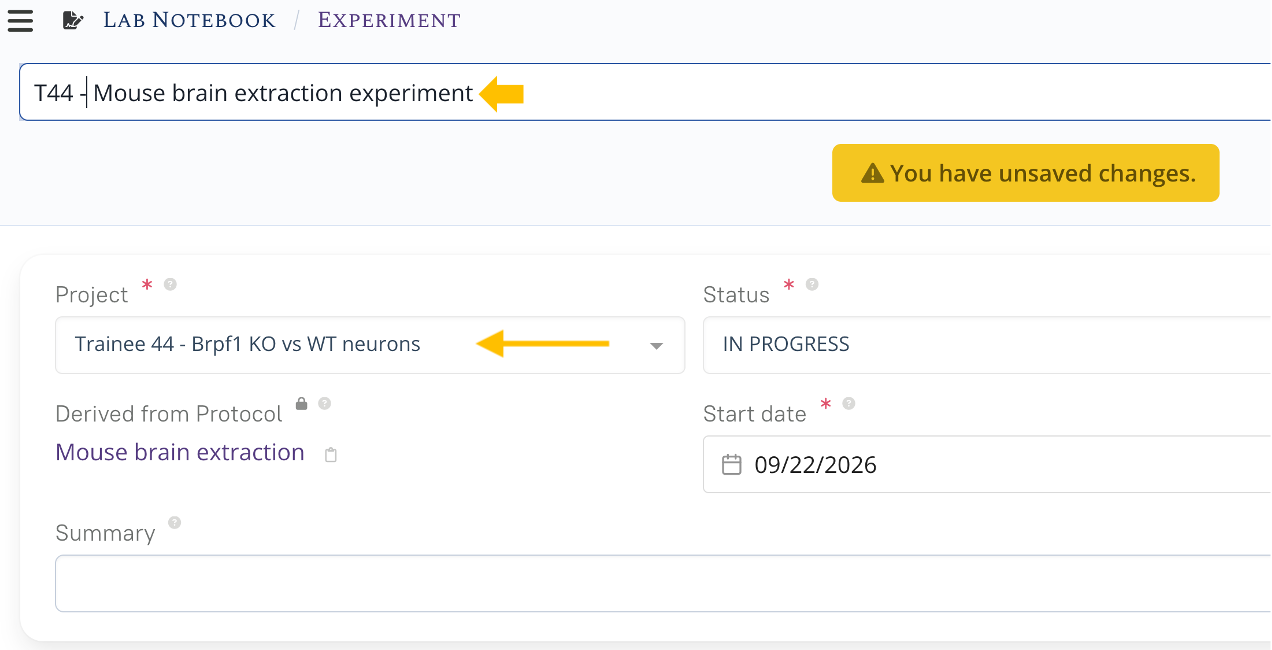
The new experiment is pre-filled from the protocol and linked to it as its template -
Edit the experiment text to reflect what was actually done during the dissection; for example add a few lines at the beginning to mention the number of mice dissected and the material used as shown below (label 1).
Adding information in the experiment description
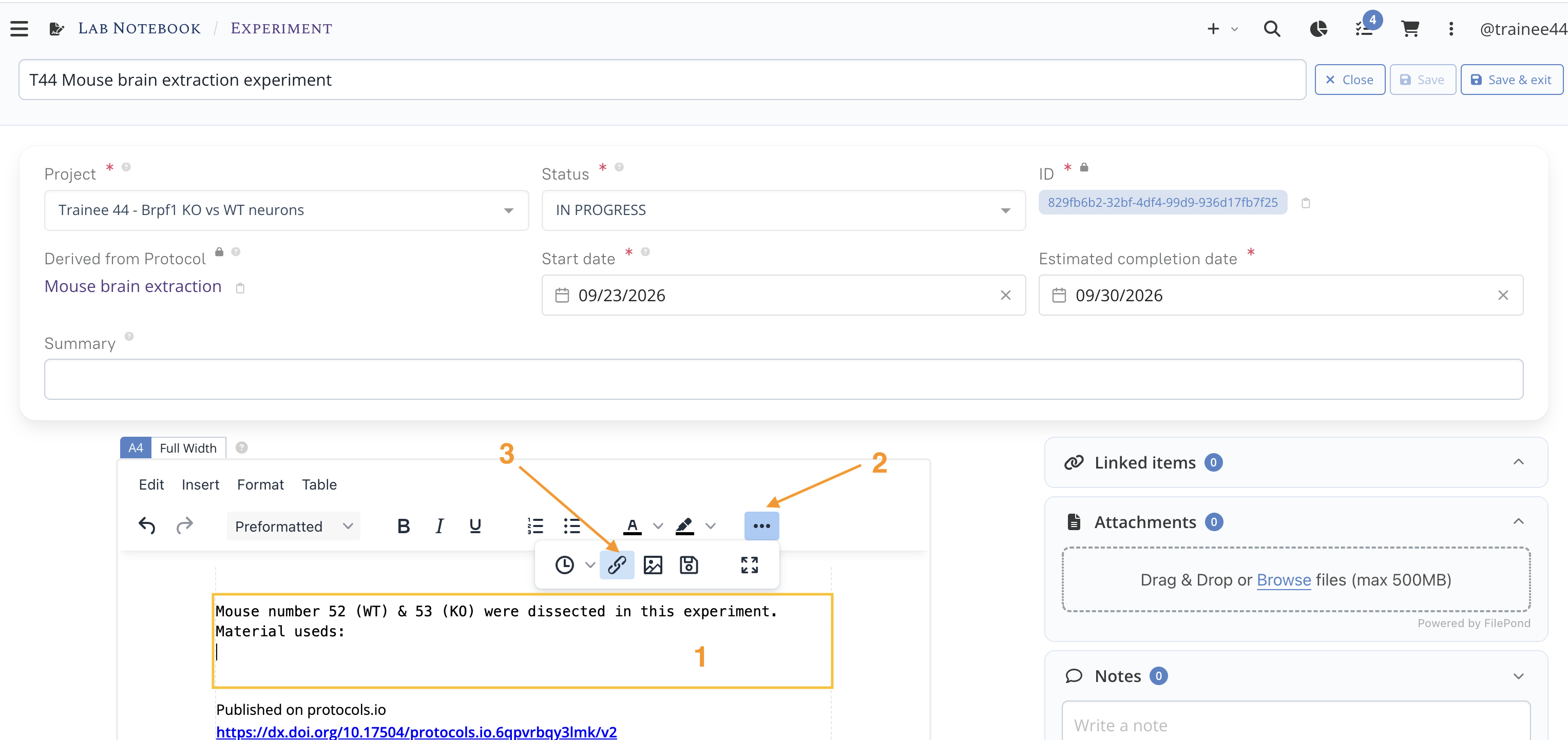
Adding information at the top of the experiment description -
Reference the material (large scissors) used for the dissection by linking it from the experiment:
- Place the cursor in the text where the reference should appear; for example right below your inserted text (Material used, label 1 in the screenshot above)
- Click the ellipsis menu icon (arrow with label 2 in the screenshot above) and then the icon in the text editor menu to open the Insert a link pop-up (arrow with label 3 in the screenshot above)
Inserting a link to the material used in the experiment
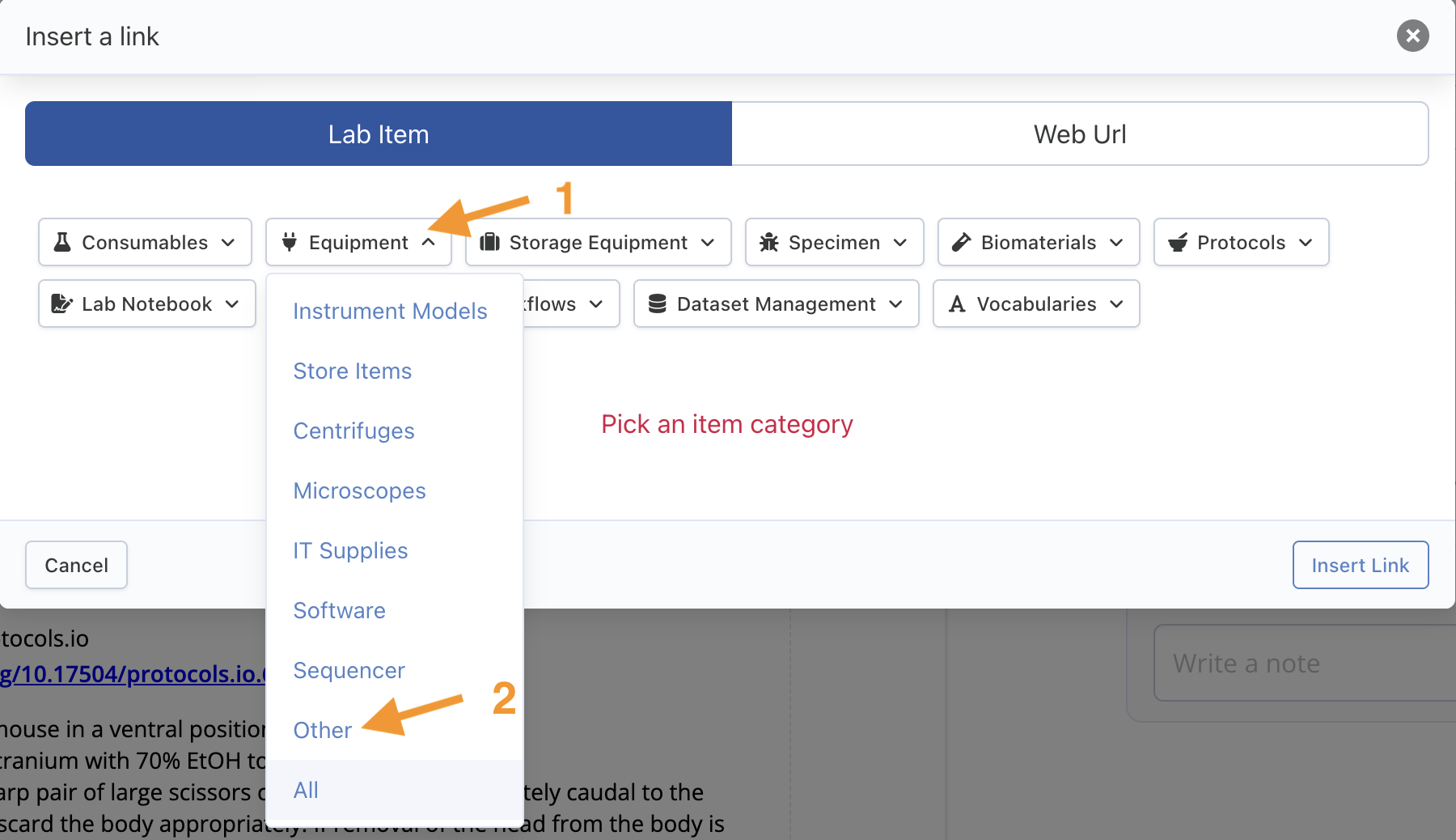
Inserting a link to the material used in the experiment - Mouse over Equipment and click Other (as shown in the screenshot above)
- Locate the large scissors using the search interface (if nothing is listed, make sure All is selected in the ownership selector, to the right of the search box)
- Tick the large scissors and click Insert Link(s)
Inserting a link to the material used in the experiment
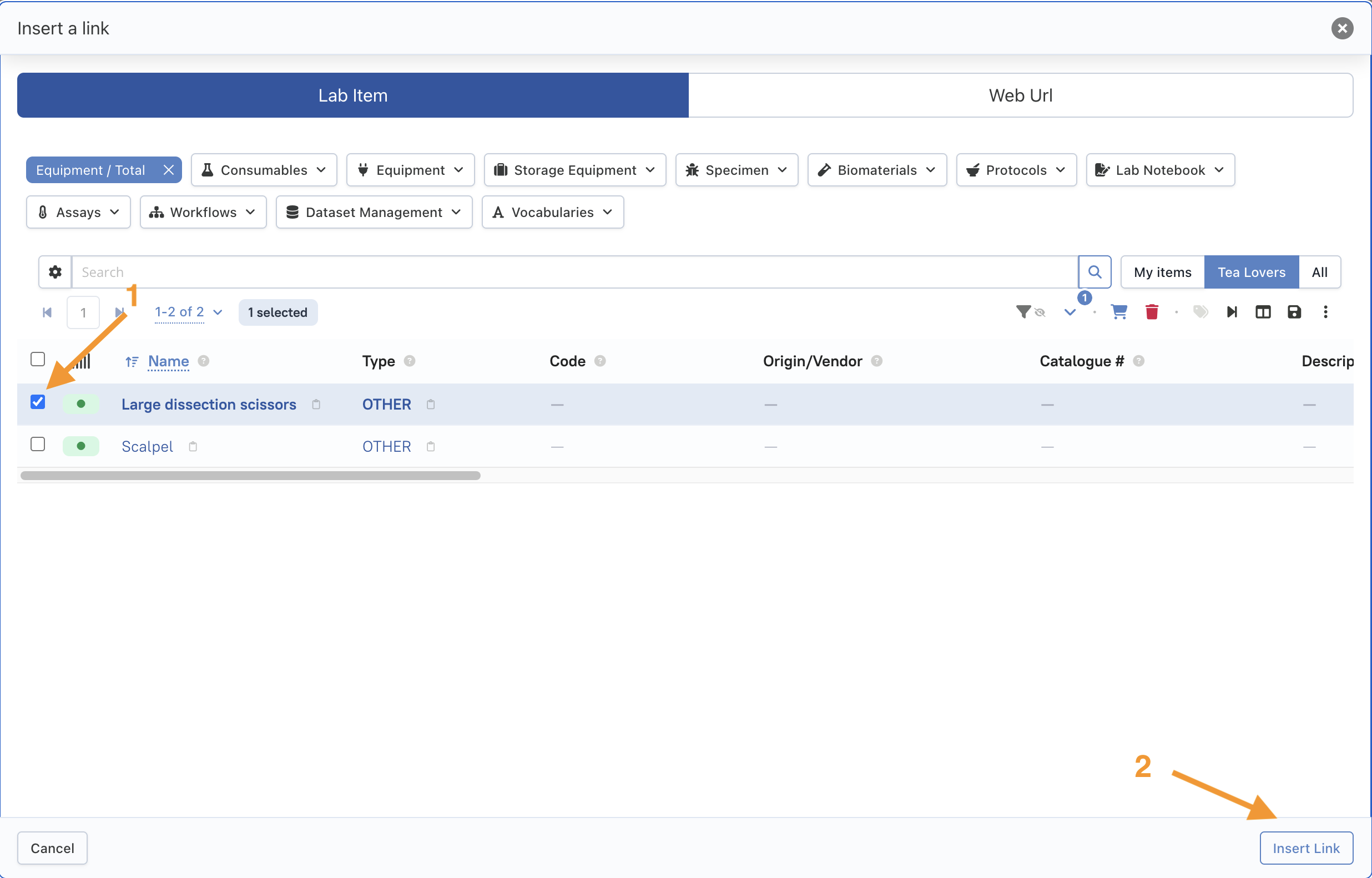
Inserting a link to the material used in the experiment This action creates a link to the large scissors in the experiment text. Once you exit edit mode, the link becomes clickable and appears in the Linked Items panel of the experiment.
Linking the large scissors (Equipment | Other) from the experiment
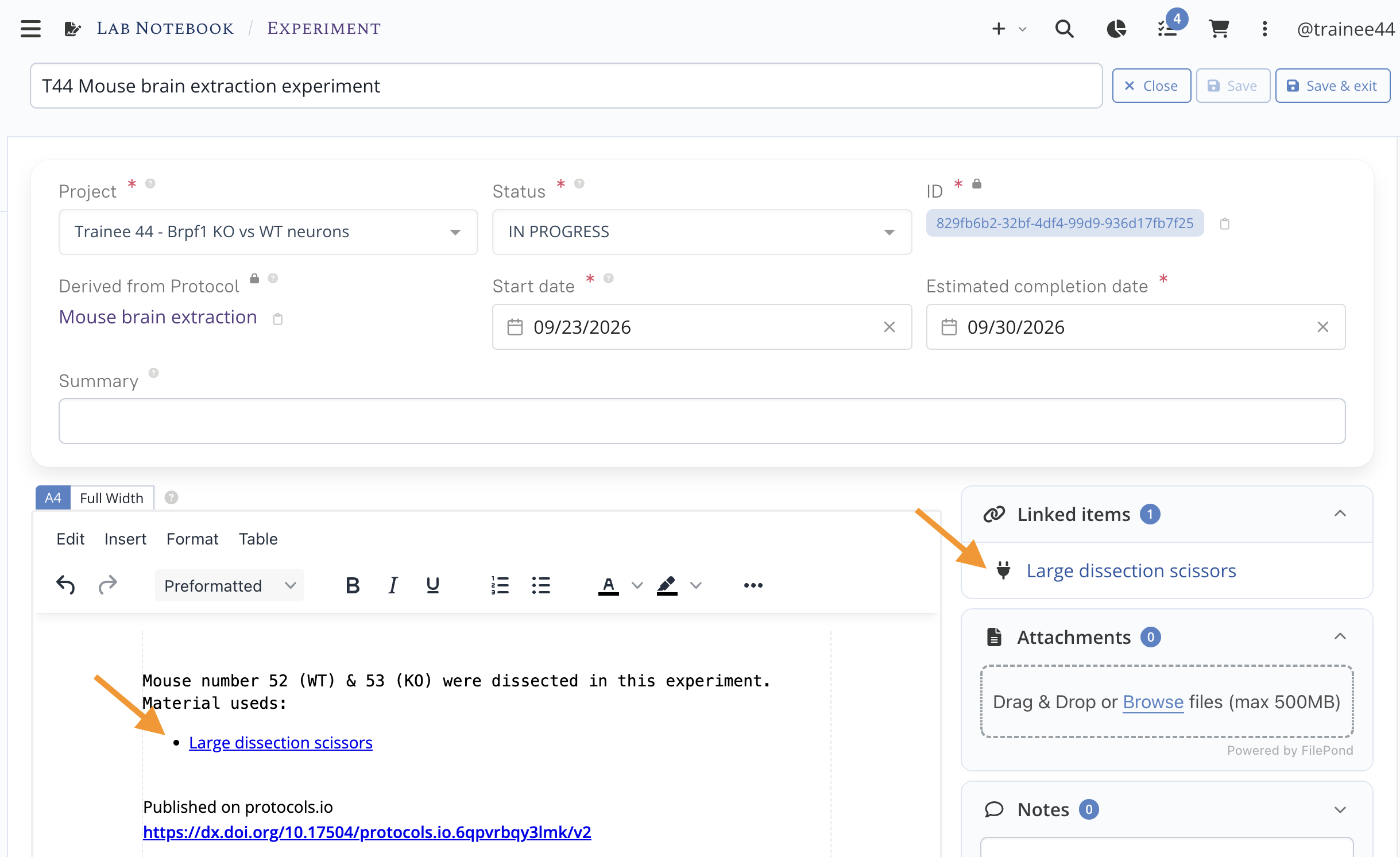
Use the link plugin to reference the large scissors (Equipment of type Other); once you exit edit mode it becomes a clickable link and appears in the Linked Items panel -
Save your experiment with & exit
Try embedding a picture in your experiment (optional)
Now is a good time to try embedding a picture in your experiment description — any image at hand. See Embedding pictures for how the online editor's image plugin works, and The ELN documentation for the full reference on everything an experiment can hold (attachments, links, summary...).
The experiment is now self-contained: it will not be affected if the original protocol is later modified (which by-the-way should not happen once a protocol is considered finalized), while still keeping a link to the protocol it was derived from.
Understanding the experiment lifecycle
When you create an experiment, LabID automatically sets its Status to IN PROGRESS, its Start Date to today (editable — e.g. for an experiment planned in the future), and an Estimated Completion Date 7 days out (also editable; an overdue estimate triggers nightly reminder emails).
Once the actual work is done, you manually set Status to COMPLETED (or FAILURE) — this automatically records the completion date. Completed experiments are auto-frozen a week later (read-only, digitally signed), or you can freeze one manually at any time.
See Lifecycle for the full reference, or the Permissions & Lifecycle hands-on to practice it.
Step 5. Link specimens as input and brain samples as output of the experiment
The two brain samples were produced during the brain-extraction experiment. We now record this by attaching them as the output samples of the experiment, using the Sample Editor. Since both samples already exist, we import them with the Load samples button rather than creating them.
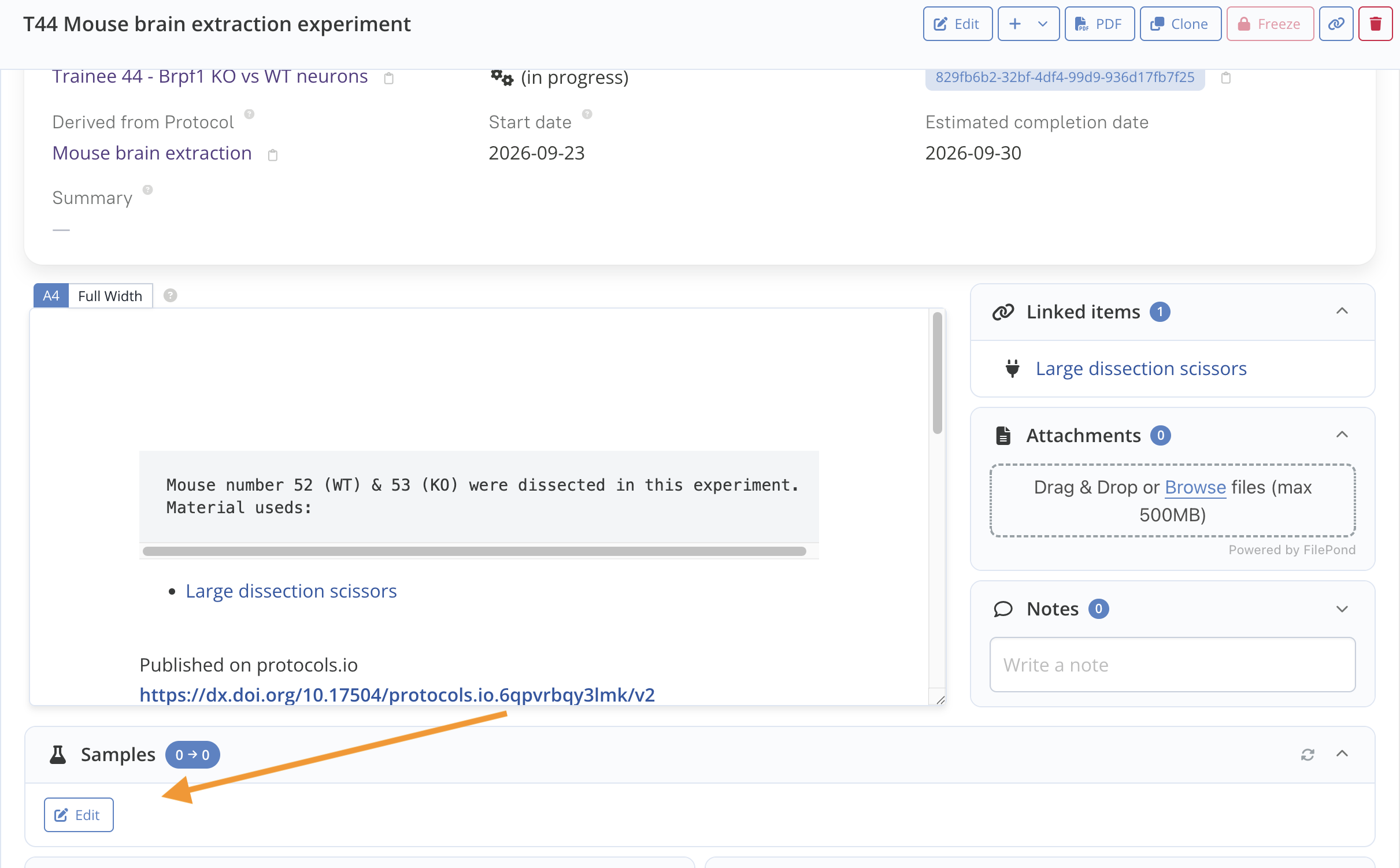
- Scroll down the experiment page to the Samples panel of the experiment and click Edit to open the Sample Editor.
The Edit button in the experiment's Samples panel
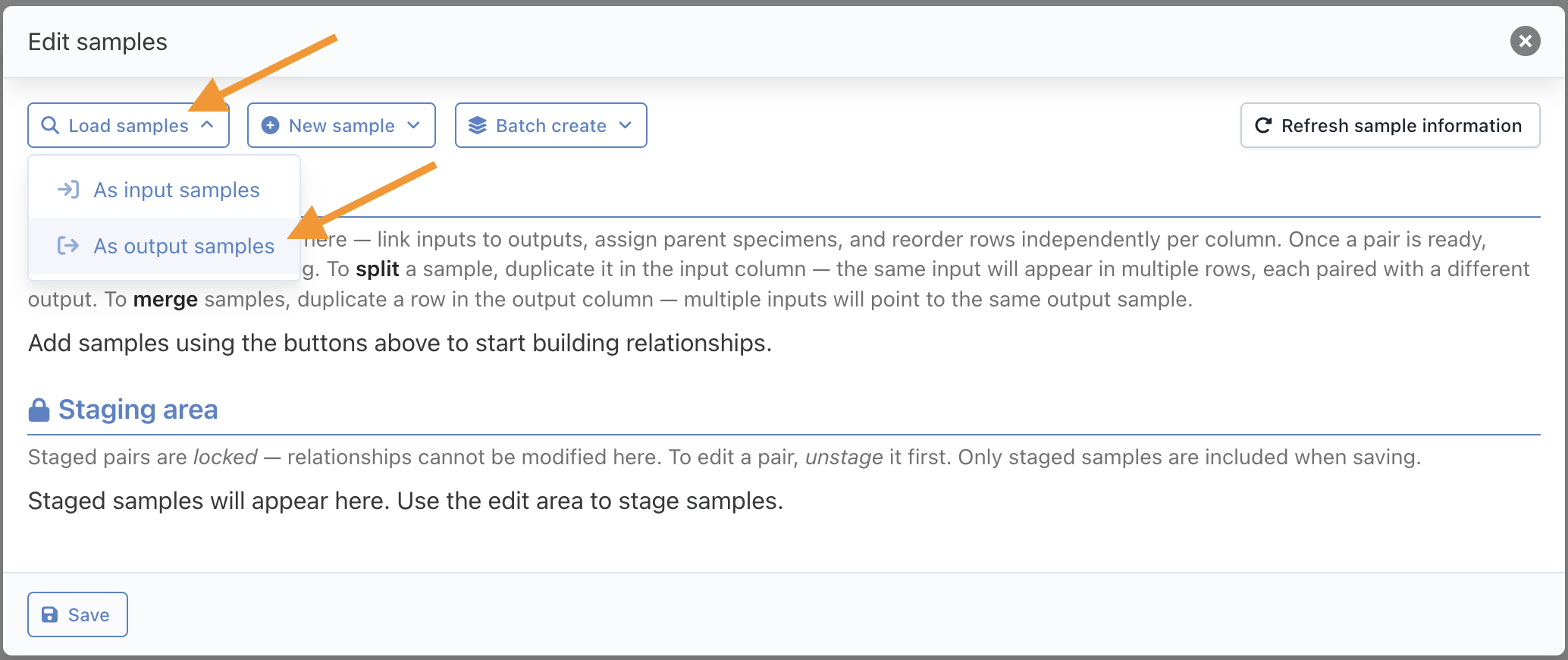
- Click the top Load samples button and select the As output samples option from the dropdown.
Loading existing samples button in the Sample Editor
-
In the Search for samples pop-up:
- On the top right, set the ownership selector to My items to list only your samples
- Further refine the list by entering "brain" in the search bar if necessary
- Tick TXX_brain_WT and TXX_brain_KO
- Click Confirm at the bottom of the pop-up
Importing the two brain samples as output samples
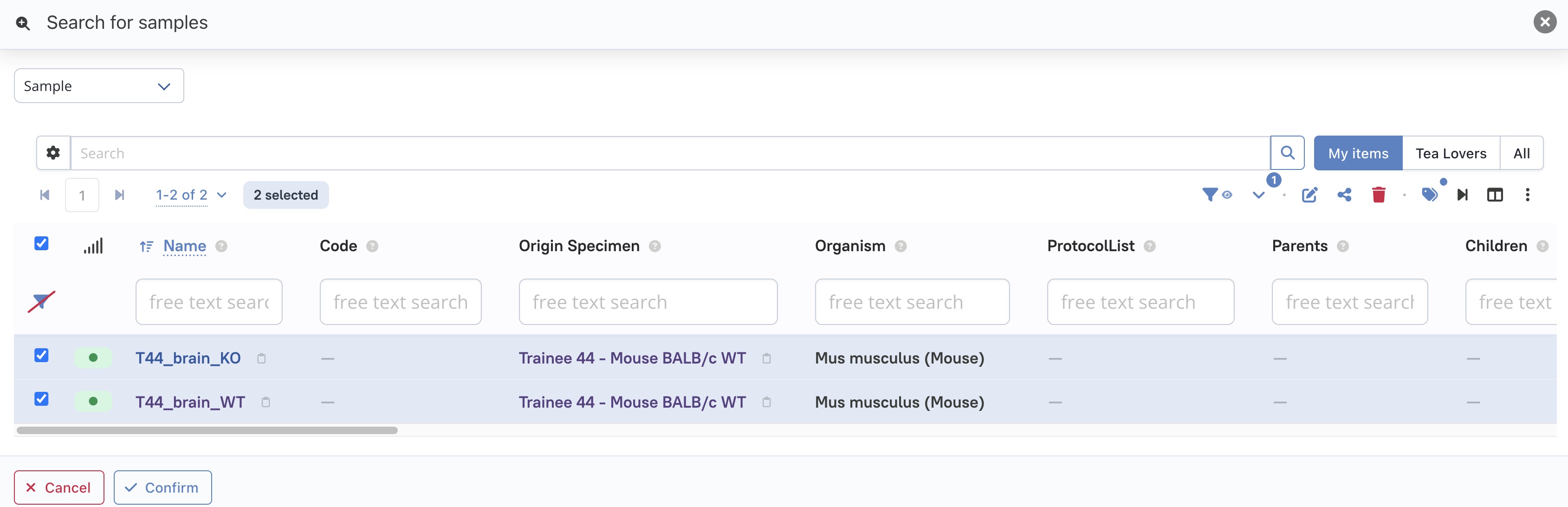
The sample search lets you attach existing samples as input or output samples of the experiment -
Imported samples land directly in the Edit area of the editor in case you want to match input samples to output samples. In our situation, we don't need to do that since the samples derive from specimen. Note that Specimen items cannot be imported into the sample editor.
The two brain samples staged as output samples in the Sample Editor
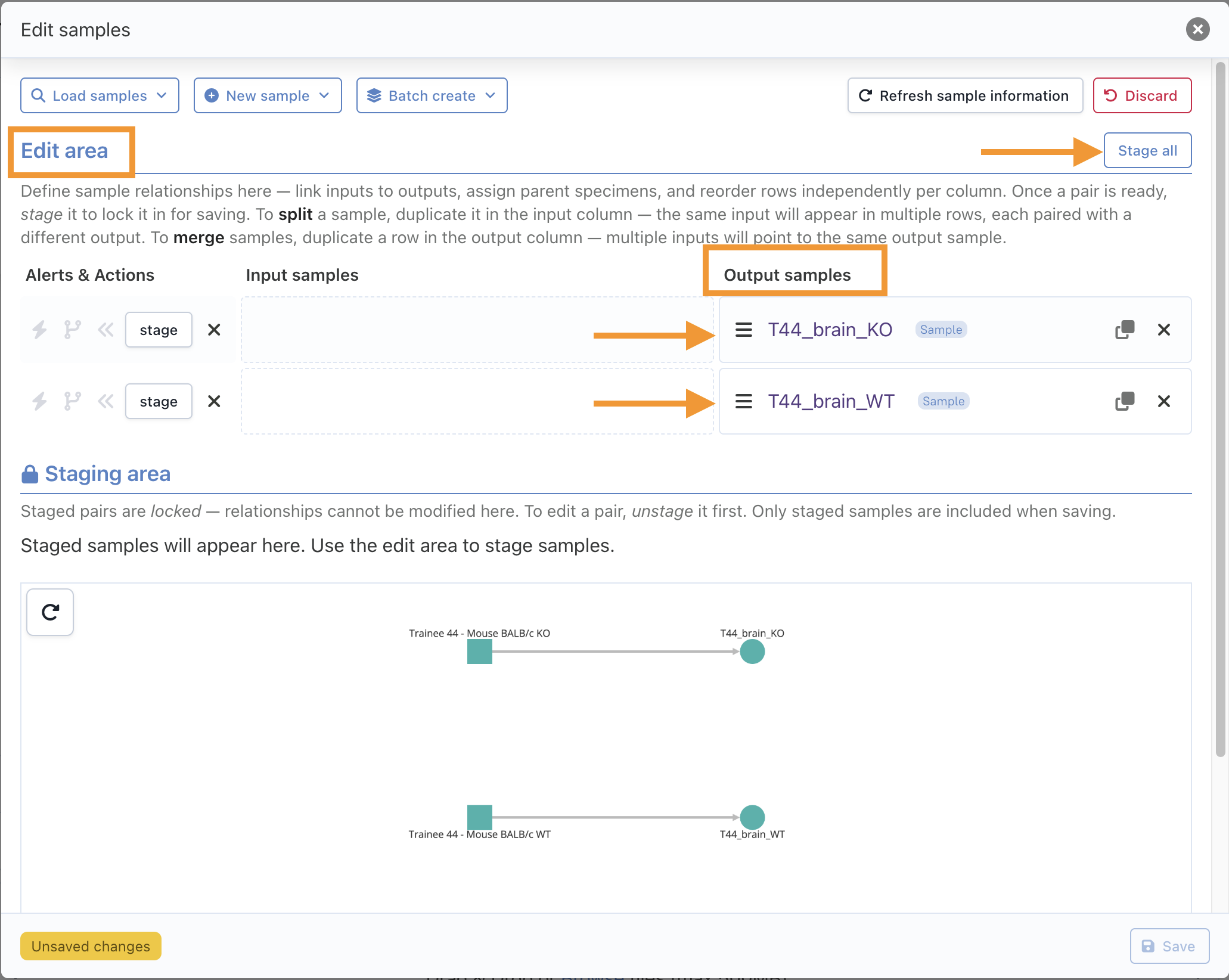
-
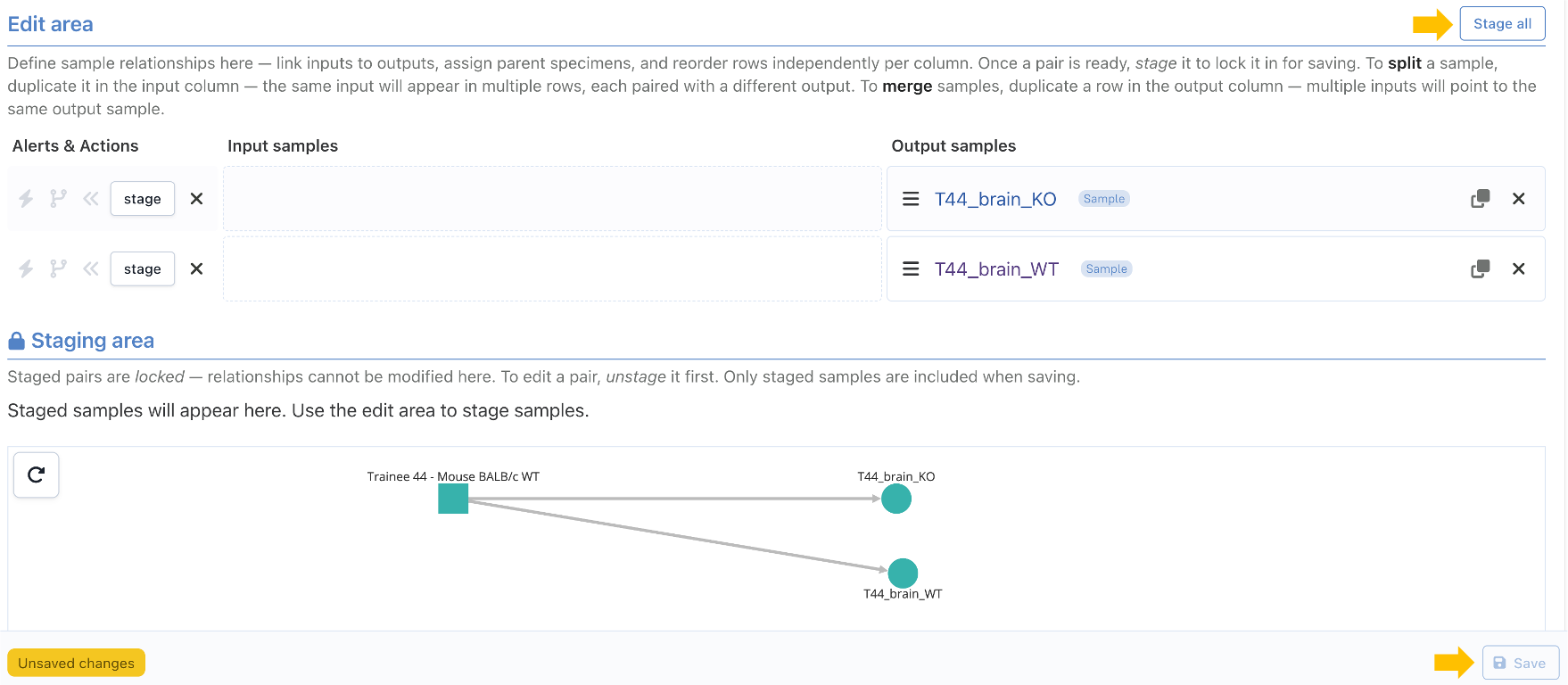
Confirm you want to record these samples as output samples of the experiment by clicking the Stage all button available at the top right
-
The Save button is now active, click it to save. Then close the sample editor.
The output samples staged and saved
The experiment's Samples panel now lists TXX_brain_WT and TXX_brain_KO as output samples.
The experiment's Samples panel, showing the two output samples
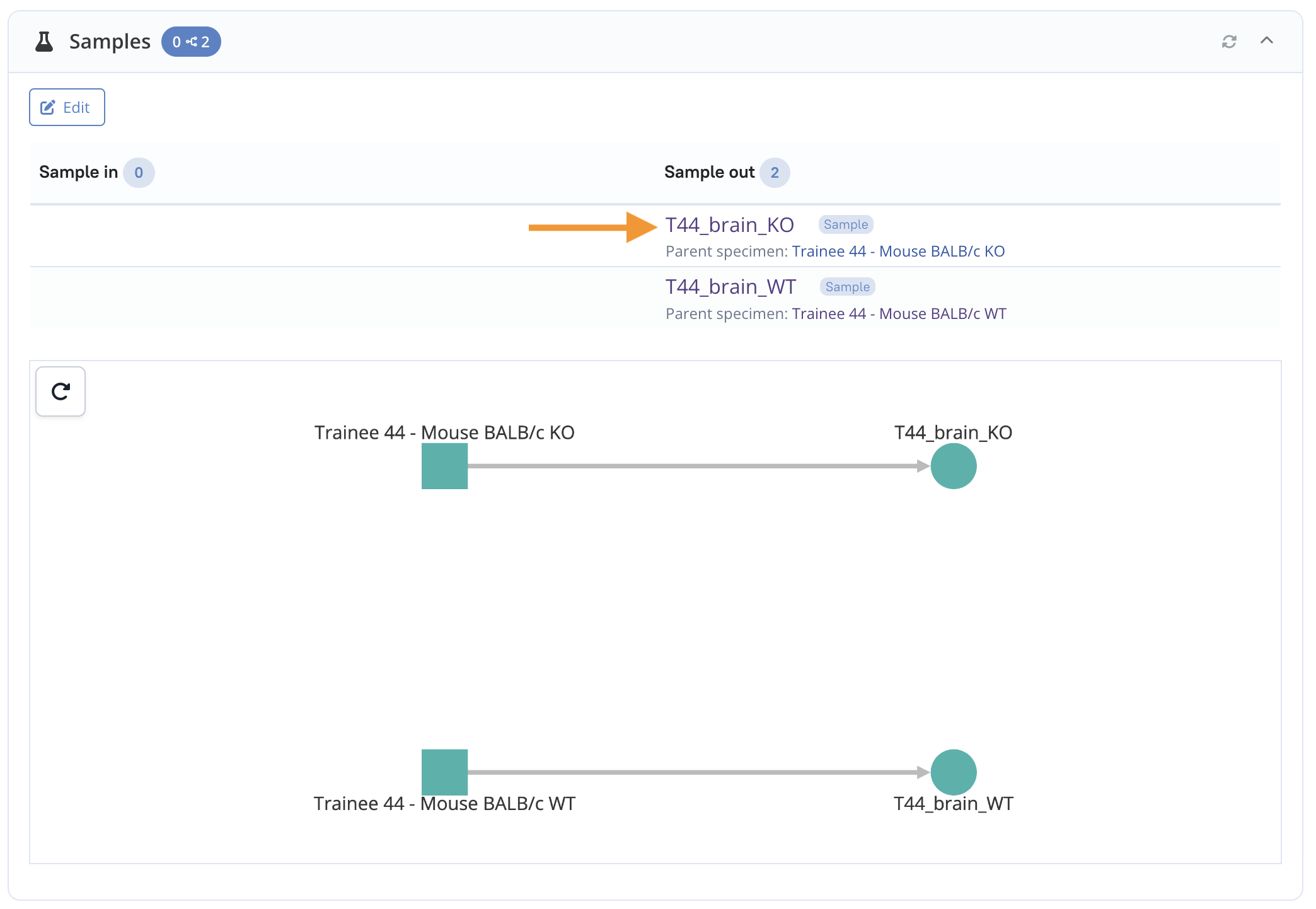
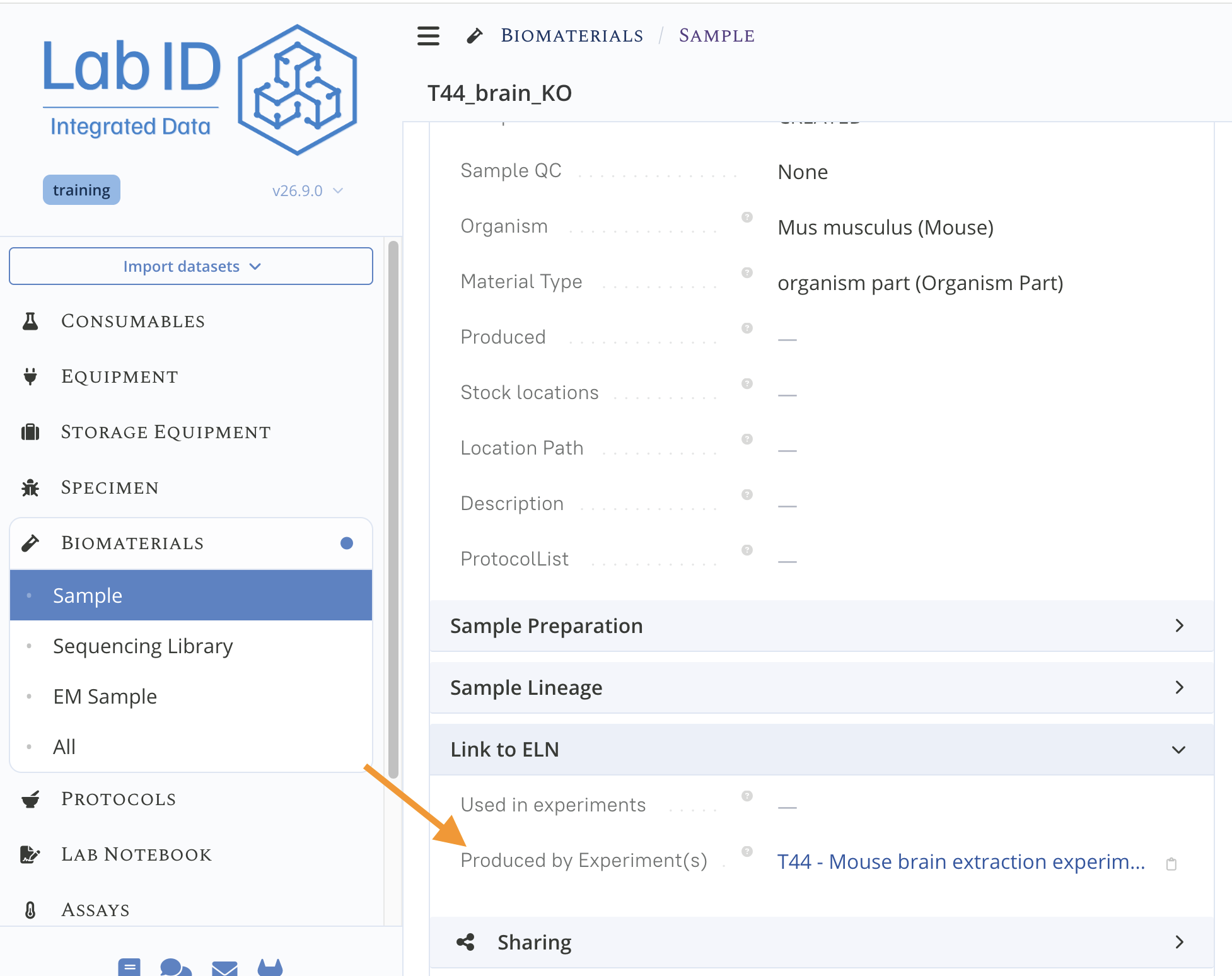
Click on either sample name to open its detail page: under the Link to ELN panel, the Produced by Experiment(s) field now links back to the TXX Mouse brain extraction experiment that produced it.
The sample's link back to the experiment that produced it
Step 6. Create the four sequencing libraries
For the sequencing study, each brain sample is processed into two sequencing libraries (biological replicates), giving four libraries in total. We will derive a first Sequencing library from each brain sample, then use Clone to produce the second library (replicate).
6.1 Create the two libraries from the WT brain sample
-
From the Samples panel of the experiment, go to the sample detail page of TXX_brain_WT by clicking on its name in the column Sample out. Alternatively, you can navigate to the Biomaterials menu, open the Sample sub-menu and open your TXX_brain_WT sample.
-
Click Derive Child and select Sequencing library from the dropdown
The Derive Child dropdown on the sample detail page
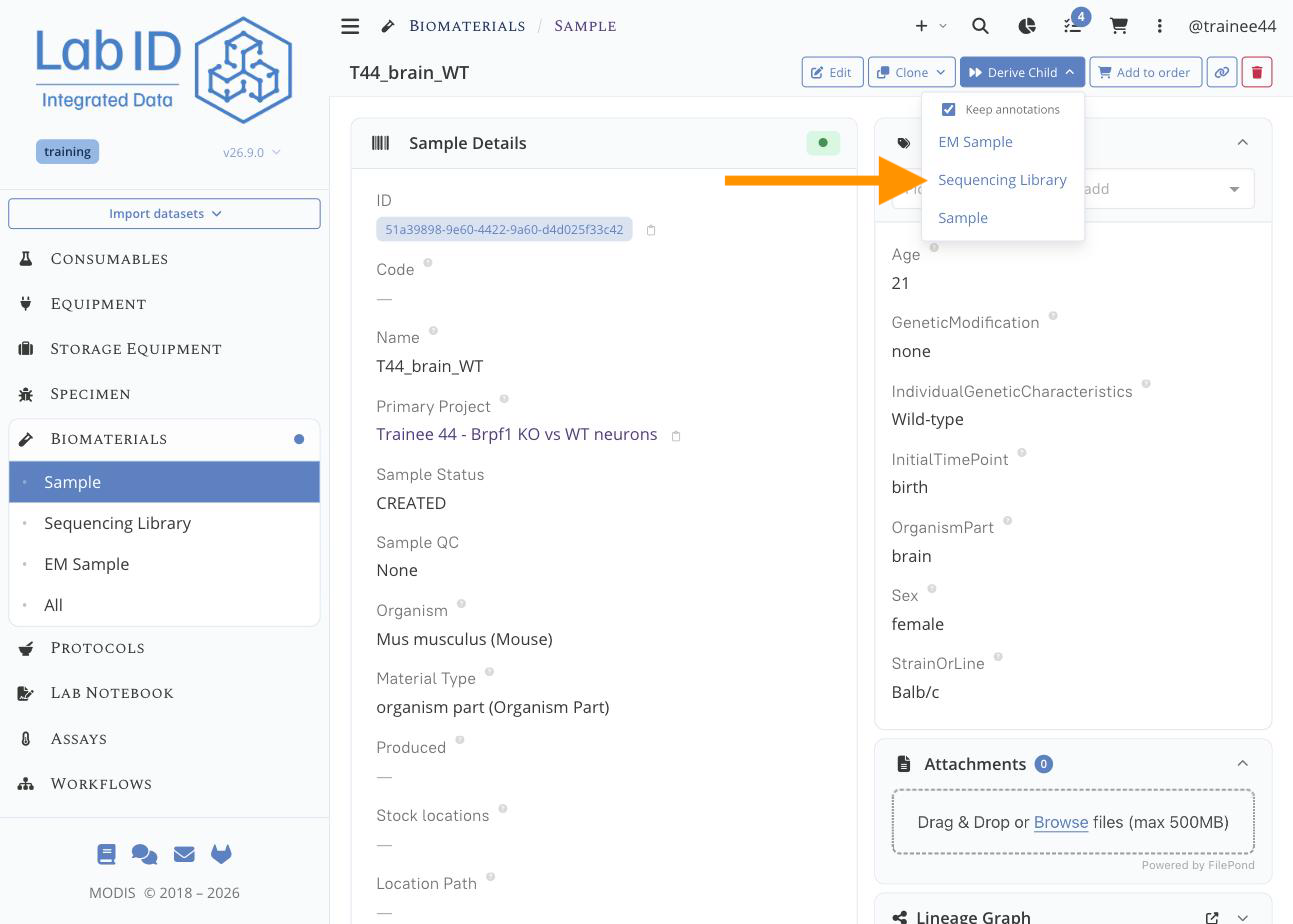
- The Sequencing Library creation form opens with the Organism and Project propagated from the parent, the Sample Lineage section pointing to TXX_brain_WT
-
Edit the page as follows:
- Set the Name to: TXX_brain_WT_rep1 (replicate 1)
- Under Sequencing Library Preparation, fill the mandatory Barcode field: here use the Unknown Index option.
- Set Material type to polyA RNA
-
Click Save Item and exit edit mode.
Deriving a sequencing library from the brain sample
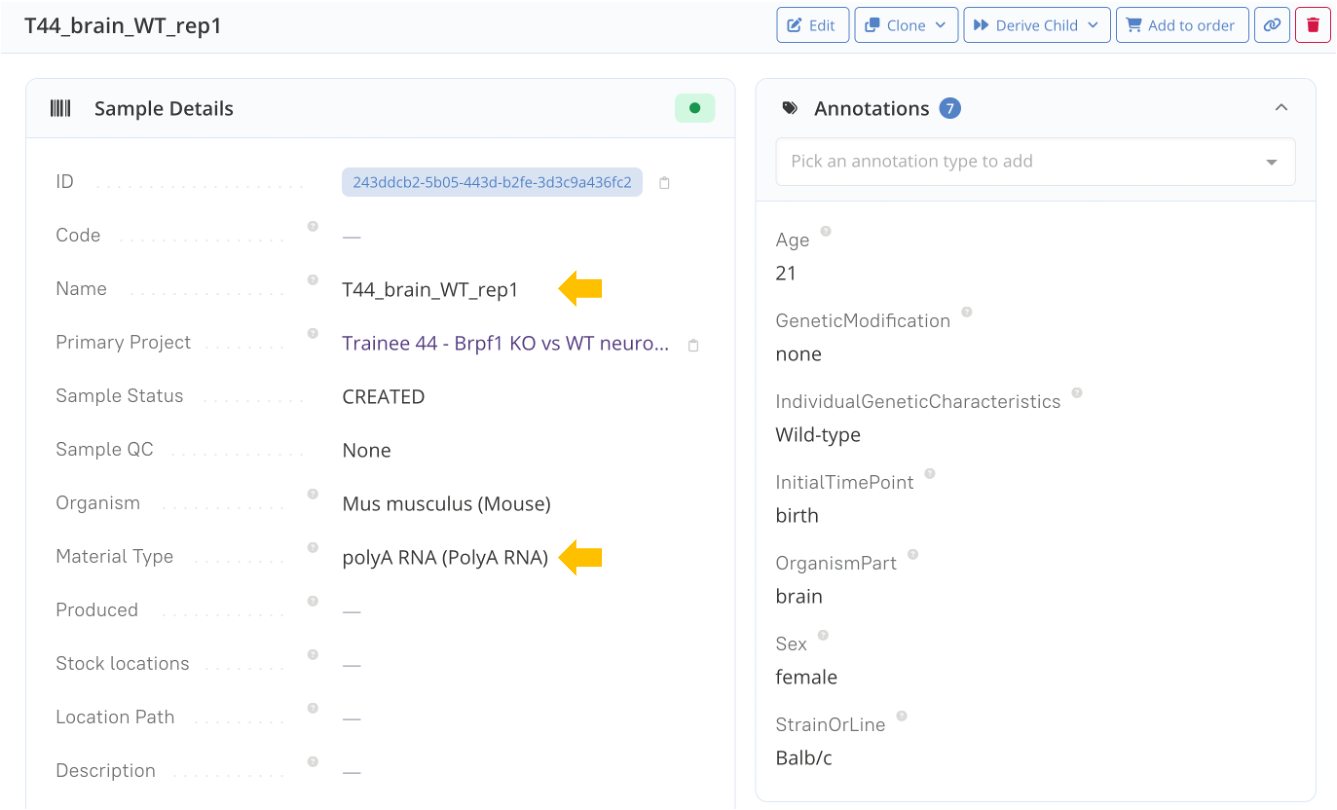
The Sequencing library inherits the brain sample's project, organism and annotations -
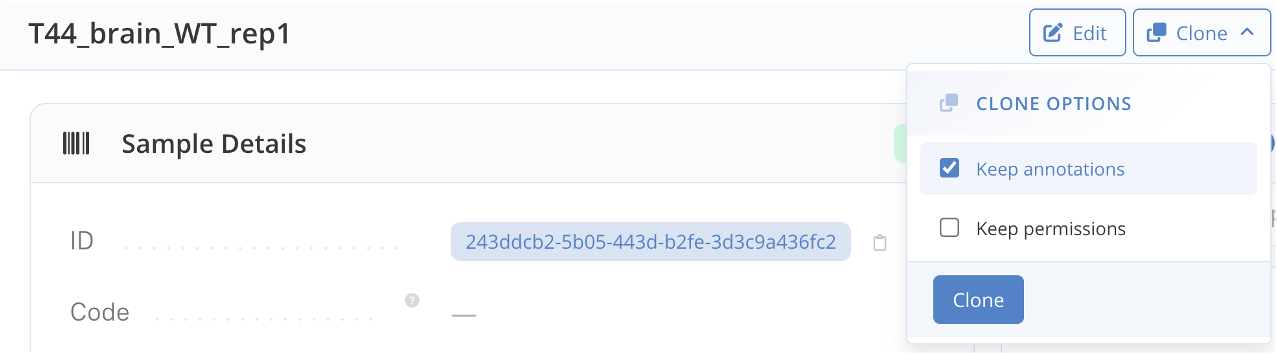
Create the second sequencing library (replicate) using Clone
Clone the first sequencing library to create the replicate
6.2 Create the two libraries from the KO brain sample
Repeat 6.1 starting from your TXX_brain_KO sample :
- navigate to the list of samples under Biomaterials > Samples
- derive TXX_brain_KO_rep1, as described above with the WT (don't forget to also set the material type to polyA RNA),
- then clone it to create TXX_brain_KO_rep2.
You now have four sequencing libraries:
- TXX_brain_WT_rep1
- TXX_brain_WT_rep2
- TXX_brain_KO_rep1
- TXX_brain_KO_rep2
Check this on the Sequencing Library list, filtering for your four libraries (e.g. search TXX in the Name column).
6.3 Link the protocols in batch
Finally, we attach the protocols that were followed to produce these libraries. They are all already available as public protocols, so we link them to the four libraries in one operation using the batch editor of the sequencing library list.
-
Navigate to the Biomaterials menu and open the Sequencing Library sub-menu
-
Select your four libraries with the checkboxes on the left of the table, then open the batch editor with the button in the table toolbar
Opening the batch editor
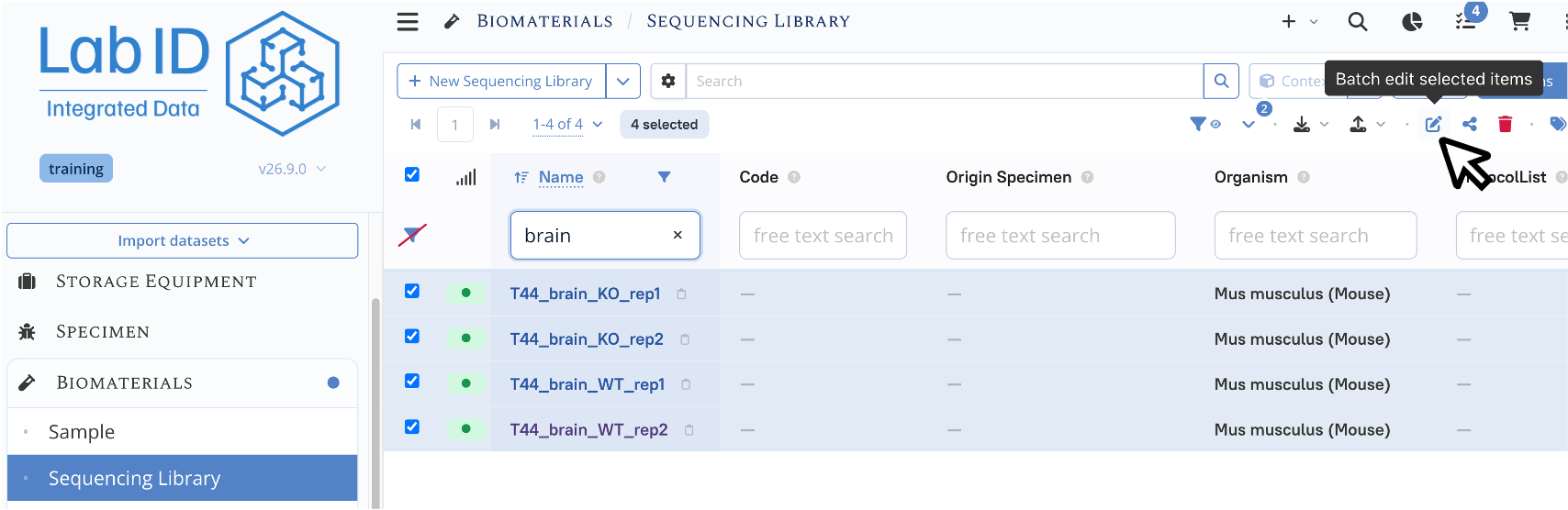
The batch editor lets you edit multiple items at once, here we will use it to attach the list of protocols to our sequencing libraries -
Select the ProtocolList attribute (arrow "1") and add the protocols in experimental order using the Add a protocol to the list box (arrow "2"). The three protocols are:
- The Extraction protocol: Mouse brain extraction — the dissection protocol used in Step 4
- The Extraction protocol: RNA Extraction with RNeasy Mini kit
- The NGS Library Preparation: mRNA Library Preparation with NEBNext Ultra II Directional RNA Library Prep Kit for Illumina
The three protocols added to the ProtocolList
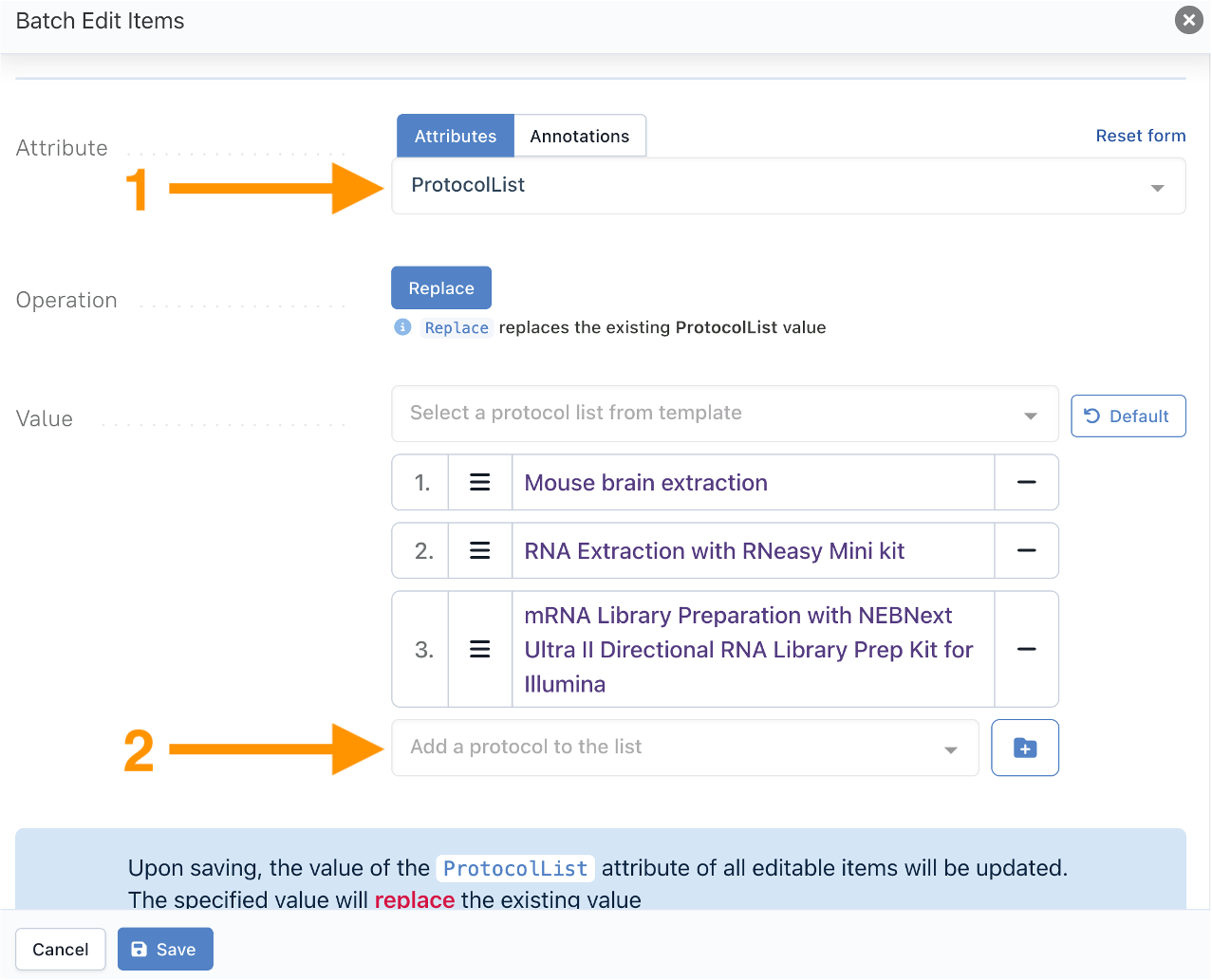
Adding the 3 protocols used to prepare the sequencing libraries from the mouse specimen, reflecting the experimental workflow (as indicated by the numbers 1..3 - from top to bottom). -
Click Save to apply the protocol list to all four libraries, then exit the batch editor with Done.
The ProtocolList on one of the libraries after the batch edit
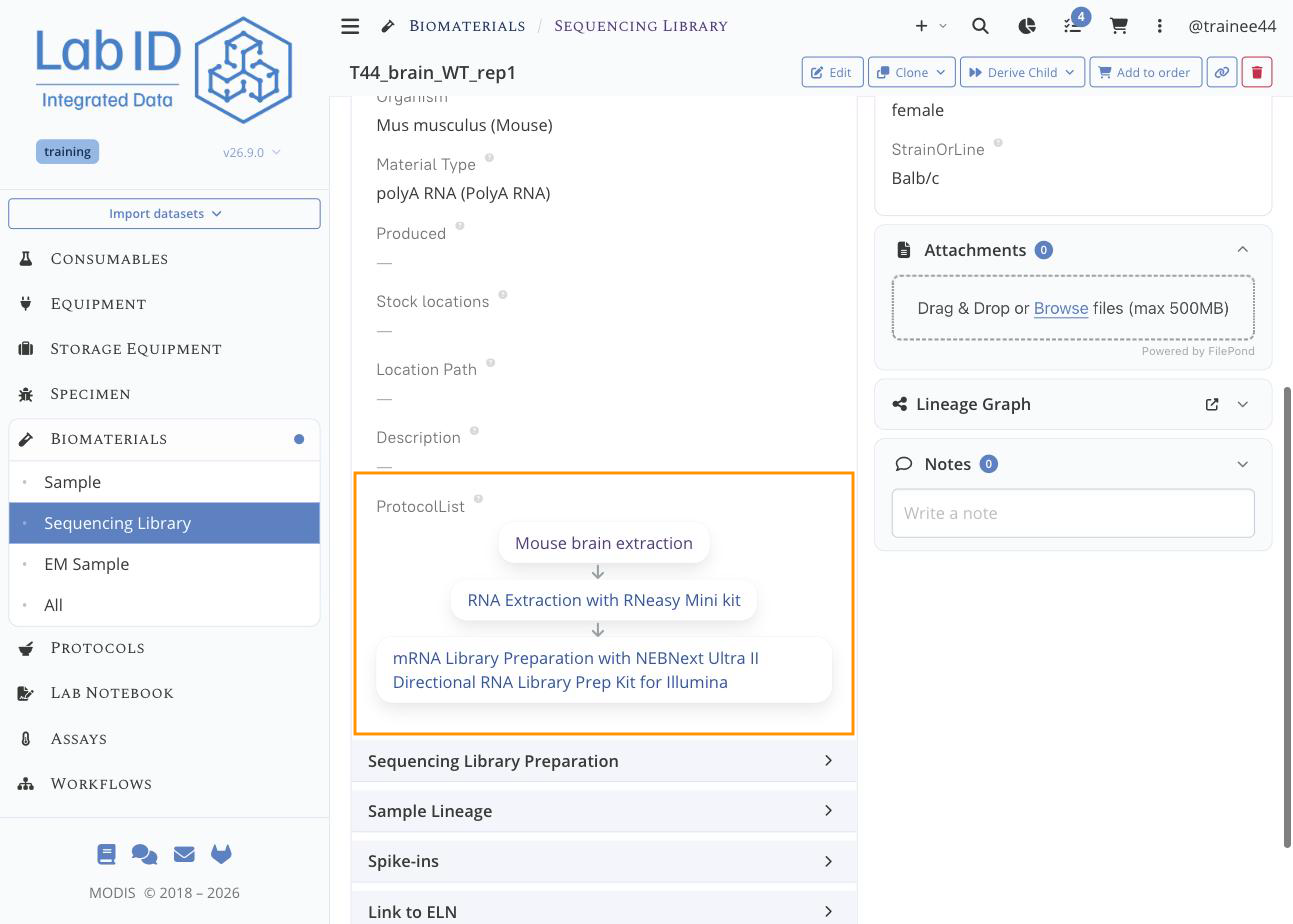
The online batch editor, in a nutshell
The batch editor we just used lets you set one property or annotation (here, ProtocolList) on every item you've selected in a list view, directly through the web interface — no file to download or upload. It only affects the items currently selected in the list (up to the 500 that can be displayed at once); to edit more items at once, or several properties in one go, use the spreadsheet-based batch edit instead. See Batch Edit for the full reference, or replay a similar flow in the Collection Main Operations hands-on.
Protocols and experiments are not redundant
Each sequencing library is now linked to both a ProtocolList and, indirectly, to the extraction experiment its parent brain sample came from — and that's intentional. A protocol describes the planned procedure: a reusable template, the same for anyone who follows it. An experiment records the actual procedure that was performed: a timestamped, self-contained copy that can be adapted to reflect exactly what happened. See Protocols for more on how the two relate.
Step 7. Customize the sequencing library list to compare WT vs KO at a glance
Now that all four libraries carry their inherited annotations, we can customize the list view to display exactly what we need for a quick side-by-side comparison of the WT and KO condition — without opening each library individually.
- Navigate to the Biomaterials menu, open the Sequencing Library sub-menu, and filter the list to your four libraries (e.g. search TXX in the Name column).
The default Sequencing Library list
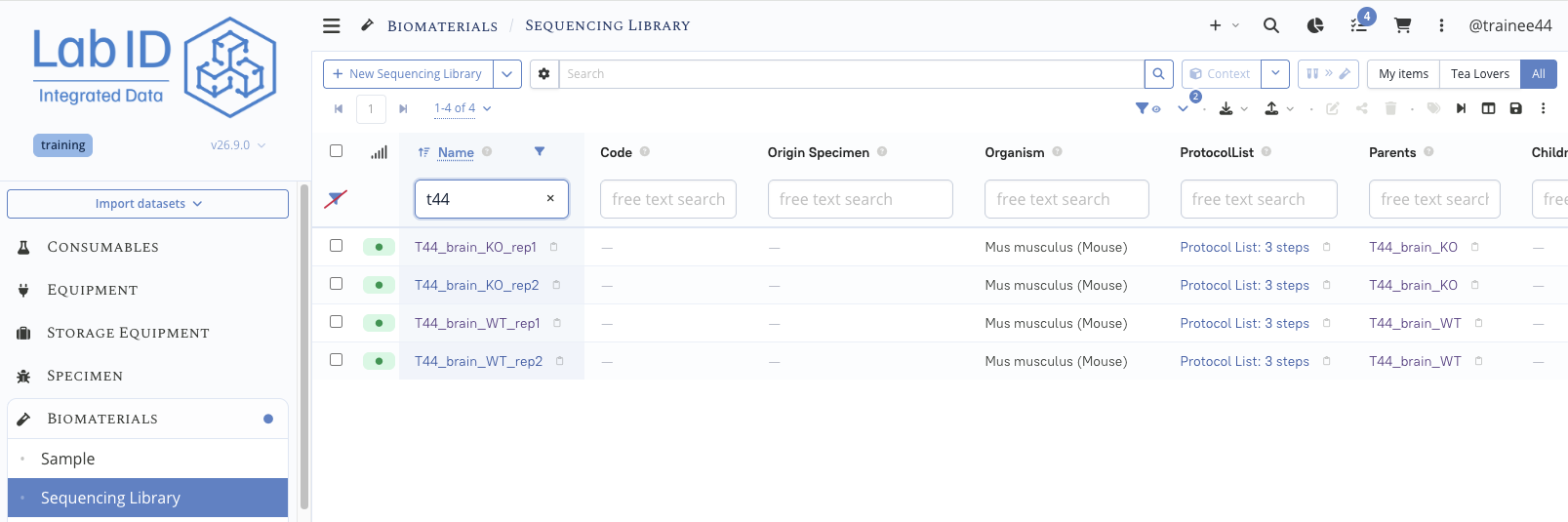
- Open the Column Settings panel using the button above the table.
The Column Settings panel
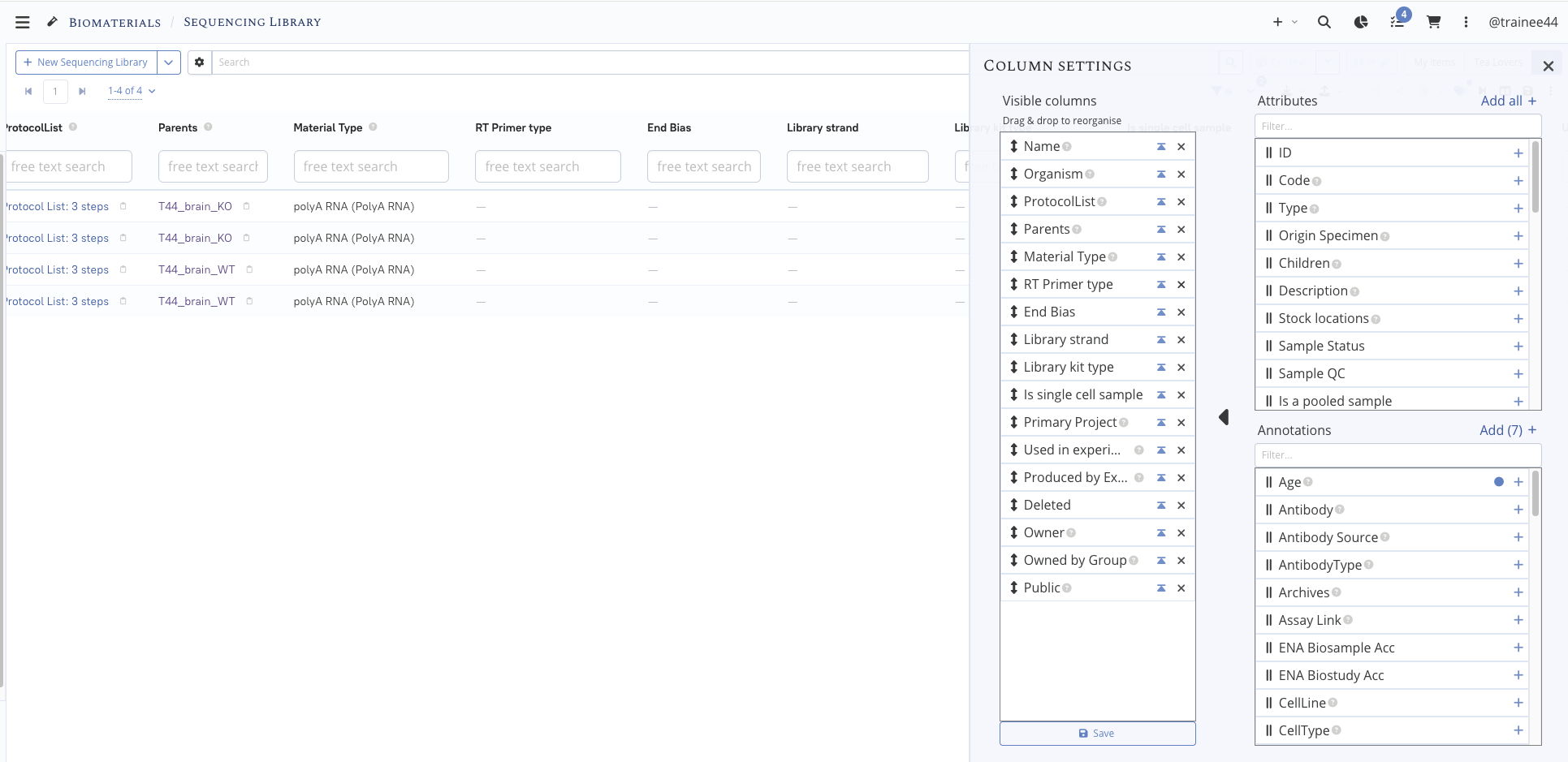
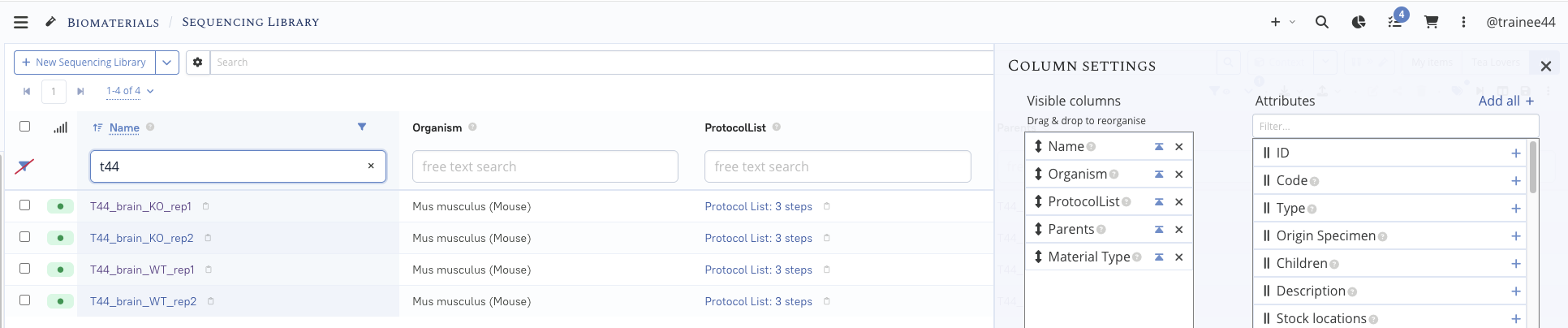
- Remove the columns you don't need for this comparison (e.g. RT Primer type, End Bias, Library strand, Library kit type, Is single cell sample, Primary Project, sharing-related columns...) by clicking the next to each one in the Visible columns list. Keep at least Name, Organism, ProtocolList, Parents and Material Type.
Columns trimmed down to the essentials
- Close the Column Settings panel, then click the icon in the table toolbar: it lists every annotation actually found on the displayed records, and adds them all as columns in a single click.
Adding all available annotations in one click
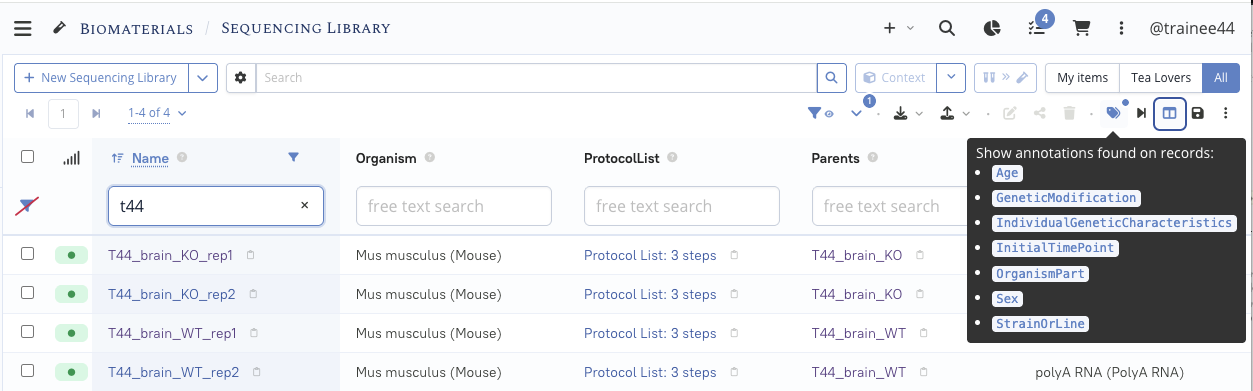
The table now shows all these annotation columns, letting you compare your WT and KO libraries at a glance, directly from the list, without opening each item.
WT vs KO, compared directly in the list

This works on any list
This column customization and one-click annotation display works the same way on every collection in LabID. See Table Customisation for the full reference.
Challenge (optional)
The RNA extraction and library preparation steps that produced these libraries from the brain samples aren't yet recorded as an experiment, only as a protocol reference. As an optional exercise, try applying what you learned in Steps 4 and 5 to create a second experiment reflecting both this RNA extraction and library preparation steps, and link the four sequencing libraries as its output samples. This would give a more complete picture of the actual experimental workflow — though it isn't required for this tutorial. Note that one can derive an experiment from a single protocol, so you may want to create this experiment "from scratch" and manually link the two protocols. Alternatively, you can manually copy the protocol text into the experiment, and modify it accordingly.
Congrats! You have completed this hands-on!