Hands-on: Registering a workflow run: mouse brain image conversion
- 25 min
- Medium
This tutorial illustrates how to register a workflow run via the web interface of LabID.
It uses an image-conversion workflow as an example (EuBI Bridge), converting the .czi images of mouse brains acquired with a Zeiss microscope to .ome.zarr.
The tutorial does not cover execution of the workflow, rather registration of the workflow run after its execution.
It reuses the four raw .czi datasets registered in the mouse brain image registration tutorial.
Software for ome.zarr conversion
Such image conversion can be performed with software like the NGFF converter or command line tools like BatchConvert, EuBI Bridge. Here we will use EuBI Bridge, but the same instructions would work with the others too.
Concepts: Workflow, Workflow Version, Workflow Run
- Workflow
- A top-level identifier for one or multiple Workflow Versions. It carries metadata common to all versions (name, license, programming language...).
- Workflow Version
- A specific version of a Workflow, with its own set of files. It can reference the external repository it was imported from (a Git repository, a WorkflowHub entry...) — this is what we import in Step 2.
- Workflow Run
- Documents the execution of a Workflow Version on some input data. Linking the input/output datasets to the run (Step 4) is what establishes computational provenance — this is what we create in Step 3.
See Workflows and Workflow versions for the full reference.
Step 1 : Registering input and output images
Before creating a workflow run representing the image-conversion, we need to make sure the data is first registered in LabID.
The inputs of the workflow are the 4 .czi files (previously registered). We only need to register the OME-Zarr images resulting from the conversion (4 OME-Zarr directories).
Step 1.1 : Register the mouse brain CZI images
Follow the mouse brain image registration tutorial to register the four .czi images as raw datasets. This creates the light microscopy assay, assigns the corresponding mouse brain samples, and links the datasets to the study.
About the image-conversion
In this example, each input CZI file yields one OME-Zarr dataset. In other use cases, a single CZI file can yield multiple OME-Zarr datasets, for example when it contains multiple scenes exported as individual OME-Zarr datasets.
Step 1.2 : Register the OME-Zarr datasets
The registration of the OME-Zarr datasets is similar to the registration of the czi images, except the Zarr datasets will not be registered as raw datasets as they do not derive from an assay rather from a workflow (i.e they are "derived" or "secondary" datasets).
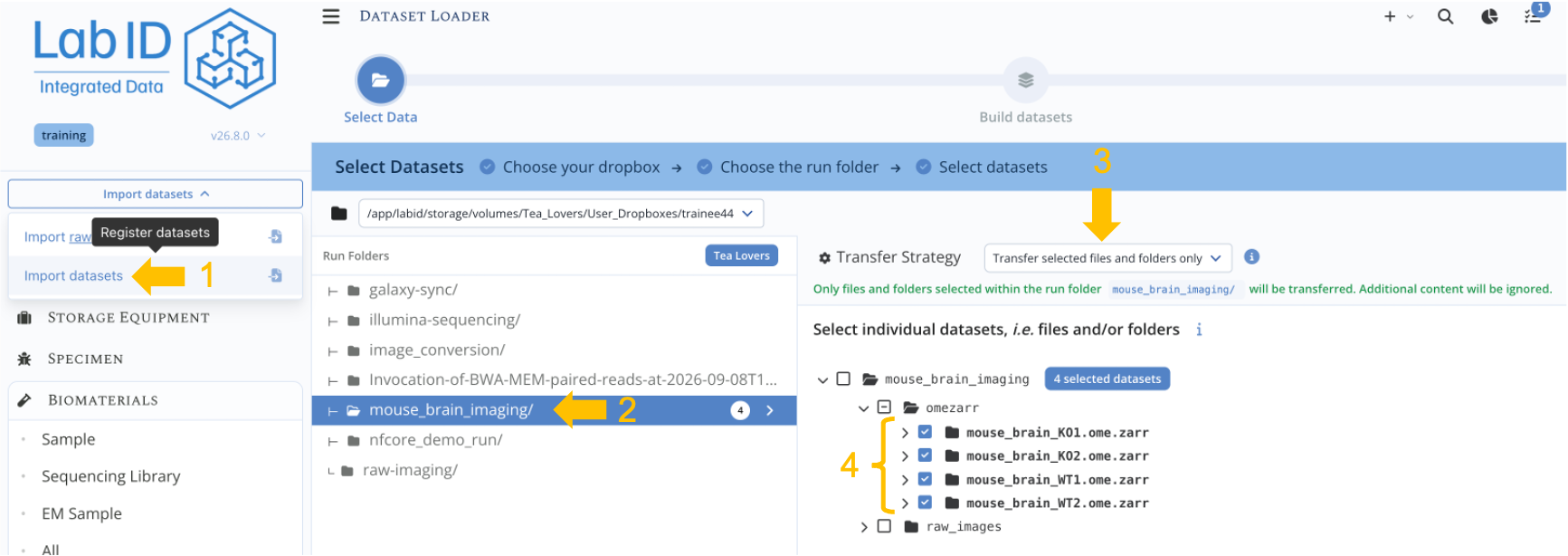
- from the LabID user interface, on the left select Import datasets, then Import datasets to open the dataset loader
- select your user-dropbox
- then click on the
mouse_brain_imagingdirectory - on the right-side, extend the
omezarrdirectory and select each of the 4 subdirectories ending in.ome.zarr. To do so, either tick each individual tickbox or double-click the tickbox for the parent directoryomezarr - in the dropdown
Transfer strategyat the top, select Transfer selected files and folders only -
click
Continue -
on the next page, you can directly click
Stage allthenContinue -
on the Verify page, select the study created during the mouse brain image registration tutorial (should be
Mouse brain imaging [TraineeXX]replacing XX with your trainee number) - submit the registration
Registering the OME Zarr directories
Step 2 : Import the workflow version from git
Now that the data is registered we can start "assembling" the component of the workflow run.
We first need to create a Workflow Version in LabID referencing the version of the workflow used for conversion (here a small bash script calling EuBI Bridge).
You can import the workflow from a GitHub repository following the generic instructions in Import from Git. For this tutorial use the example repository below which contains the small conversion script used here:
https://github.com/LauLauThom/conversion-wf-bash
Steps to import this repository:
- From the left menu go to Workflows > Workflow.
- At the top, click New workflow and select Import from Git.
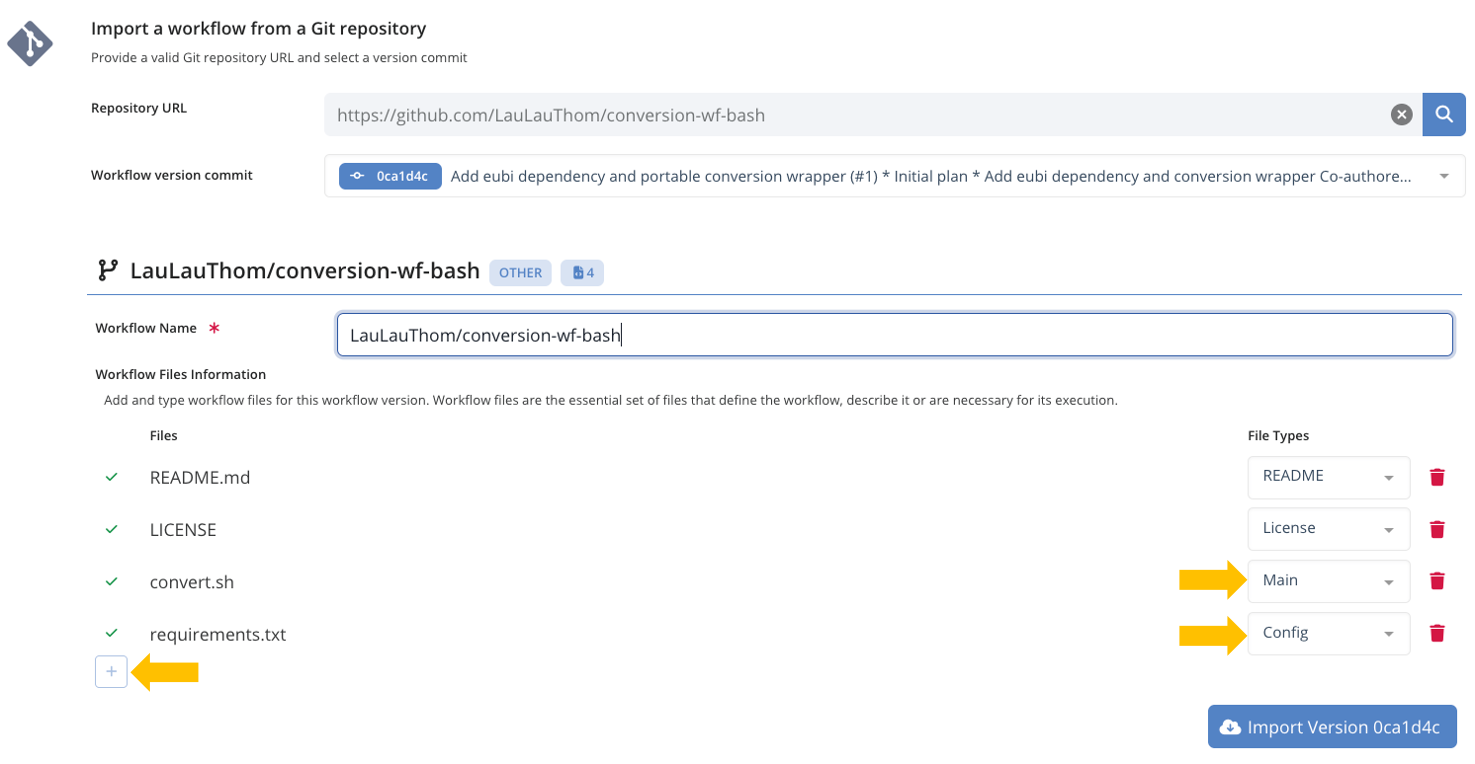
- Paste the repository URL
https://github.com/LauLauThom/conversion-wf-bashinto the Repository URL field - Click the or press enter
- In the dropdown Workflow version commit, the latest commit is automatically selected, you can leave it like that
- At the bottom, below the list of files, click twice on to add additional the files
convert.shandrequirements.txt - Set the
File TypestoMainandConfigrespectively - Finally click Import version x.x.x to import the workflow version.
After import you will be taken to the Workflow Version page.
About Workflow Versions imported from git
If this is the first time a workflow is imported from this repository, a parent Workflow object will also be created automatically, with a link to the original Git repository, while the Workflow Version keeps the reference to the commit hash corresponding to this version.
Import the workflow from git
Step 3 : Create the workflow run
Now that both the data and the Workflow Version are registered, we can create a new Workflow Run in LabID. Here are the steps :
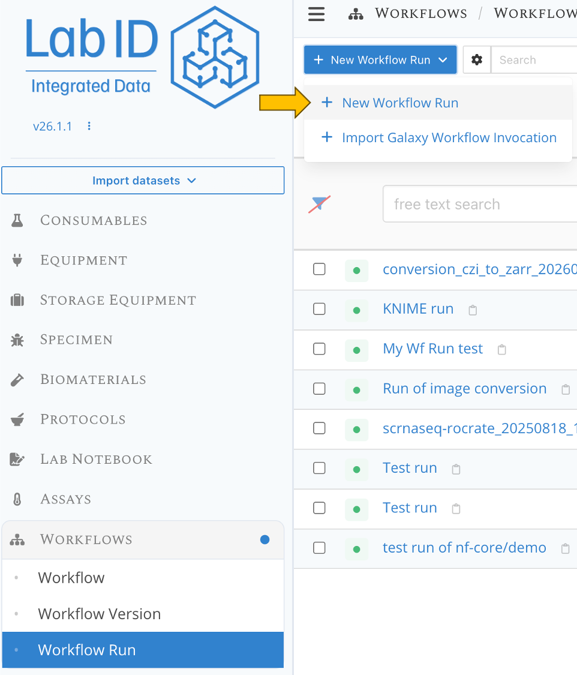
- go the workflow run list page
- click at the top left on New Workflow Run and select New workflow run.
The 'New Workflow Run' button
Provide information for the 3 required fields:
- a meaningful name for the run, for example
Conversion of mouse brain images (czi -> OME-Zarr) with EuBI Bridge [TraineeXX](replace XX with your trainee number, so you can easily find your own run in the shared list) - which workflow version was used, here select the workflow version for EuBI Bridge that you imported from git at the previous step
- the status of the run, select "Success"
You can also edit the visibility of this run to other users, just like any other LabID items. All these fields can be edited at a later time. Click Save item to finalize the creation of the "blank" workflow run.
Step 4 : Link the input and output datasets to the workflow run
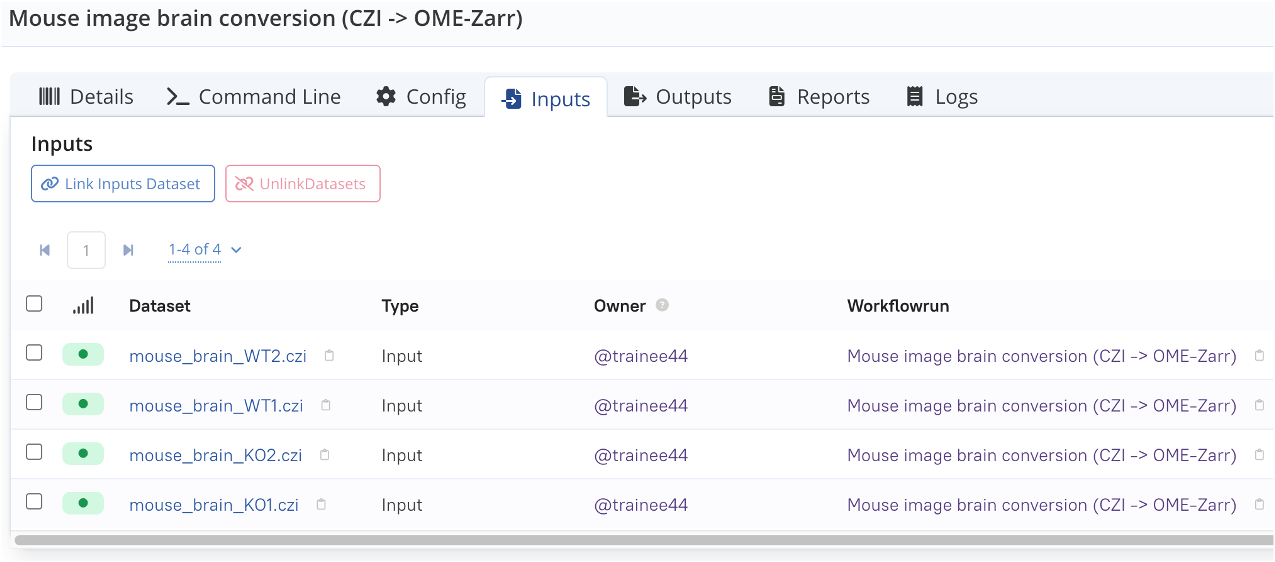
Now you can link the relevant datasets as inputs and outputs of the run. Let's start with the input
- click on the tab Inputs
- click on the Link Input button at the top left
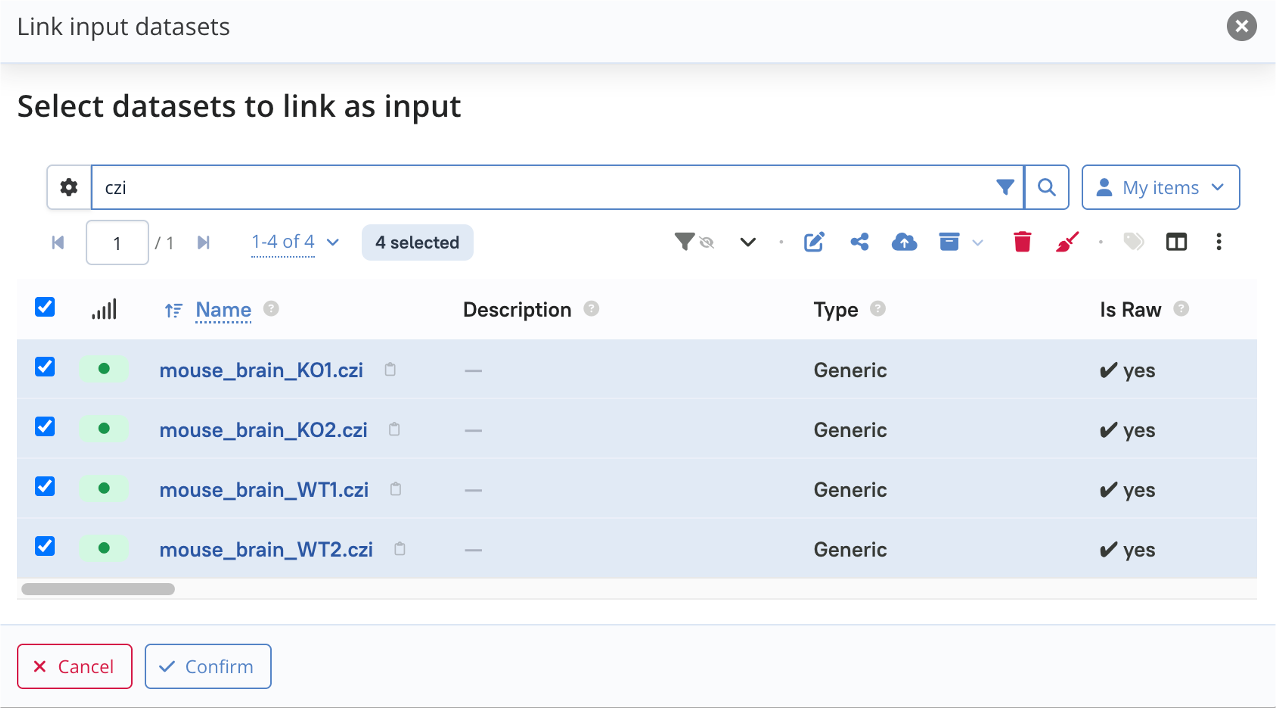
- a dialog should open with a list of datasets, you can filter this list to only include your datasets, by selecting My items in the dropdown on the top right
- you can further refine the list, using the search bar on top of the list of datasets (see below)
- from the list of files, tick the tickboxes next to the four
.czidatasets registered at step 1 (dont click on a dataset name, as it would take you to its detail page!) - click Confirm at the bottom right
Linking the CZI datasets as input
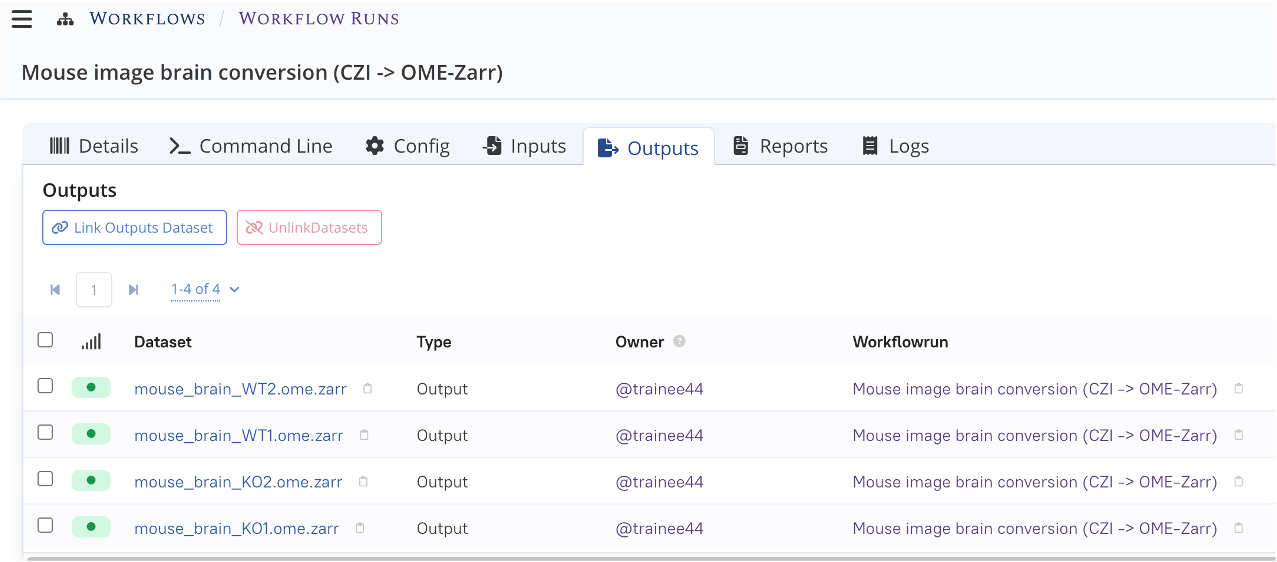
Repeat the same step with the Outputs tab, this time selecting the four .ome.zarr datasets.
You should now see something like the following.
The Outputs tab, listing the four OME-Zarr datasets
The Inputs tab, listing the four CZI datasets
Step 5 : Establish parent/child relation between input and output datasets
In this last step, we are going to associate each OME-Zarr dataset with its corresponding CZI dataset through a parent/child relation.
For this particular image-conversion workflow, we know that each OME-Zarr is directly derived from its input CZI file. Adding this information to the system preserves the full provenance information inherited from each parent CZI dataset. We are going to use the Parent datasets attribute of the OME-Zarr datasets to provide this information.
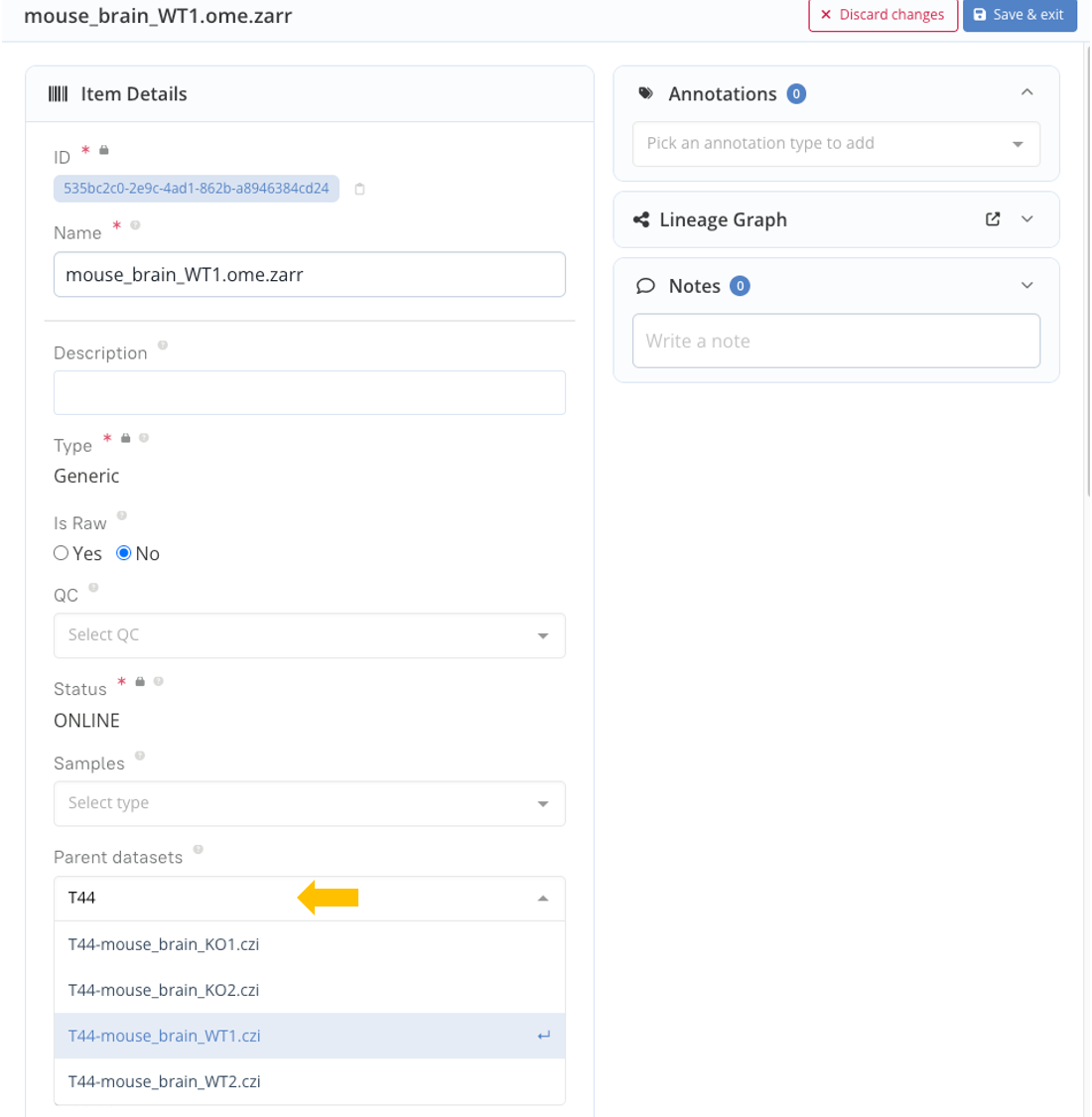
- from the Outputs tab of the workflow run, click on the name of one of the OME-Zarr datasets to go to its details page
- then click on Edit at the top right
- open the dropdown for Parent datasets
- you can enter your trainee number to filter the list of datasets
- select the parent CZI dataset corresponding to this OME-Zarr (i.e WT or KO)
- click Save at the top-right of the page
- repeat for each of the remaining OME-Zarr datasets
Editing an OME-Zarr dataset to add its parent
If you refresh the page and extend the panel Lineage Graph, you will see that each OME-Zarr dataset now has its CZI dataset as parent.
The Lineage Graph after establishing parent/child relations
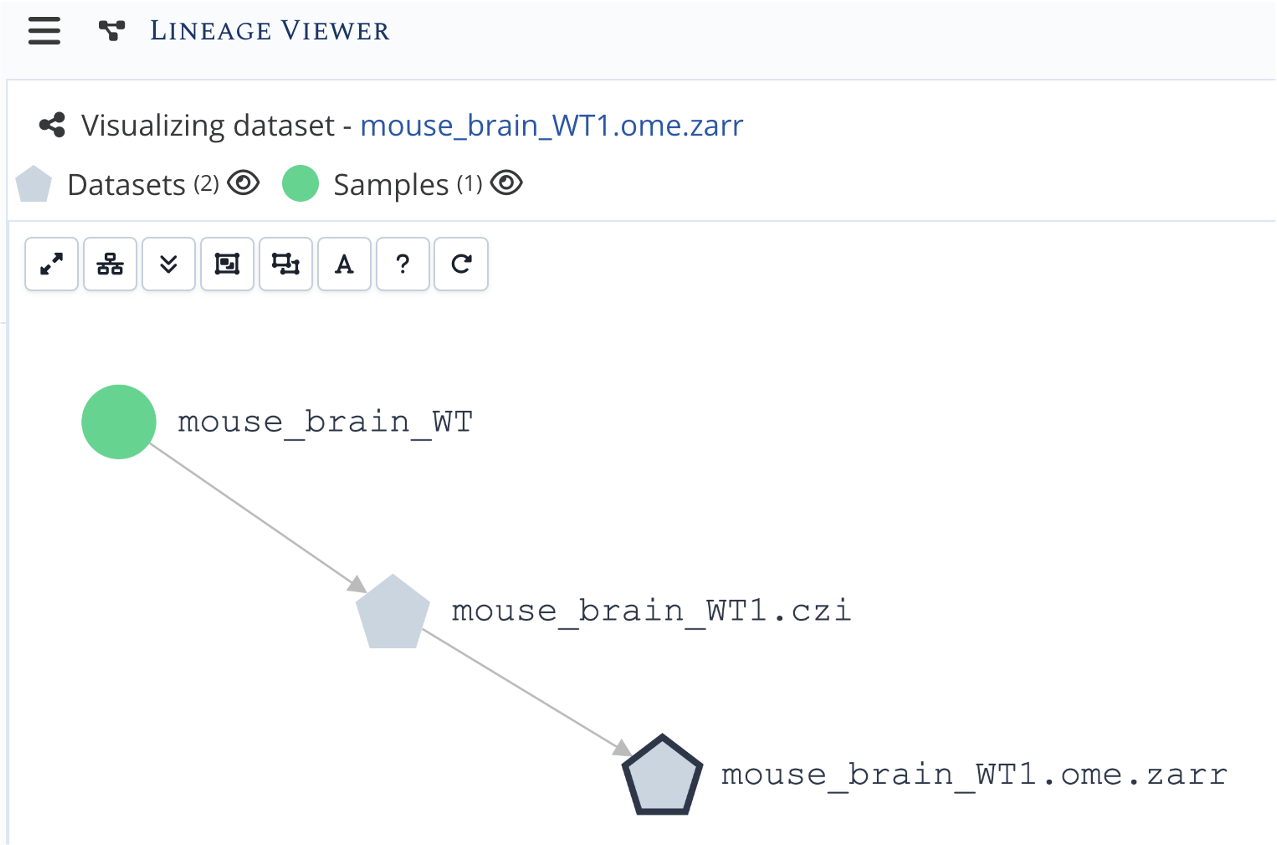
Because the CZI datasets were registered as raw datasets in the mouse brain image registration tutorial, the input sample is also depicted. Importantly, beyond the visualization, each OME-Zarr dataset now inherits the full provenance information, all the way up to the biological sample that was imaged by the microscope.
Why do I need to establish this parent/child relation ?
While the datasets are already linked through the workflow, there is at this point no direct parent/child relation between datasets. The reason is that depending on the workflow, there is not always a 1-to-1 correspondance between input and output datasets. By establishing this parent/child relation, you ensure that the metadata defined on the parent dataset (assay, sample...) are propagated to the child datasets.
Automating this process with the CLI
While the user-interface let you freely compose workflow runs from scratch, you can also automate this process via the LabID CLI, which can be convenient if you are routinely executing the same workflow on new datasets.
Assuming you have installed the CLI, and that the input datasets have been registered already, the following command started from your user-dropbox would :
- register the output data (the converted images) as new datasets in the study with ID
1bc59cbf-439b-41c1-a928-8870547a5283 - create a new workflow run associated to workflow version with ID
55d2c3e5-2683-47e7-8b14-2bd086ea609e - link the input datasets (already registered in that same study) to this workflow run
- associate the newly created output datasets to the run
- establish parent/chidren relations between input/output datasets (ensuring one input is mapped to one output)
labid register wfrun --study 1bc59cbf-439b-41c1-a928-8870547a5283 \
                     --workflow-version 55d2c3e5-2683-47e7-8b14-2bd086ea609e \
                     --indir ./mouse_brain_imaging \
                     --sniffer-param "strategy-input=(raw_images, files, false, *.czi)" \
                     --sniffer-param "strategy-output=(omezarr, folder, false, *.ome.zarr)" \
                     --parent-children-matching FILENAME \
                     --parent-children-matching-plurality ONE_TO_ONE
The following recording from the last training (Sept 2026) demonstrate this process.
Detailed explanations about the registeration of workflow runs with the CLI is beyond this tutorial and covered in dedicated sections.
Export the workflow run as a RO-Crate
Now that the Workflow Run is properly registered in LabID, you have the possibility to export this run as a Workflow Run RO-Crate. Back on the workflow run page, simply click the Generate button in the RO-Crate panel. This standardized format lets you share or publish your workflow run, while conserving most of the metadata that was documented in LabID.
Conclusion
Creating a workflow run "by hand" involves a number of steps, which can be time-consuming, especially if you have a large number of runs to register, or your runs create many files (which is often the case). This approach is still suitable for describing semi-automated analyses or results obtained from executing notebooks. Alternatively, the LabID Command Line Interface (CLI) provides utilities to register such workflow runs in batch (including registration of the data), or to automate the registration. This functionality is covered in a follow-up tutorial.