Adding new Storage Equipment Types UI
Here are the steps required to add a new item type in LabID and customize it. For this example, we will deploy a new
Storage Equipment type named Puck to store the TEM cryo-grids.
Add a new Type Store for the new Puck Storage Equipment
- In the admin panel, go to
Annotations > Type storesand clickAdd Type Store - Fill in the form:
Name=PUCKLabel=PuckContent type= selectstocks | storage equipment- do not select any
Technologies Orderis a number governing the order in the storage menu, between 0 and 1000- Check the place where you want it, open the type stores (in another window) right before and after you'd like the
Puckto be; and pick a number in between.
- Check the place where you want it, open the type stores (in another window) right before and after you'd like the
A Field Order stores which fields (built-in and custom) are shown on a type — and in which order — for both the detail view and the list view. The field order for the new Puck type is not created on save (generic Type Store entries do not get a field order automatically). It will be created lazily the first time you attach a Custom Property Type (CPT) to it (see next section) — the CPT save handler creates the field order if missing and appends the new property to it.
If you are not going to attach any Custom Property Type immediately, run the Reset field order on selected model types (cannot be undone!) action from Annotations > Type stores on the new type to create its field order right away.
Add a new custom integer property position_number
This property will reflect how many positions are available in the Puck.
- In the admin panel, go to
Annotations › CustomPropertyTypesand clickAdd Custom Property Type - The form is organised in sections. Fill them in top to bottom:
Field description
Name— the internal property name (never change this once used)Label— the property label as it will appear on the UIDescription— clear explanation of what this property is; used as contextual help/tooltip
Applicable to (Custom Property Type only)
Model name— herestocks.storageequipmentModel type— herePUCK(the type store name from the previous step); leave empty to apply to all subtypes of the model
Field Meta
Field type— the unified type/widget selector (hereInteger). The form auto-adjusts to show only the sub-options relevant to your choice (e.g.Unit default/Unit choicesappear only for... with Unittypes,CV Categoryonly forVocabulary Term,Allowed object typesonly forLinked Object). See the full list of field types below.Multiple— check if the property accepts multiple valuesChoices— a limited set of choices for a text field, used when a CV Category would be overkill. Write a JSON list of[value, label]pairs, e.g.[["PRIMARY","Primary"],["SECONDARY","Secondary"]]. Combine withField type=Text with Choices.Validations— validation rules passed to the UI (JSON)Mandatory— is this property mandatoryReadonly— is this property read-only in the UIDefault— a default value, or leave empty
Visibility
Visibility,Edit visibility,List visibility— decide when and where this property is displayed
Deprecated (collapsible)
- Legacy flags (
Inactive,Version, …). Only touch these when migrating an existing property.
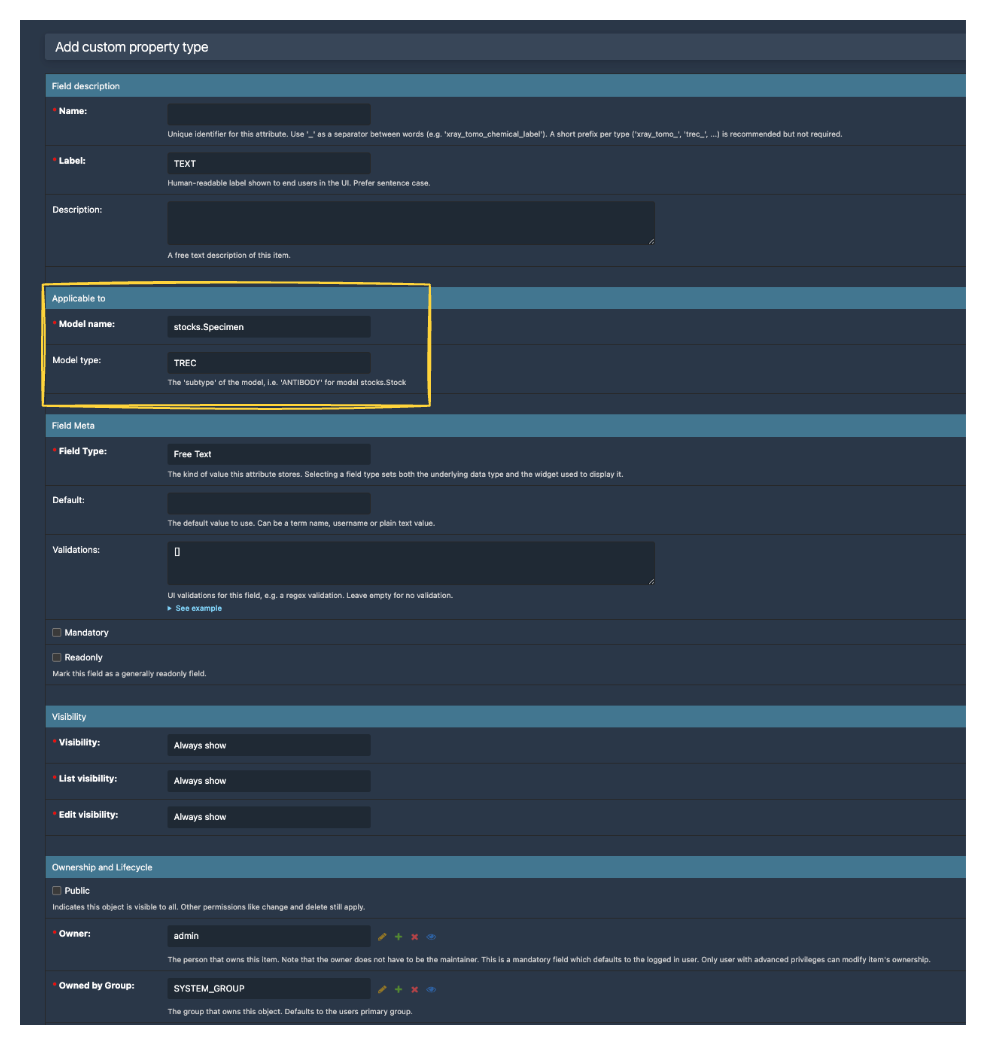
Field type reveals only the sub-options relevant to that type.Available Field type options
The unified Field type dropdown replaces the previous separate Type + Field meta selection. Available choices:
Free TextLong Text (Textarea)Text with ChoicesAutocomplete TextNumberIntegerNumber with UnitInteger with UnitDecimal with UnitFloat with UnitInteger RangeFloat RangeInteger Range with UnitFloat Range with UnitVocabulary Term— requires aCV CategoryVocabulary Term with Picture— for CV terms with an associated logo (e.g. chemical hazards)URLPubMed IDLinked UserLinked Object— requires selecting theAllowed object typesJSON
Add as many custom properties as needed. Each new property automatically appears in the field order for the target type.
Reorder or hide fields (optional)
Field order is generated automatically, but you can adjust it:
- Toggle which properties are shown — open the type store and use the Customize Attributes panel to toggle which Custom Property Types appear in the detail and list views.
- Reorder or edit the JSON directly — the same Customize Attributes panel exposes a
FieldOrder #Nlink to the related field order's admin page. Follow that link to edit the JSON directly (reorder, add, or remove fields). Save only when the JSON is well formatted.
Displaying or hiding a custom property
The UI only shows an item's properties that are listed in the respective Field order. If an expected field is not visible, open the type store's Customize Attributes panel and check the linked FieldOrder: the field may be missing (e.g. spelling mismatch) or intentionally removed.
To hide a default property, remove it from the field order — this will hide the property for everyone.
Recovering a corrupt field order
The Reset field order on selected model types (cannot be undone!) action in Annotations > Type stores rebuilds the field order from the model's defaults plus every Custom Property Type (CPT) attached to the type. Use it as a recovery tool if a field order is broken — it is no longer required as part of the normal CPT-creation workflow.