Adding new Assay Types UI
Before adding a new assay type, make sure you are familiar with the concept of Assay — an assay records how samples were analysed, typically using an instrument that generated data. This page walks you through the creation of a new assay type, so users can capture a technology LabID does not yet cover out-of-the-box (or a variant of an existing one with its own metadata).
Here are the steps required to add a new assay type in LabID. For this example, we create a PacBio Sequencing assay type under the Sequencing domain, extending the built-in Sequencing Assay base model.
Assay types have their own admin section: Assays > Assay Types. Adding a new entry is enough to expose the new type to the user.
Add a new assay type
- In the admin panel, go to
Assays > Assay Typesand clickAdd Assay Type - Fill in the form:
Name=PACBIOSEQUENCING(upper-case, no spaces; this is the internal identifier — never change it once used)Label=PacBio Sequencing(what users see in the picker)Base Model=Sequencing Assay— the assay class this type extends. This determines which built-in fields the assay carries and its underlying technology; only extensible assay base classes are offered.Domain=Sequencing— this controls the group the type appears under in the assay-type picker (see Domains below)Order=300— a number between 0 and 1000 governing the position of the type inside its domain group. Open the assay type list in another window, and pick a value between the neighbours of your target position.Is active= keep checked to expose the type in the UI (uncheck to hide a type from users without deleting it)Mandatory owned by= optional group. If set, only members of this group can create assays of this type, and every new assay of this type is automatically assigned this group as itsOwned by.
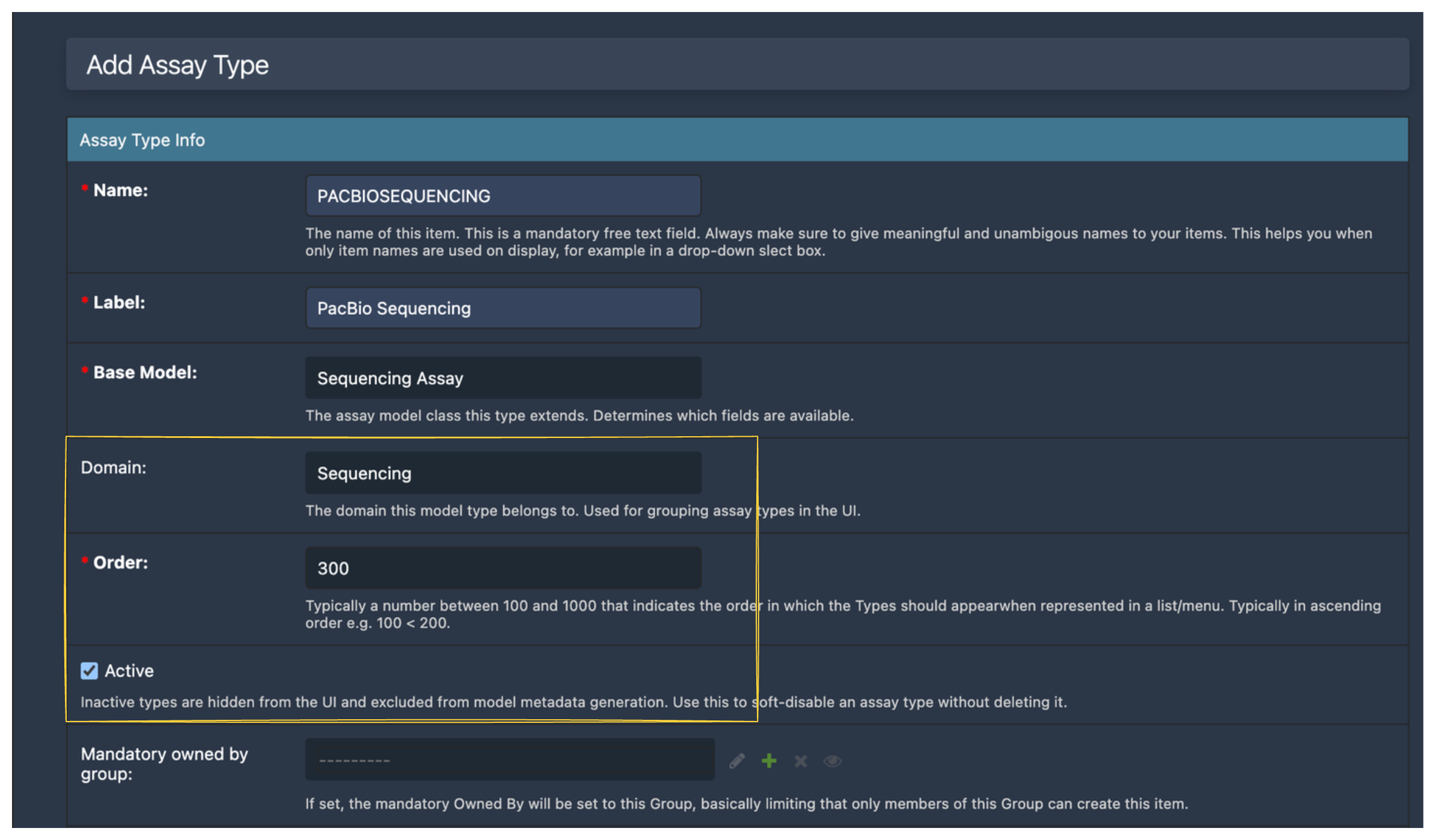
Base Model determines the underlying fields and technology; the Domain drives where the new type appears in the assay-type picker.Technologies are defined on the Base Model
The Assay Type form does not expose a Technologies field. Technology is inferred from the Base Model you picked (e.g. Sequencing Assay → sequencing), keeping the two in sync automatically. A Base Model is a built-in assay class you extend — see the Assay concept page for what the built-in models cover.
The Domain field
The Domain of an assay represents the scientific area of the assay. Assays of the same Domain are listed under the same group in the user interface. Available domains are:
SequencingLight MicroscopyElectron MicroscopyX-RayProteomicsMetabolomicsOther
Pick the domain that best matches the scientific area of the assay. If none fits, use Other — but prefer opening a discussion with us first to consider creating a new domain.
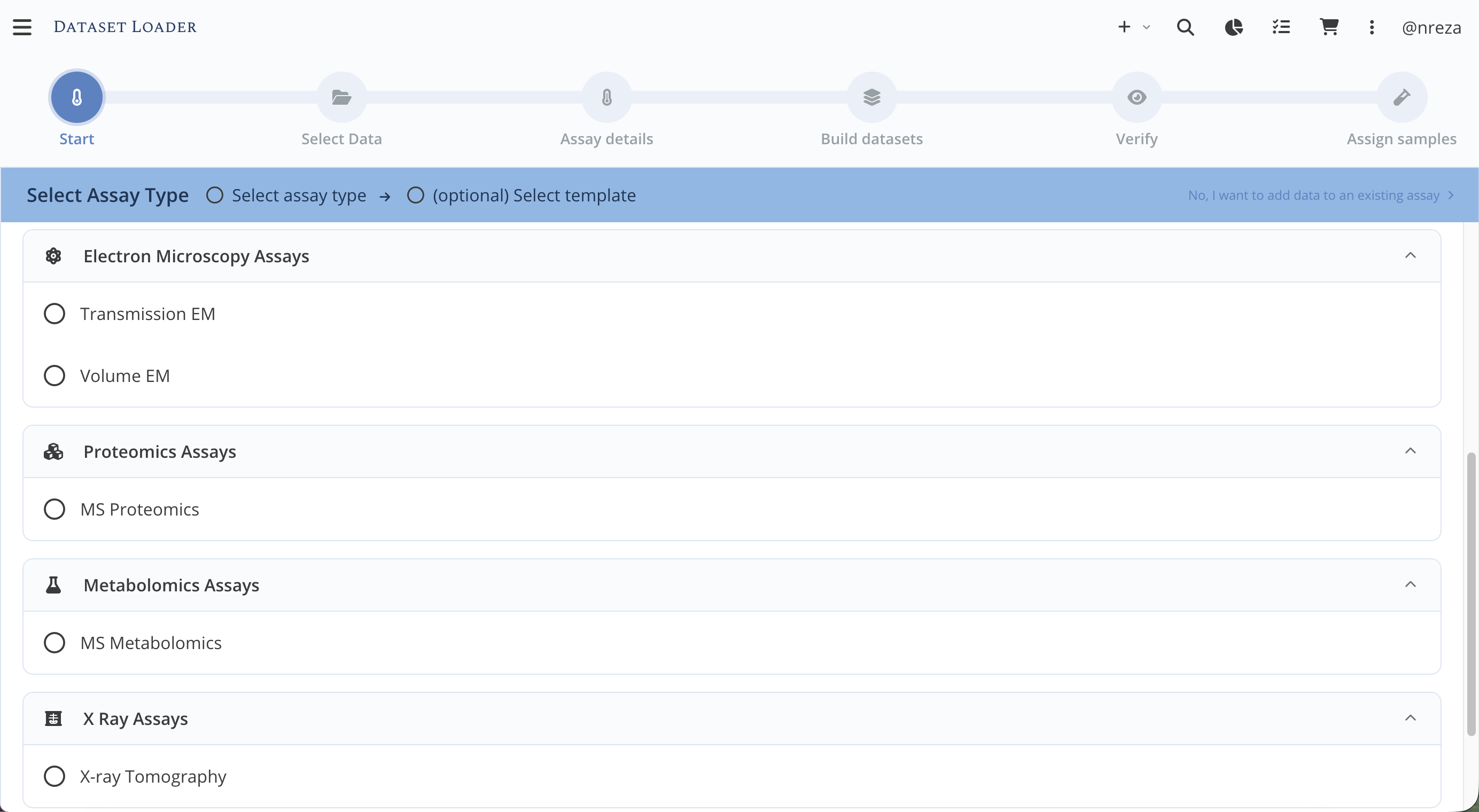
Domain.Domains only affect grouping
The domain does not change what fields the assay carries or how it behaves. It is only used at the UI-level to group assays together and keep the menu concise, especially as the number of supported types grows.
Attach custom properties to the new type
To add new properties for this assay type, follow the Custom Property Type recipe with Model Name = assays.assay and Model Type = PACBIOSEQUENCING. Any Custom Property Type attached this way is automatically displayed on the assay — you do not need to touch the field order manually.
To toggle which existing properties are shown, or to reorder them:
- In the admin panel, go to
Assays > Assay Types, open your new assay type, and expand the Customize Attributes section - Toggle the checkboxes to add/remove Custom Property Types from the detail and list views respectively
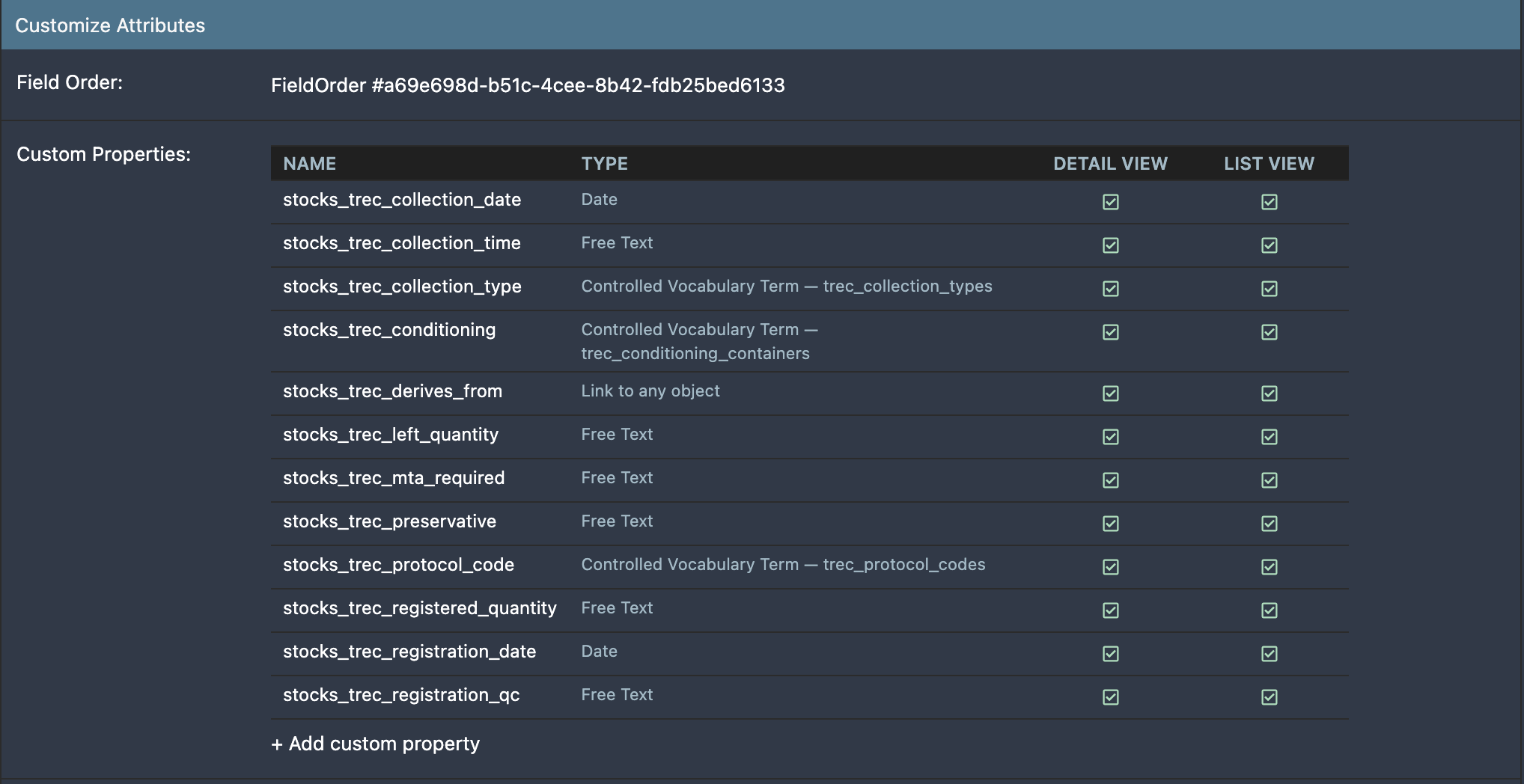
Verify in the UI
- Log in to LabID
- Click on the user menu at the top right, and click
Refresh App - Open the data loader and start registering a dataset — the new assay type must appear under the domain you chose
- Create a test assay to confirm the fields render as expected
- If a property is missing, back in the admin panel go to the assay type, and under Customize Attributes click the
FieldOrder #Nlink. The Field Order page lets you inspect (and if needed edit) the order of the fields directly. If the property does not yet exist, add it via the Custom Property Type recipe.