Hands-on: Importing workflows
- 25 min
- Easy
LabID supports importing workflows from various sources, including git repositories, WorkflowHub and Galaxy.
By Workflow here we include traditional ones from workflow platforms (Nextflow, Snakemake, Galaxy) but also scripts and notebooks, which can be equally registered in LabID.
'Manual' workflows with desktop applications
Workflows relying on desktop applications for which there is no dedicated files representing the workflow can also be registered in LabID, by creating a "blank" workflow version, simply documenting the version and name of the software used and ideally adding a short text file describing the steps to perform. This is however not ideal for reproducibility.
To import a workflow, from the left menu, navigate to Workflows > Workflow.
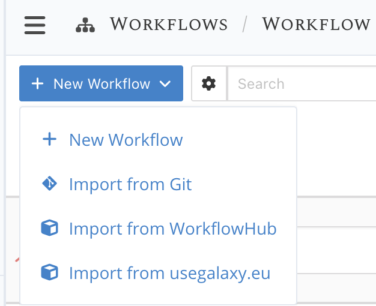
Then at the top, click on New workflow to see the different import options.
Note that the repositories you can import from (Galaxy, WorkflowHub) need to be configured by an admin (see WorkflowHub Integration of the admin documentation).
Workflows can be imported from various sources or created from scratch
Import from Git
Workflows can be imported from a public (GitHub, GitLab...) or privately hosted (e.g institutional) git repo.
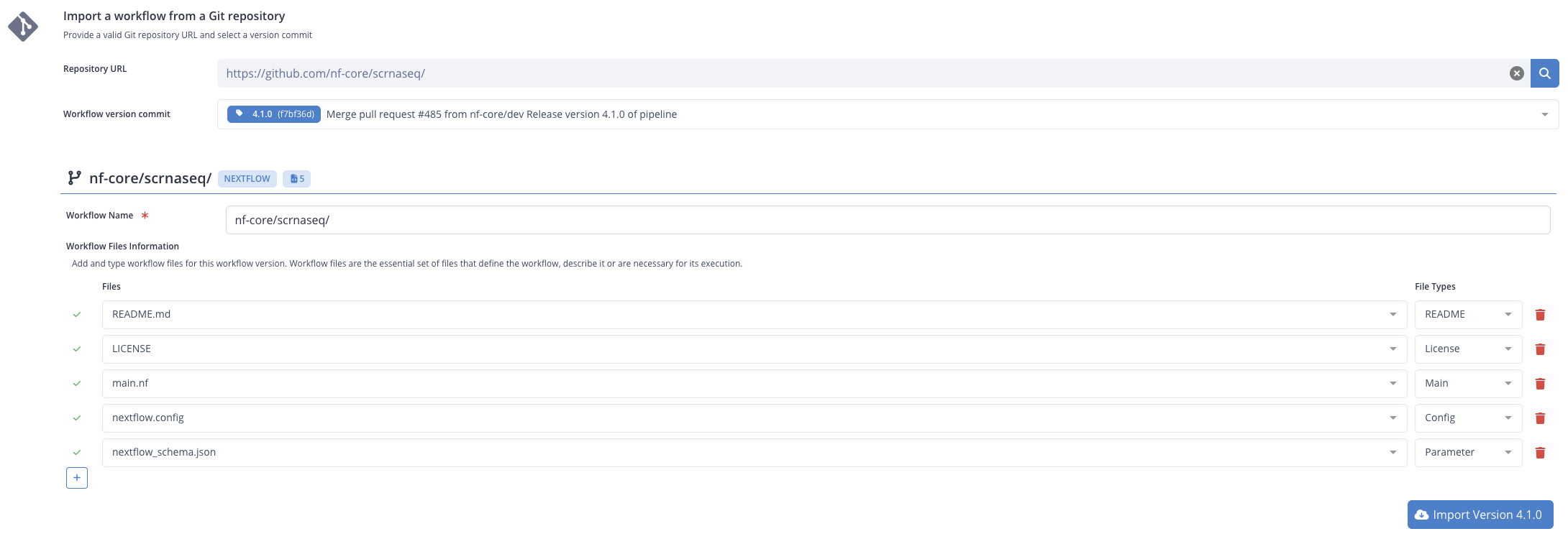
Here we will import a Nextflow workflow from nf-core, directly from the URL of the workflow repository (https://github.com/nf-core/scrnaseq/).
Support for git institutional repository
To import workflows from an institutional repository, your admin needs to configure authentication via ssh.
-
From the list of options under New workflow (as shown in screencapture above), select Import from Git.
-
Paste the GitHub URL above (or any GitHub, GitLab or other repository URL) in the Repository URL field
-
Review the version selected in the dropdown menu Workflow version commit. The last tagged version is selected by default, feel free to select another commit or tag. Note that versions already imported in LabID are labeled as such.
-
Review the list of files to display with the workflow version. Add/remove files or change the default type as needed.
-
Finally click the Import version x.x.x . You will be taken to the newly created Workflow Version page. Note that a parent Workflow will also be created if this is the first version of this workflow imported (i.e from the same URL).
About the workflow files
LabID will list some "key" files from the repository, that are "representative" of the version (main workflow file, license, readme, config). This selection is based on the filename, and currently has for main purpose to provide a quick way to view the file content in LabID. There is thus no need to add every single file in the repo to this list, the created Workflow Version anyway retains a link to the repo and the commit used to import the workflow version.
Importing a workflow from a git repository
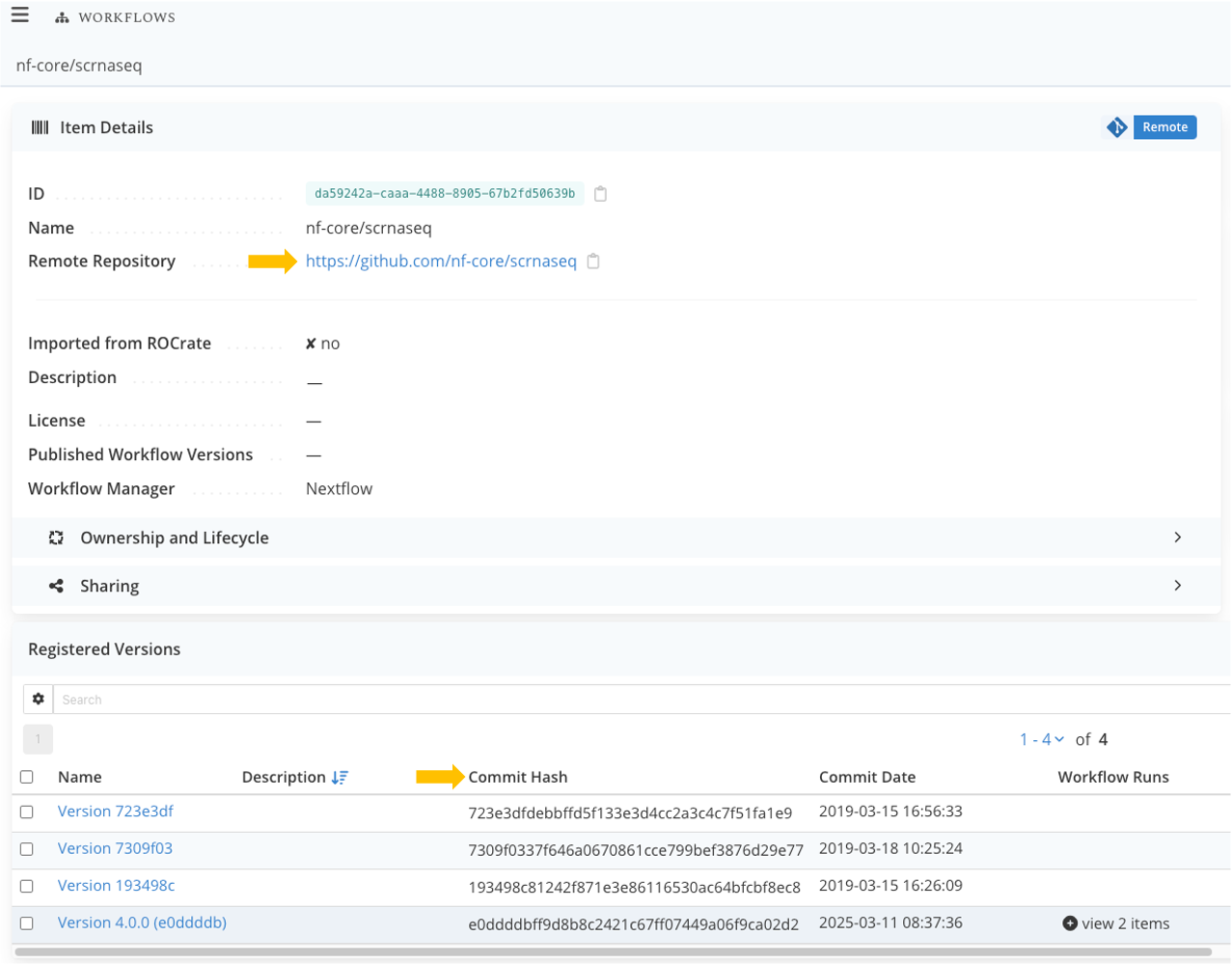
The parent Workflow keeps a reference to the original Git repository, while the associated Workflow versions have a reference to the original commit hash, as shown on the screenshots below.
The parent workflow lists all imported versions
Import from WorkflowHub
Workflows can be imported from workflow repositories such as WorkflowHub and dev.WorkflowHub.
To import from a workflow repository :
- from the menu on the left, click on Workflows, and at the top left of the page, click New workflow
-
select Import from Workflow Repository
-
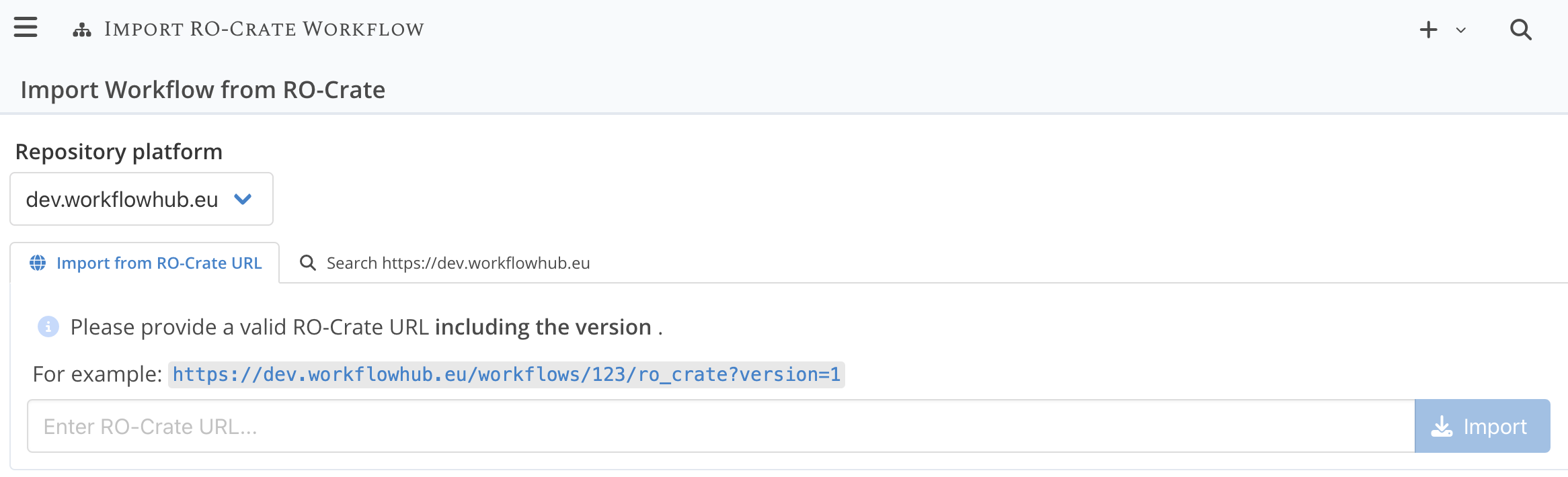
on the next page, in the dropdown Repository platform, select the repository you want to import from
Now, you can either search across the workflow repository using the built-in search functionality of LabID or paste the URL to a public workflow in that repository.
Importing from a workflow repository
Missing some repository ?
The list of repositories you can import from is defined by the configuration of your LabID instance.
Administrators can add new entries to this list by following these instructions.
Only public workflows can be imported
You can only import workflows that are public within these repositories.
If you work on an institutional Galaxy instance, "public" here means visible to all the users of this instance (not to the outside world).
Alternatively, you can keep your workflow private and import into LabID any galaxy invocation using this workflow:
an associated workflow version will automatically be created.
Importing a workflow using a WorkflowHub URL
We will import a nf-core workflow from WorkflowHub (GenomeAssembler).
We could actually import this workflow from GitHub instead, all nf-core workflows are hosted there.
Not all workflows are hosted on Git repositories, so this option can be an alternative instead.
- Select the
workflowhub.eurepository under Repository platform - Select the tab Import from RO-Crate URL
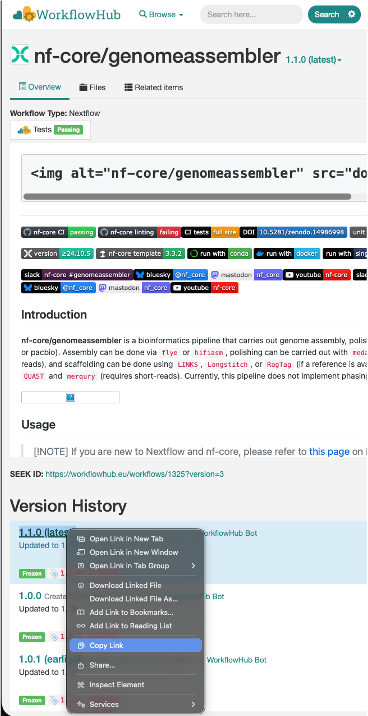
- Go to the page of the workflow on WorkflowHub -> https://workflowhub.eu/workflows/1325
- Scroll down to the section Version History
-
Right-click on the title of the version you want to import, and select "Copy link"
Copying the link to the workflow version on WorkflowHub
-
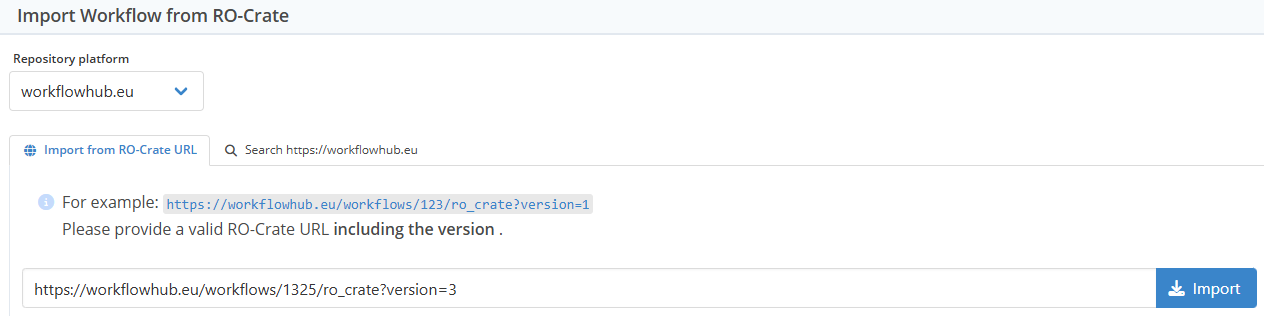
Back in LabID, paste the URL you just copied.
For version 1.1.0 of GenomeAssembler this should be
https://workflowhub.eu/workflows/1325?version=3 - Click Import
URL for main workflow page of WorkflowHub cannot be used for import
When importing from a WorkflowHub URL, the main URL of the workflow page cannot be used directly for import (ex : workflowhub.eu/workflows/1325/). The reason is that the URL does not point to a specific version, rather to the last available version at the time the link is visited.
LabID enforces here the use of version-specific URL to ensure reliable identification of imported workflow versions (ex : workflowhub.eu/workflows/1325?version=3).
Such version-specific links are available under Version history at the bottom of the WorkflowHub page, simply copying the hyperlink under the version identifier.
Importing a workflow from WorkflowHub using a URL
Upon successful import, a new Workflow and Workflow Version are created.
Click on the button in the notification window informing about the successful import to be taken to the workflow page.
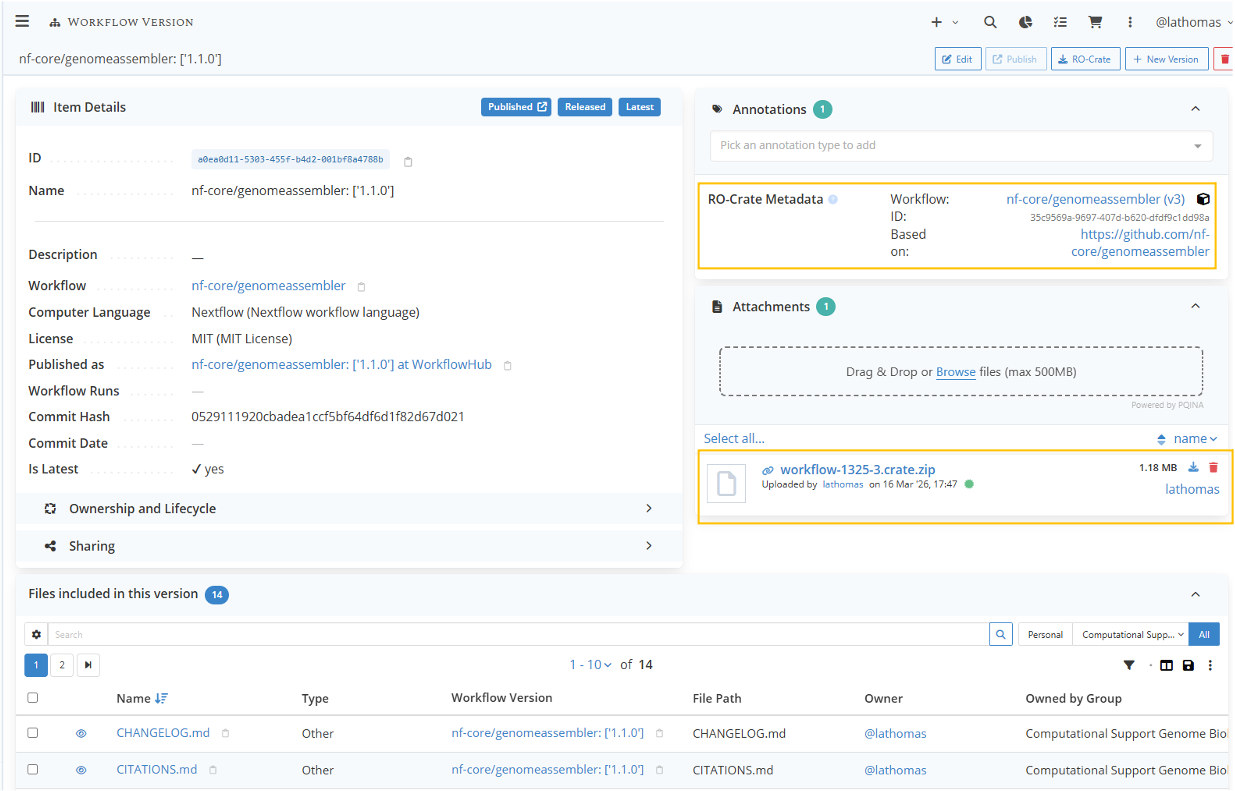
Both the Workflow and Workflow version retain the original link to the workflow repository as an annotation.
Workflow versions imported from WorkflowHub are packaged as Workflow RO-Crate.
This RO-Crate is associated to the Workflow Version via the Attachments functionality, so you can always download the original crate for this workflow version.
Workflow version imported from WorkflowHub
Next, we'll see how to search workflow versions using specific keywords.
Search for workflows in WorkflowHub from LabID
Besides using the URL to a workflow, LabID supports directly searching across a workflow repository with a custom query.
This is described below for Galaxy, but the procedure is the same for WorkflowHub.
Import from Galaxy
Workflows can also be imported from Galaxy instances, like with WorkflowHub, you can directly import from a url to a workflow, or search for workflows across the Galaxy instance from LabID.
Note that only workflows published in the Galaxy instance can be imported using this method, see publishing a Galaxy workflow.
To import a workflow from Galaxy:
- from the menu on the left, click on Workflows, and at the top left of the page, click New workflow
- select the corresponding Import from ... option.
Importing a Galaxy workflow using a public link
You can import a Galaxy workflow directly by pasting its link or identifier in the import dialog.
- select the relevant Galaxy repository under Repository platform
- select the tab Import from URL
- paste the URL to the Galaxy workflow, or its workflow ID.
ex: https://usegalaxy.eu/published/workflow?id=9f8b502db5bca130 - click Import
A pop-up window should notify you that the workflow was correctly imported.
Click on the link in the pop up to go to the Workflow page listing all imported versions.
Where to find the Galaxy workflow URL ?
You can find the URL of a workflow by going to the Workflows section of your Galaxy instance, then going to the "Public workflows" tab.
Once there, you can click on the link icon to copy the URL of the workflow.
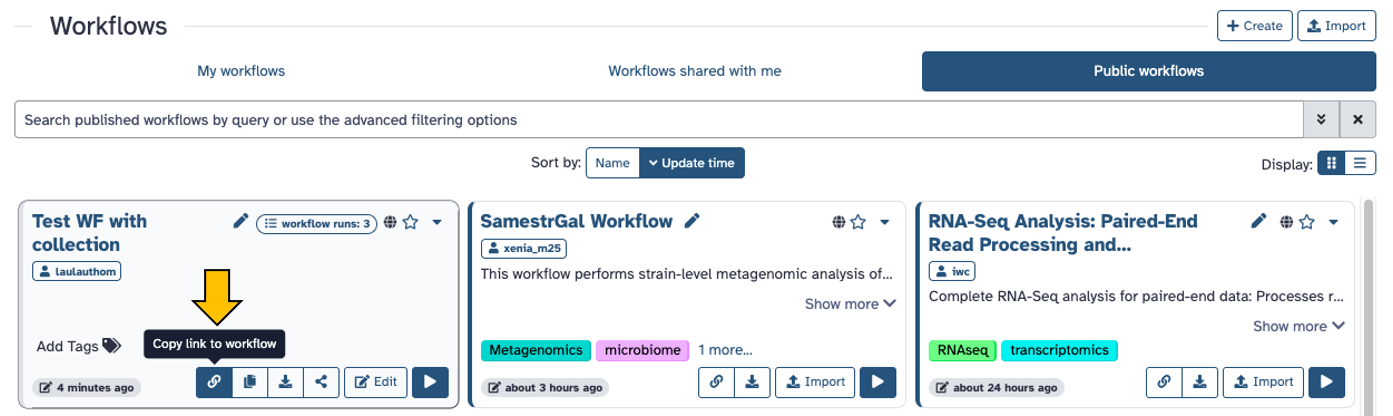
Search for workflows in a Galaxy instance from LabID
Besides using the URL to a workflow, LabID supports directly searching across Galaxy instances with a custom query.
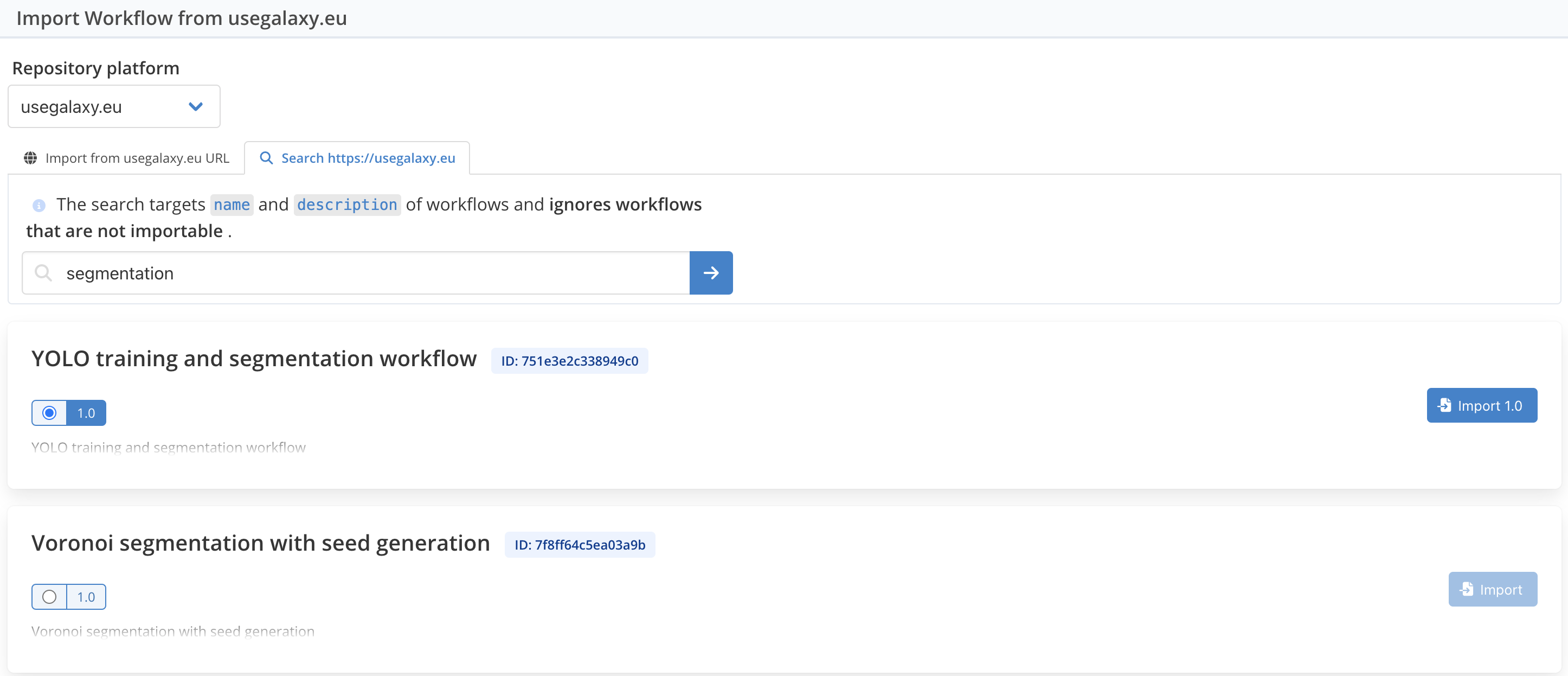
For instance, to look for Galaxy workflows matching the keyword "segmentation" on Galaxy EU.
- Select the
usegalaxy.eurepository under Repository platform - Select the tab Search usegalaxy.eu
- Type in "segmentation" and validate with
- Below the workflow name, select the version you want to import (in case of multiple versions)
- Click Import x.x on the right side of the workflow
A pop-up window should notify you that the workflow was correctly imported.
Click on the link in the pop up to go to the Workflow page listing all imported versions.
Searching for a workflow
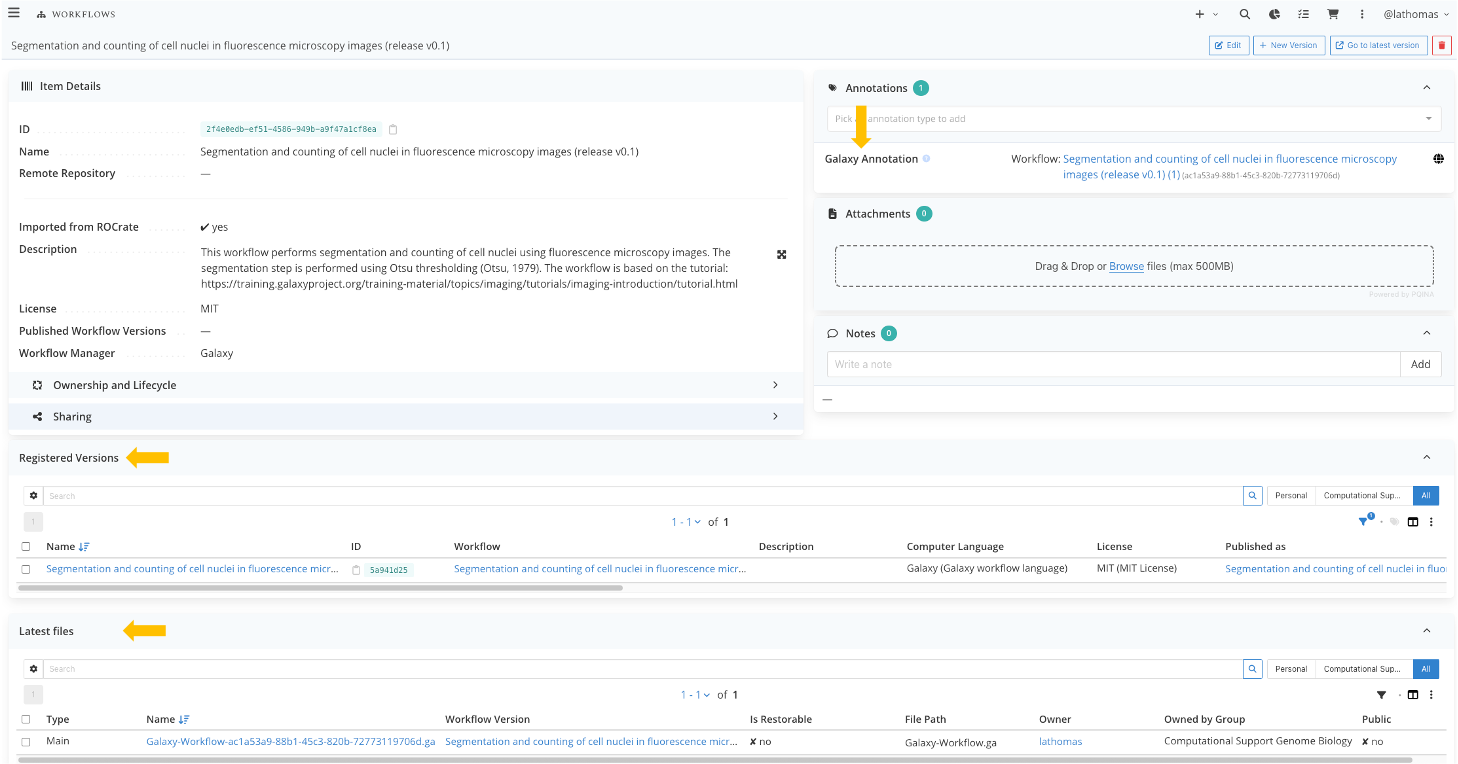
When importing from Galaxy, the workflow version has a copy of the main Galaxy file (.ga),
and has a special "Galaxy annotation" retaining the link to the workflow on Galaxy.
Workflow and workflow version after importing from Galaxy