Hands-on - Registration of raw datasets - Sequencing Data (mouse)
- 40 min
- Moderate
Overview
This hands-on is a follow-up of Creating specimen and sample in which the creation of samples (sequencing libraries) from mouse brain samples were described. The present tutorial describes how an assay can be registered in LabID, describing the actual sequencing acquisition of these libraries with a sequencer, and how the resulting sequencing data (paired-end) can be register in LabID.
The tutorial will cover the following steps:
- Creating a new sequencing assay from scratch
- Retrieving data from the user dropbox
- Navigating through the dataset loader wizard
- Registering raw and derived datasets
- Assembling multidimensional datasets with the dataset builder
- Linking datasets to
Study(ies)and existingSamples
Concepts
- Dataset
- «Dataset» is generally a broad concept meant to refer to any file, set of files, folder, or set of folders, describing a meaningful unit of biological data about some biological material for a given condition and/or treatment. A file - or a directory, etc. - containing data is referred to as a datafile. In many cases, a single datafile is enough to constitute the dataset, i.e. this single entity detains all parts of a meaningful unit of data about a sample. Conversely, in other cases, the meaningful unit is a combination of datafiles
- For example: In single-end sequencing, a dataset is composed of a single file containing all short DNA sequences. Conversely, in paired-end sequencing, the meaningful unit of data is a combination of two files, each containing a part of the information.
- Raw dataset
- A raw dataset refers to the primary dataset acquired - during an assay - by «reading-through» some biological material, using a specialised scientific instrument. Ideally, the raw data is presented in the same exact format as outputted by the instrument. Raw formats vary among instruments and disciplines (e.g. sequencers commonly output
FastQ1 files, the raw text format used to store short DNA sequences). - Derived dataset
- A derived dataset refers to a dataset that has been obtained by processing raw data.
- Assay
- An assay is a recording session during which some biological material (or sample) is «read-through» using a scientific instrument to obtain the raw data
- Dataset Collection
- Datasets originating from the same assay can describe different aspects of the analysed samples, as well as have different properties, and/or formats. For example, a sequencing facility can provide you with both raw data (in the
BCLformat, and/orFastQformat) and processed data (aligned reads in theBAMorSAMformat) resulting from executing a workflow. For convenience, datasets can be separated into different collections to be handled independently (raw data is e.g. archived and processed data is used for downstream analysis).
The datasets are linked to the data-generating assay and to their origin samples. Both the assay and samples can either be generated beforehand or while importing the datasets.
Walkthrough
In this walkthrough, we will be registering raw sequencing datasets (*.txt.gz). These have been acquired from biomaterials (sequencing libraries) using a sequencer. We will also add a collection of derived datasets (*.bam)obtained by processing the raw data.
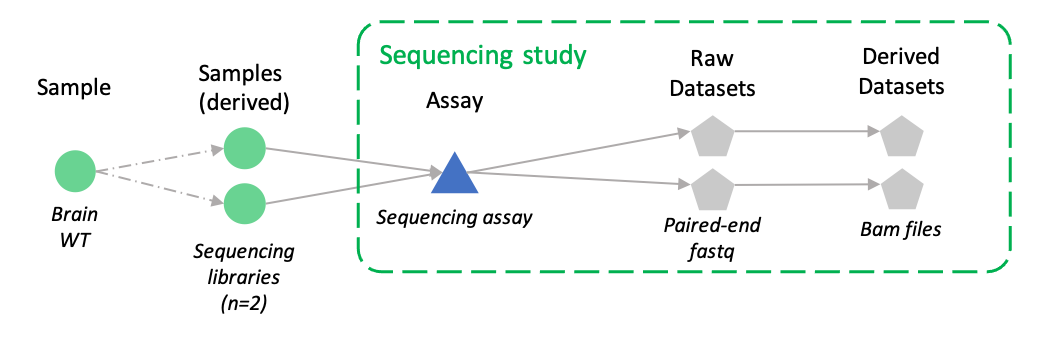
Unlike in the first registration hands-on - where new samples were created as part of the registration - here we want to use existing samples (of type Sequencing Library). This is to demonstrate the situation where one needs to describe how the libraries were obtained (as part of an experiment). Libraries are created from the ELN experiment; when the datasets are registered, they are link to these libraries.
In real life, days or weeks can pass between the moment you prepared the sequencing library and the moment you receive the sequenced data. In order to better track sample-preparation information, we advise to record it immediately i.e. do not wait until you receive the sequencing data.
Step 1. Enter the dataset loader
From the left menu of the application: Click Import datasets then Import raw datasets
Start the dataset loader
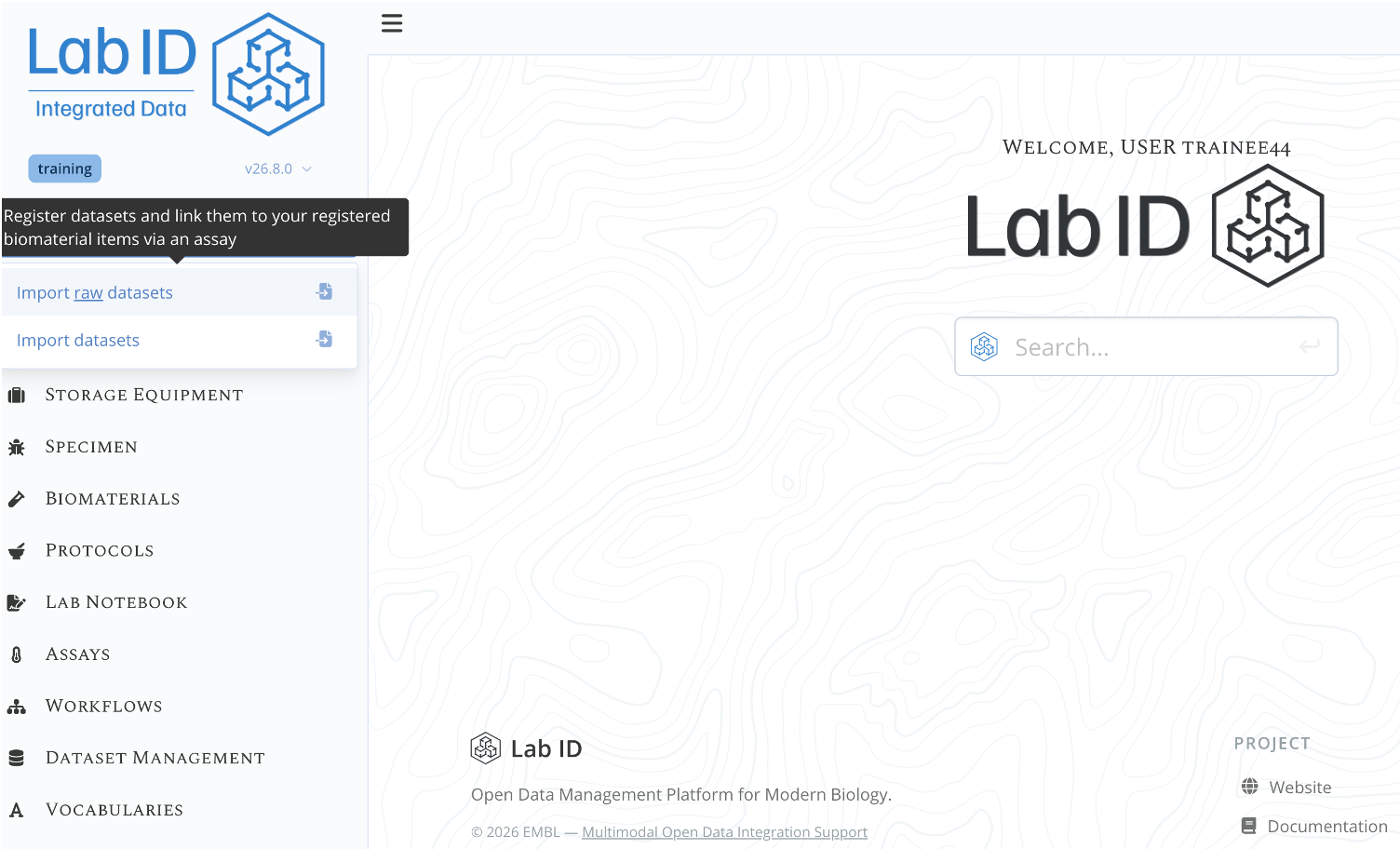
You now have been redirected to the Dataset Loader Wizard.
The wizard assists users through the different steps needed to register datasets. All pages of the wizard display a progress map at the top. There are at most six steps: Select Assay Type, Select Data, Create Assay, Build Datasets, Verify and Assign Samples.
The first page of the wizard is the Select Assay Type page.
Step 2. Select the Illumina Sequencing Assay Type - Wizard (1/6)
The wizard progress map at step 1

From the Assay Type Selection, you need to select the type of assay corresponding to the type of data you are registering.
-
- Locate the Illumina Assay row within the Sequencing Assays panel
- Do not select a template, nor an existing assay as template. Here we will be creating it from scratch
Sequencing Assays panel on the Assay Type Selection Page
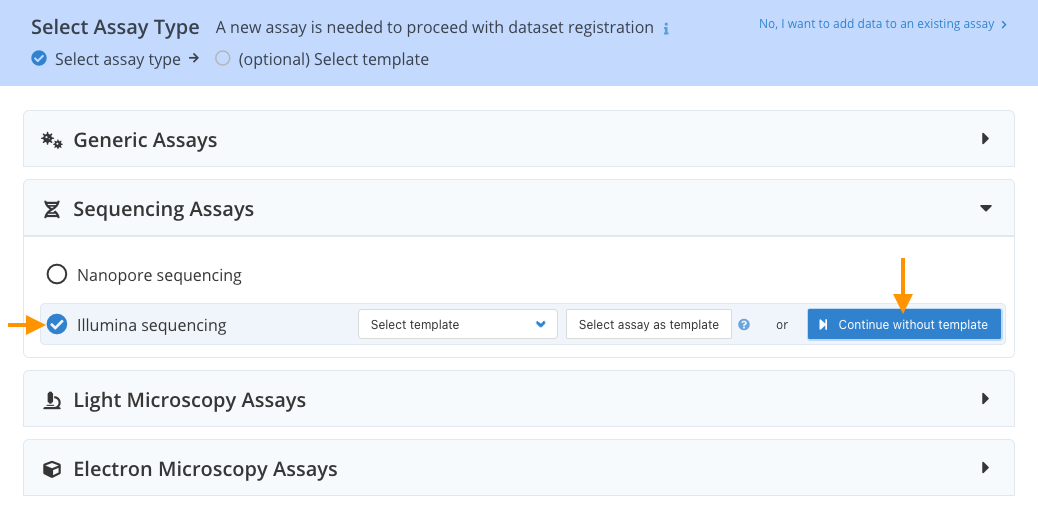
You now have been redirected to the Select Data page.
Step 3. Select data - Wizard (2/6)
On the Select data wizard page, you select the files and/or folders (datasets) that have to be loaded for the assay, and will be used to create multi-dimensional datasets (paired-end - 2 datafiles per dataset). Here we will select both the raw data and some derived data. The derived data is a set of BAM 2 files that have been obtained by aligning the raw data to a reference genome.
Toggle the left menu for more screen space
From here on, several wizard pages (the file explorer, the dataset builder table...) are easier to work with when wider. Click the hamburger icon (☰) at the top left to collapse the main navigation menu and free up horizontal space — click it again any time to bring the menu back.
Using the Dropbox at EMBL
The Dropbox approach is used to streamline data acquisition, mainly by circumventing heavy upload and long data moving time. In this training set-up, users cannot upload data in dropboxes themselves, the data has therefore already been placed in there for you. However, on a production instance, LabID has access to group shares, where managed folders were deployed on setup. This means users can directly browse to the Dropbox and drop their data there. This data will then be accessible from within the dataset loader.
Choosing the right dropbox
A user can belong to more than one group. Dropboxes are located on group shares. When a user belongs to more than one group, they will own more than one dropbox, one on each group share. It is very important to upload the data to the dropbox of the group that will own the data.
-
- (1) Select the dropbox folder of your group in the selector. Be sure to select the group that will be the data owner (see «Using the Dropbox» above).
- This loads the file explorer with files information from your dropbox.
-
Select the datasets:
-
- (2) Select the folder containing the data:
illumina-sequencing-mouse - Selecting the folder populates the right panel of the file explorer with files information from the run folder
- (2) Select the folder containing the data:
-
(3a) Select the 4
aligned-datadatasets (.bam) -
- (3b) Select the 8
raw-sequencingdatasets (.txt.gz) - The blue tag at the top right shows 12 datasets are selected
- (3b) Select the 8
-
Wizard - Select Data
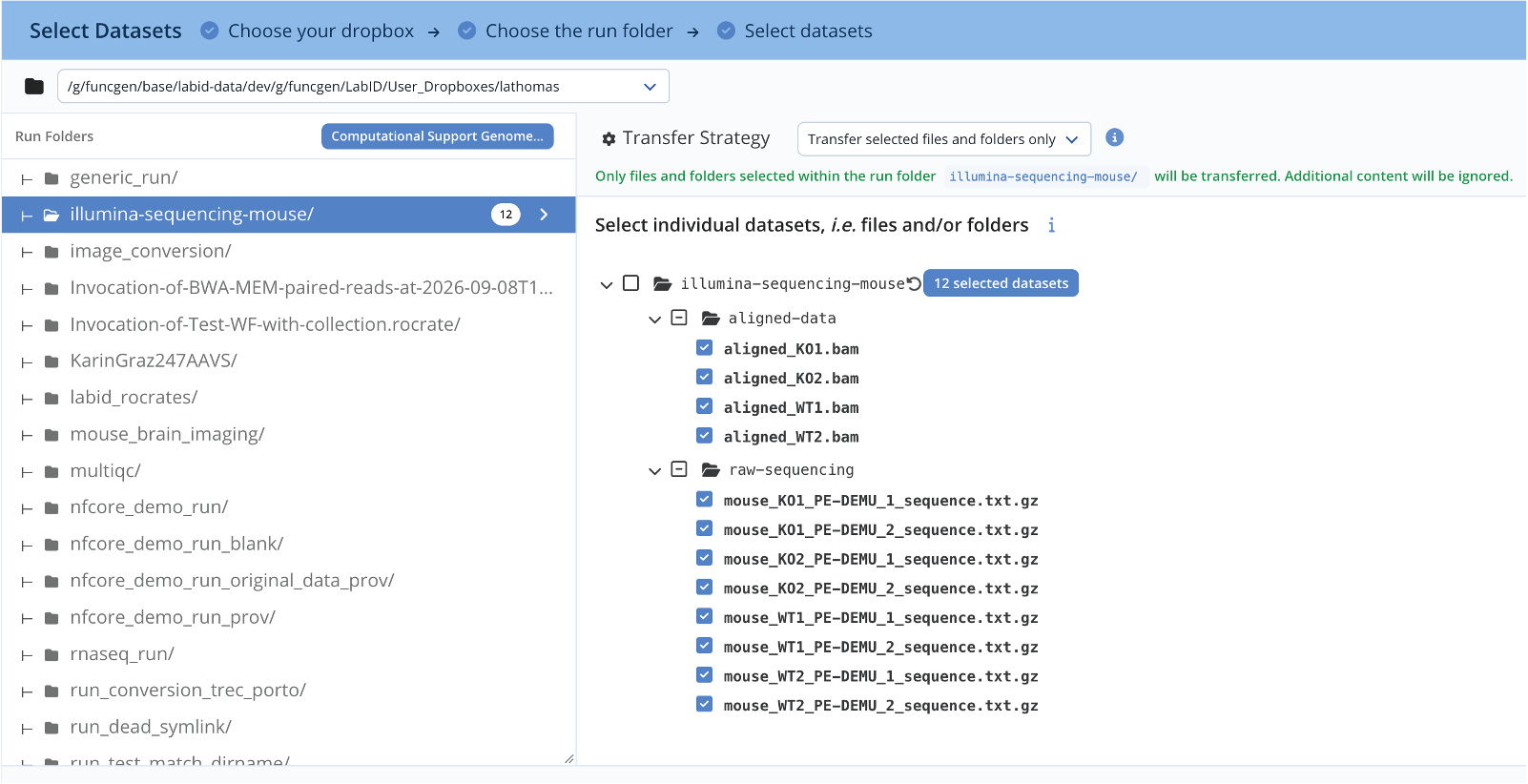
- Set the Transfer Strategy to any option. Since we selected all the files in the run folder, it does not matter which option is selected, the result will be identical.
Transfer Strategy options
- Transfer the whole run directory (default): the entire folder is transferred to the group's storage, including files that weren't selected as datasets.
- Transfer selected files and folders only: only the ticked files/folders are transferred, keeping the final storage tidy — but anything left behind in the dropbox needs manual cleanup if you reuse that folder.
See Importing raw data for the full reference.
- When done with selecting files, click Continue
You now have been redirected to the New Assay page
Step 4. Create the new assay - Wizard (3/6)
On the New Assay page, fill the form up with all relevant information about the assay, namely:
- Name the assay:
Training paired-end illumina seq assay of traineeXX(replace XX with your trainee number) - Pick Multiplexed
Yesand set4for the sample number - Select the Instrument Model:
Illumina NovaSeq 6000
Instrument vs Instrument Model
Assay forms usually offer both an Instrument field, alongside Instrument Model field. Instrument Model is a generic value describing the type/make of instrument (e.g. "Illumina NovaSeq 6000") — it isn't tied to a single physical unit. Instrument instead points to one specific, individually-registered piece of equipment (e.g. a particular sequencer tracked as an Equipment item) — useful when you need to know exactly which physical unit was used, not just its model.
See Assays for more on how assays relate to instruments and samples.
- Write down the Flowcell ID: e.g
FLOWCELLXX(where XX is your trainee number). This must be unique across all assays in the database, so it is important to use your trainee number and anything making the name unique. - Select the run type «paired-end»
New Assay Page
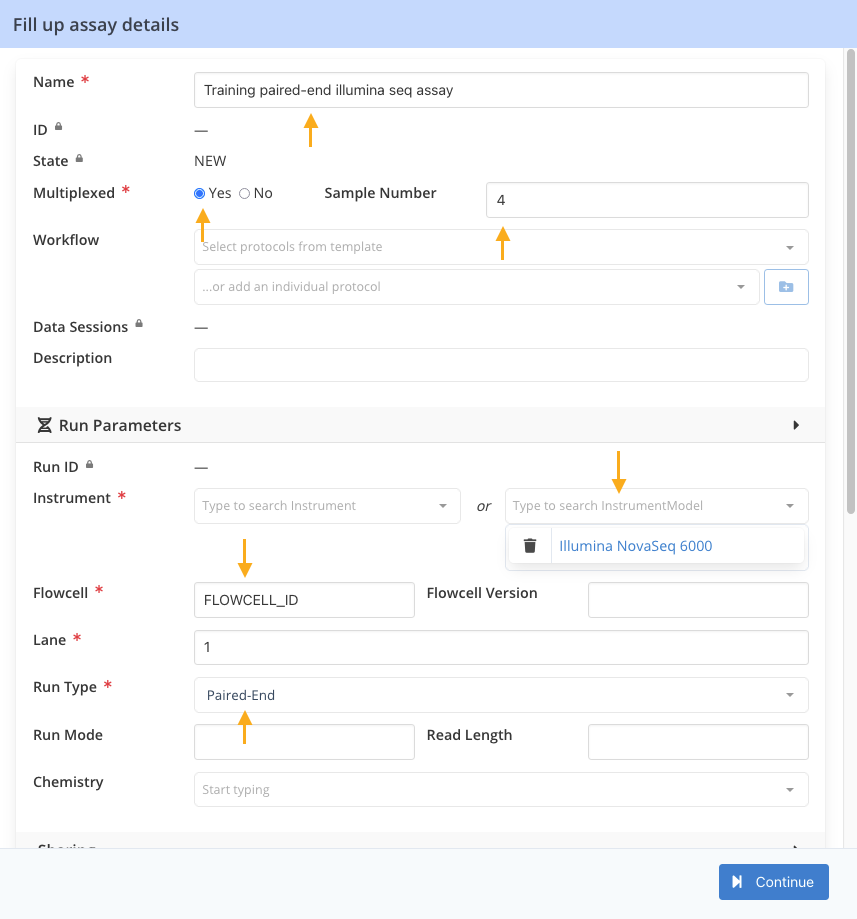
- Click Continue
You now have been redirected to the next page of the wizard, the Build datasets page.
Step 5. Build & Stage datasets - Wizard (4/6)
The Dataset Builder panel on the Build datasets page presents a default collection of raw datasets and lists all datasets that have been selected on the previous page.
Why is the dataset builder needed ?
The dataset builder is a powerful tool to build multi-dimensional datasets (i.e datasets composed by two or more dataset) and organise datasets into different collections. It can also be used to adjust the dataset names with regex. Advanced dataset builder features are addressed in other parts of the training material. In this walkthrough, we demonstrate some of these advanced options.
The Dataset Builder is used here to:
- Assemble two files, the
read_1and theread_2into paired-datasets (with 2 datafiles) - Use a regular expression (regex) to extract the relevant parts of filenames and automatically assign a better name for each datasets (
Advanced controls - Dataset Name Extractor). - Create 2 separate collections of datasets: 1 collection for the raw datasets (.txt.gz), one for the derived datasets (.bam)
Step 5.1. Collection information
The Dataset Builder section should look like the screenshot below. The Collection information panel (dotted yellow square) is used to adapt the collection name, set the number of datasets per row, and whether the collection is raw or derived data.
Dataset builder - Collection information
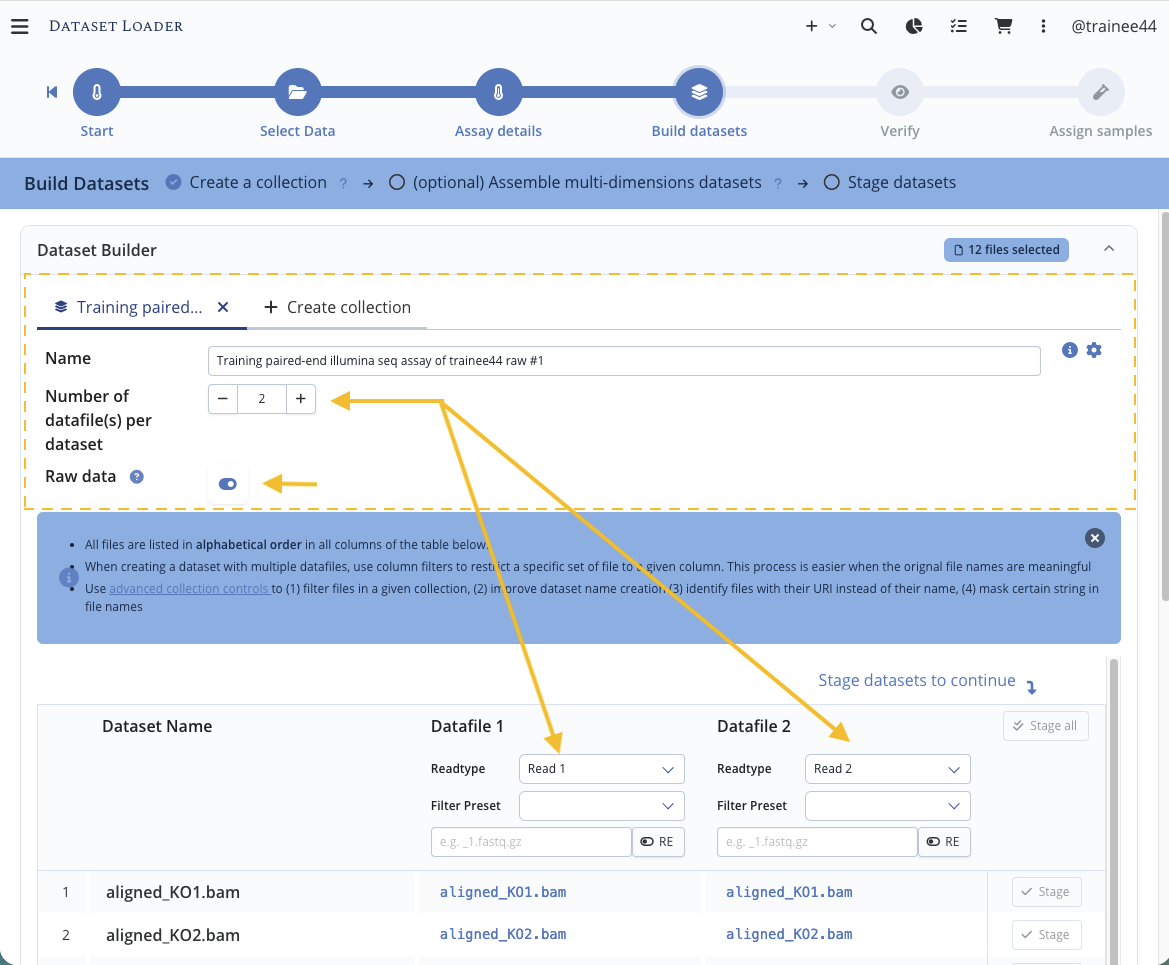
By default, the dataset builder is initialised with one collection. This collection is set to have 2 datasets per row (a paired-end dataset is composed by both read 1 and read 2). Raw data is set to true so this collection should contain raw datasets.
A mandatory collection of raw data is expected for new assays
Data is being loaded to a new assay - i.e. an assay that does not already have any dataset registered to it - it is therefore mandatory to submit at least one collection of raw data. Additional collections of raw/derived data can be added.
The assay type cannot be changed as we have started the loader with an assay (the one we manually created).
Step 5.2. Assemble multiple datafiles into a single dataset
Following the Number of datafile per dataset (2), the dataset builder table has two columns, one for read_1 , one for read_2 .
Dataset builder - All files injected in both columns
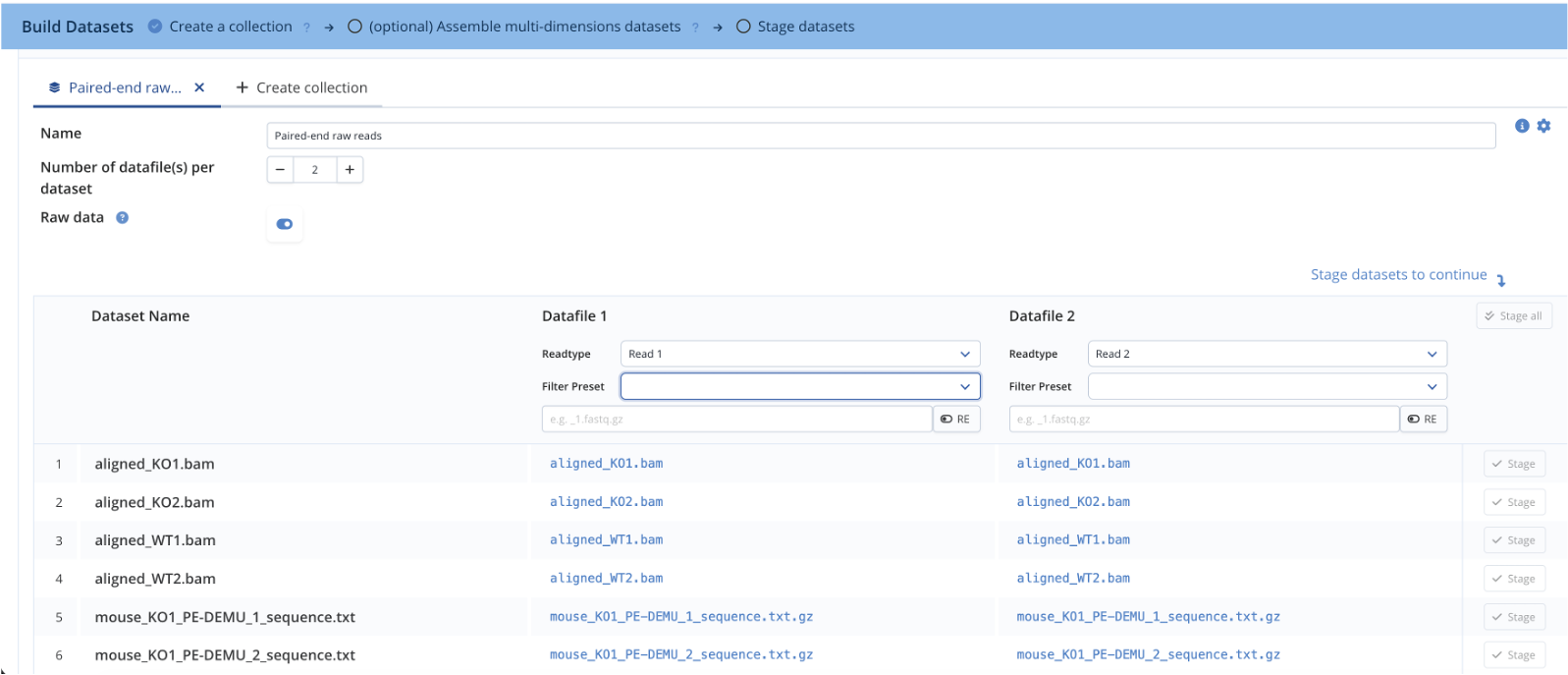
All selected datafiles are initially present in both columns.
We will now use filters on the filename to include a subset of the file and group the pair of files that belong together (the paired-end datasets).
-
In the column Datafile 1
- Set the Read Type to
Read 1(default) - Set the Filter Preset to
Standard Genecore(or manually set the Filter to_1)
- Set the Read Type to
-
In the column Datafile 2
- Set the Read Type to
Read 2(default) - Set the Filter Preset to
Standard Genecore(or manually set the Filter to_2)
- Set the Read Type to
GeneCore@EMBL
GeneCore@EMBL uses _1 and _2 to differentiate read_1 and read_2. Using the Filter Preset just sets the related Filter in the input box. In case _1 and _2 is not enough to filter the read files, it can be adapted manually e.g. respectively _1_sequence and _2_sequence.
As seen on the picture below, the table now only lists the files matching the filter in each column (in our case only the .txt.gz files contain _1 or _2 in their name).
Datafiles are now naturally aligned together into datasets and can be staged. Before staging datasets, we will use the builder advanced controls to automatically extract meaningful dataset names (proceed to next step without "staging").
Using column filters to assemble paired-end data
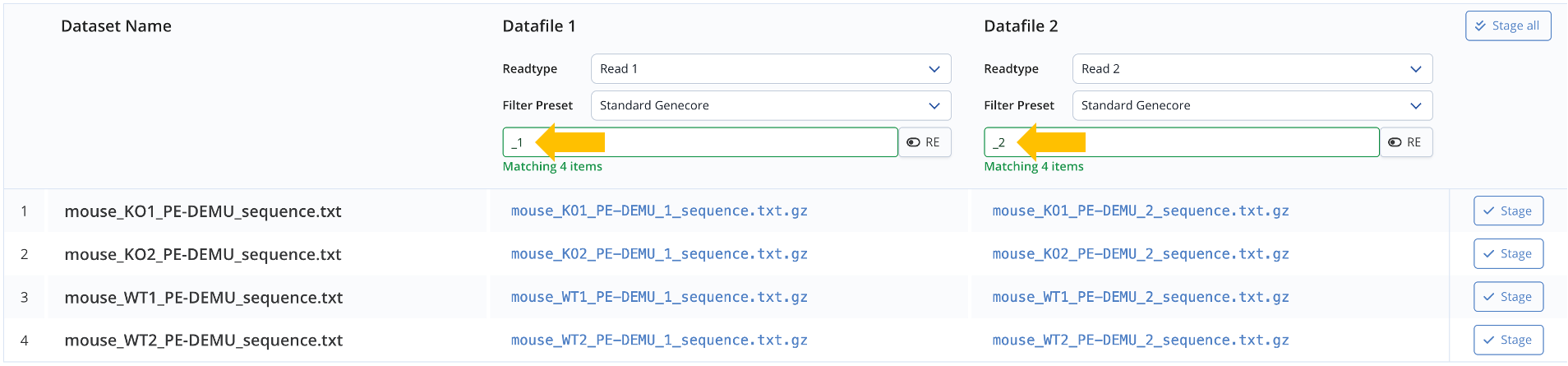
_1 and _2 to differentiate reads.
Step 5.3. Rename multiple datasets with regex
Here we want to demonstrate the option to automatically extract meaningful dataset names from datafile names or paths, using the advanced controls.
Dataset builder - Button to open advanced controls
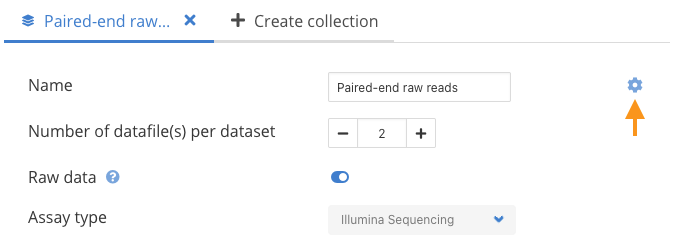
- In the Dataset name extractor, paste the following regular expression
^(mouse_[A-Z]{2}\d)_.*$to extract relevant part(s) within the dataset name (see below)
Using Regular Expression to give better dataset names
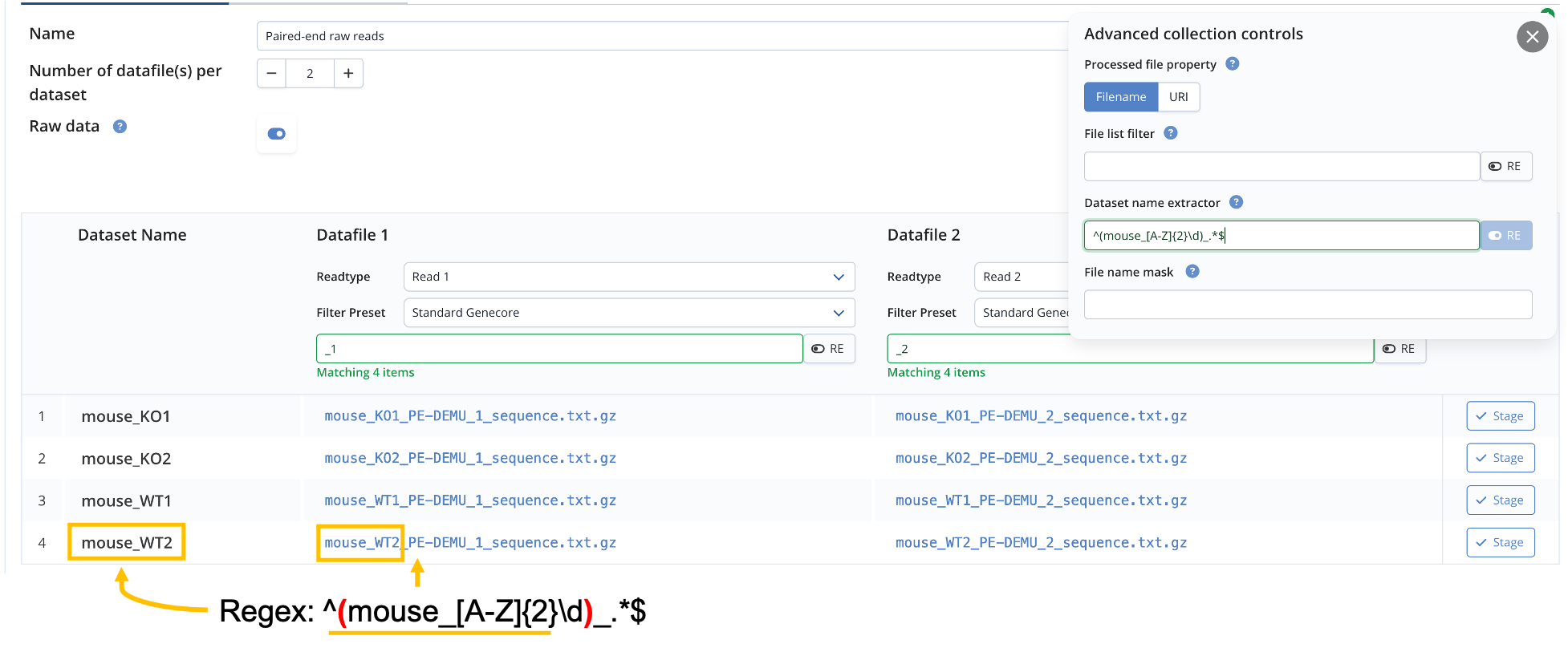
Understanding the regex
Considering the pattern on our file names, using the Regular Expression ^(mouse_[A-Z]{2}\d)_.*$ extracts only the beginning of the original filenames.
In short, the brackets enclose the part(s) of the regex (so called groups) that should be kept for the filename. Here this is just one group, but you could have multiple groups, which would be concatenated to give the final dataset name.
Here the group is made of mouse followed by 2 capital letters ({2} means twice the previous token), followed by one digit \d. The rest of the regex won't be part of the filename and just match an underscore followed by any character (.) as many times *. ^ and $ are just indicating the beginning and end of the filename.
See here for more information.
The regex applies on the common parts of the datafile names
_1 and _2 are already removed from the auto-generated dataset name, before applying the dataset name extractor regex. This is because the default name is formed by concatenating only the common parts of the two datafile names.
- Close the Advanced Controls panel before clicking Stage All — while open, it can cover/hide the button.
-
- Click Stage All
- Once staged, datasets appear in the Staged datasets bottom panel.
Step 5.4. Stage the derived data
We will now create a new collection to contain the derived datasets (the .bam).
The state of the builder after staging some files
After staging the raw data, nothing appears to be left to stage in the Paired-end raw reads collection. This is because the filters _1 nd _2 are still set and none of the remaining BAM files pass those filters (orange rectangle (a) on the picture above). This is okay because there is no more raw data to be staged in this collection.
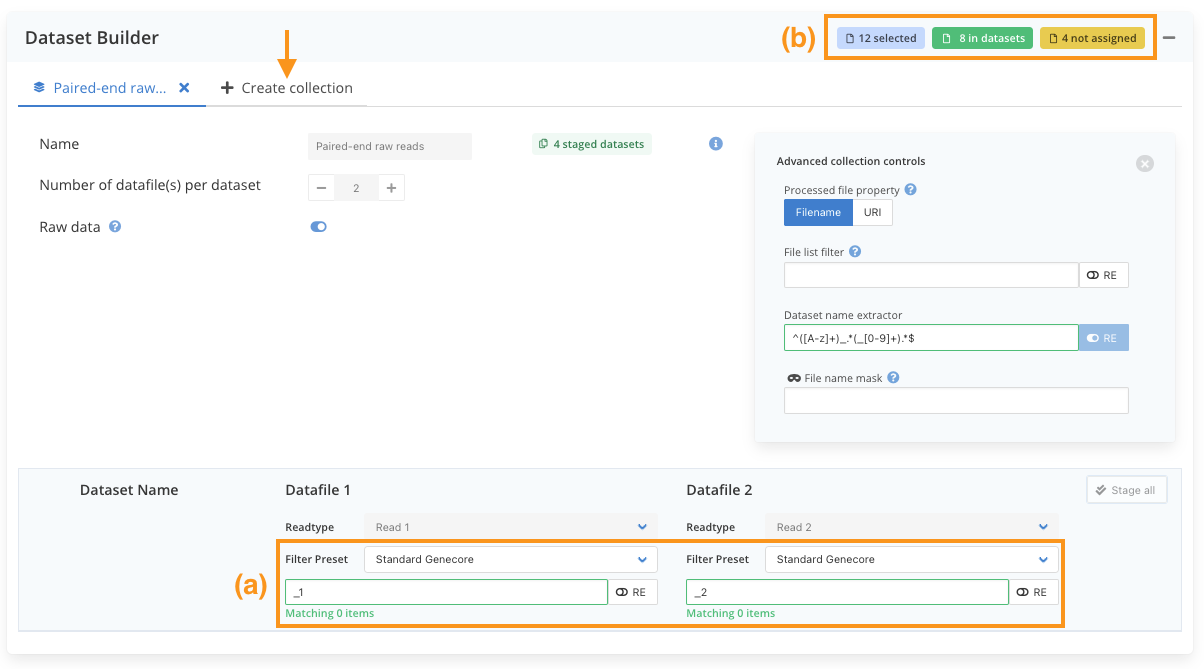
The Dataset Builder panel now displays a sum-up of what is staged and what is left to be staged at the top right (orange rectangle (b)). Here we see that, currently, 8 - out of the 12 originally selected - files are part of a dataset (the datasets that have just been staged at previous step).
The sum-up also displays a warning reading that 4 files are not assigned to any dataset. This is the 4 BAM files that are going to be staged in a collection of derived data.
-
- Click Create collection to create a second collection
- The new collection is initialised with the Number of datafile per dataset set to
1single datafile per dataset and Raw data set tofalse. This is exactly what we want. - The new collection is initialised without any column filter, all files are listed in the table.
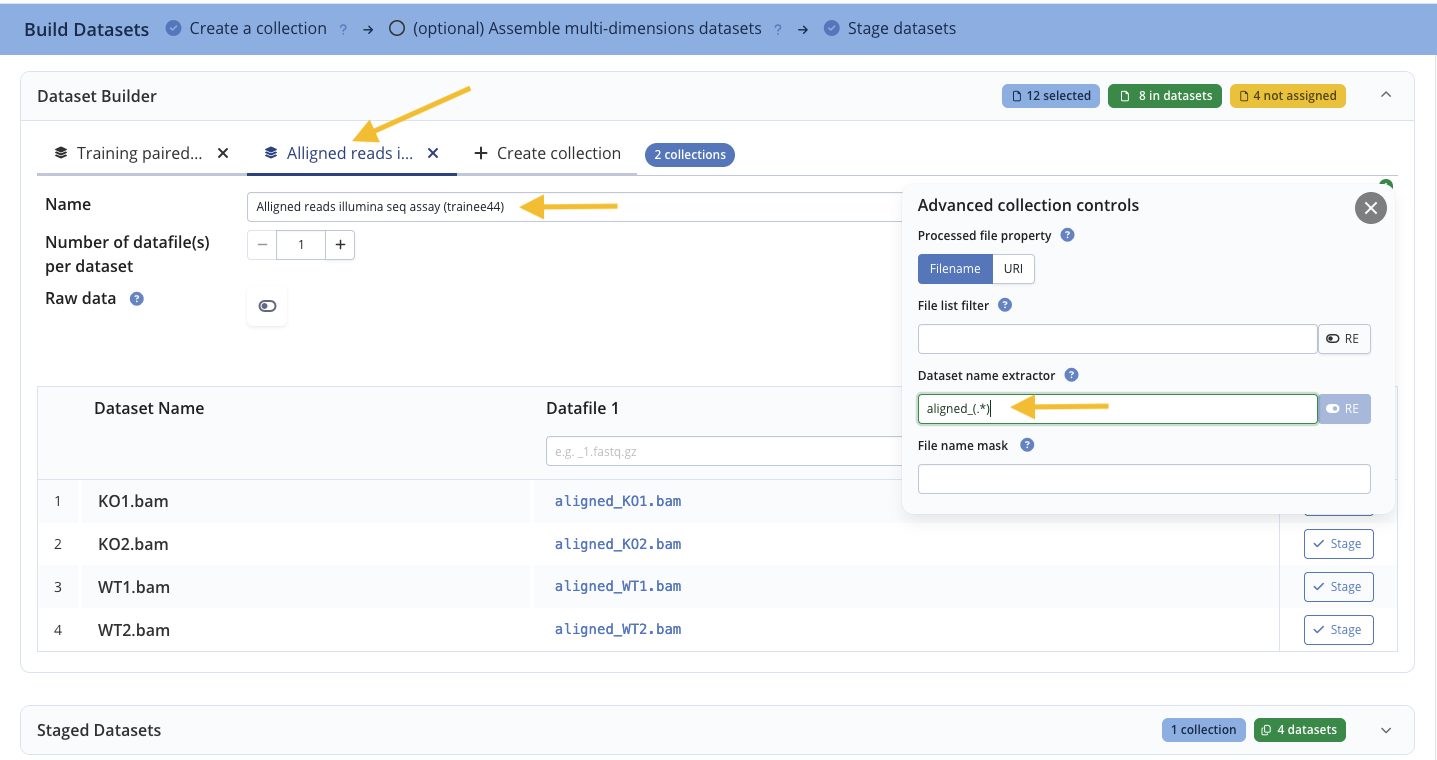
- Name the new collection it
Aligned reads - Open the Advanced control again, and set the Dataset name extractor to
aligned_(.*)
A second collection of derived data
- Close the Advanced Controls panel before clicking Stage All — while open, it can cover/hide the button.
- Click Stage All
The Staged Datasets panel
The Staged datasets panel displays a global sum-up at the top-right. Collections are organised into tabs
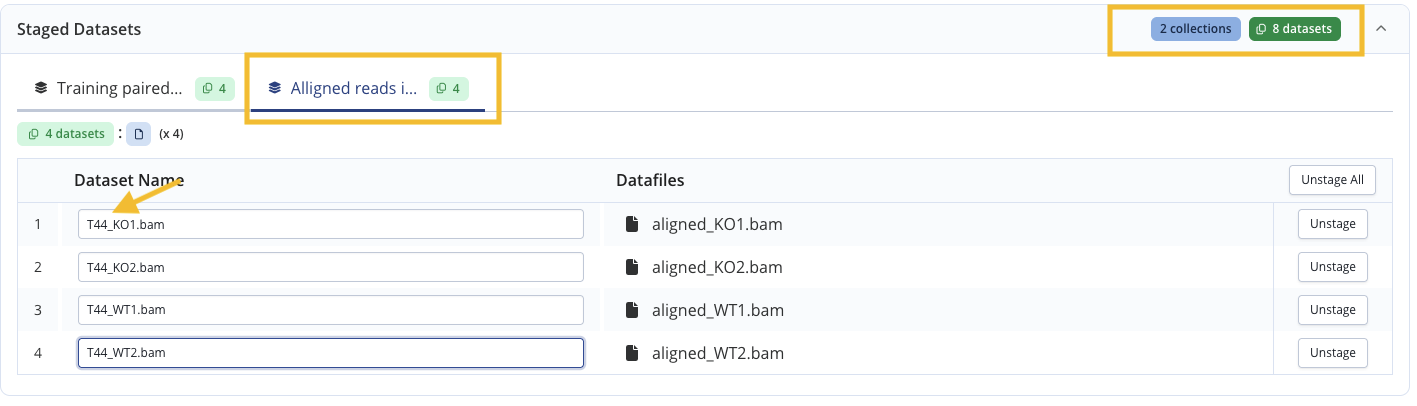
All names have been extracted with regex and are meaningful. You may rename the datasets and customize them with your trainee XX number (see screenshot above where the T44_ was manually added to all dataset names). We also suggest you to rename the fastq datasets (in the first collection) to include your trainee number as a prefix.
Datasets are ready!
- Click Continue
You now have been redirected to the next page of the wizard, the Verify page.
Step 6. Verify - Wizard (5/6)
The Verify page is the place to indicate (1) the Study for which the datasets have been generated, (2) whether samples should be assigned to the datasets and (3) in such case, indicate a sample type. It is also the place and time to review the information that has been assembled so far.
In this example, we are loading raw datasets and it is mandatory to assign samples to them. The sample type cannot be modified as only one sample type (Sequencing Library) is available for Sequencing data. For the derived data you can choose to assign samples or not, here we will do it.
Like in the previous tutorial registering the mouse brain images, we will create a new study to contain all the sequencing datasets (both the raw and derived datasets).
-
For our
Paired-end raw readscollection, create a new study:- Next to
Study, click Create . This opens a pop-up with a «New Study» form. -
Fill in the study form
- Name:
Paired-end sequencing - mouse [TraineeXX] - Project: select the project
Trainee XX Brpf1 KO vs WT neurons(created in the previous tutorial) - (Optionally) Fill in any other field.
- Name:
-
- Click Create Study to confirm and close the pop-up
- The new study now appears selected in the Study dropdown
- Next to
-
Double-check the information
Wizard - Verify the raw data collection
![The verify page displays a sum-up of the information assembled so far about dataset(s), collection(s), study(ies) and sample type. Here, the datasets will be registered in a new study named «paired-end sequencing - mouse [Trainee 44]». Since we are registering raw data, assigning sample is mandatory. The sample type is here fixed to sequencing library as this is an illumina sequencing assay. Note that our read 1 and read 2 are assembled into paired-end datasets.](assets/8-wizard-verify.png)
paired-end sequencing - mouse [Trainee 44]». Since we are registering raw data, assigning sample is mandatory. The sample type is here fixed to "sequencing library" as this is an illumina sequencing assay. Note that our read 1 and read 2 are assembled into paired-end datasets.
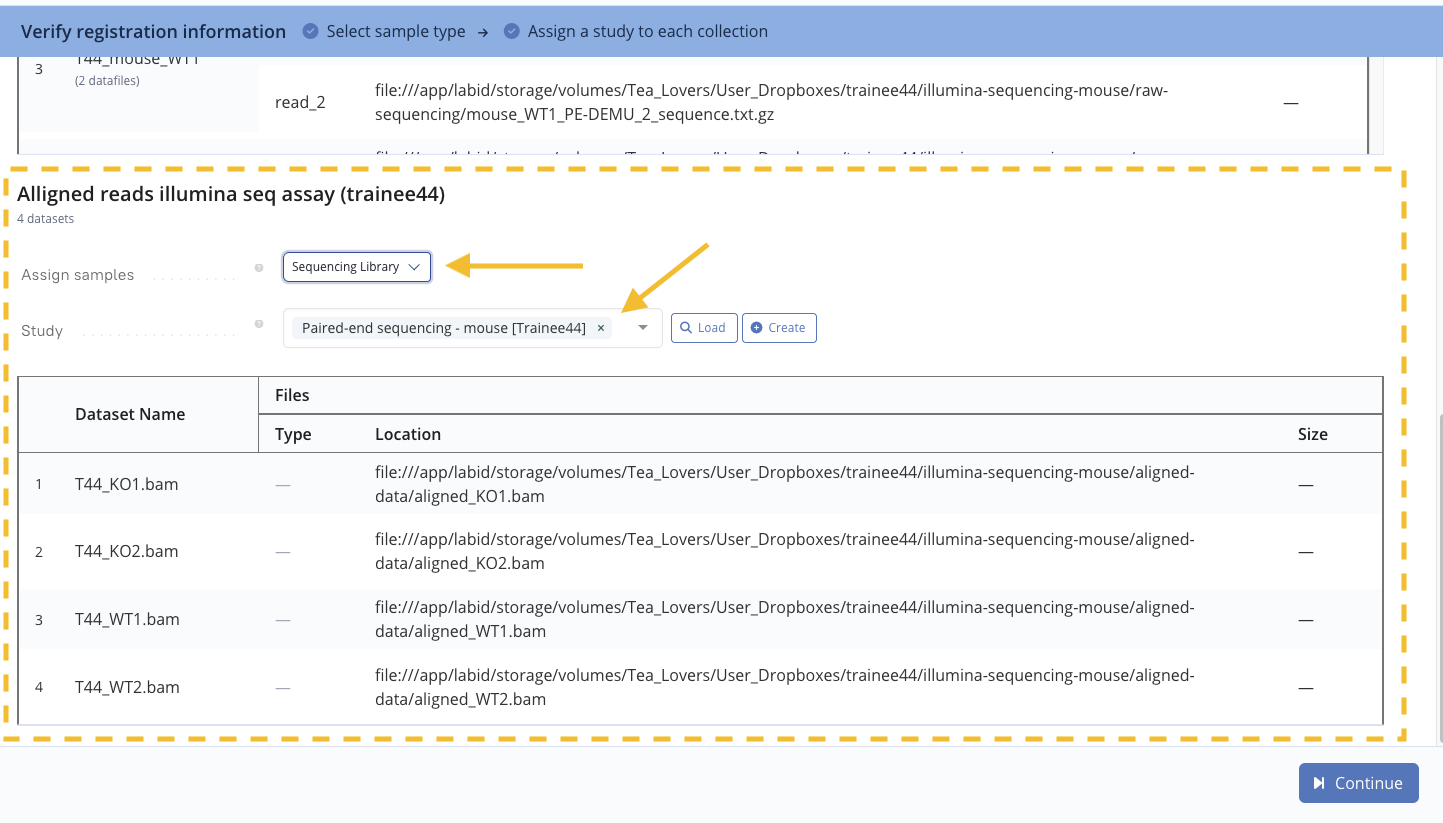
- For the
Aligned readscollection:- The study should have been set automatically to the same value as for the other collection
- Set Assign Samples to
Sequence Library
Wizard - Verify the processed BAM data collection
- When ready, click Continue
You now have been redirected to the final page of the wizard, the Assign Sample page.
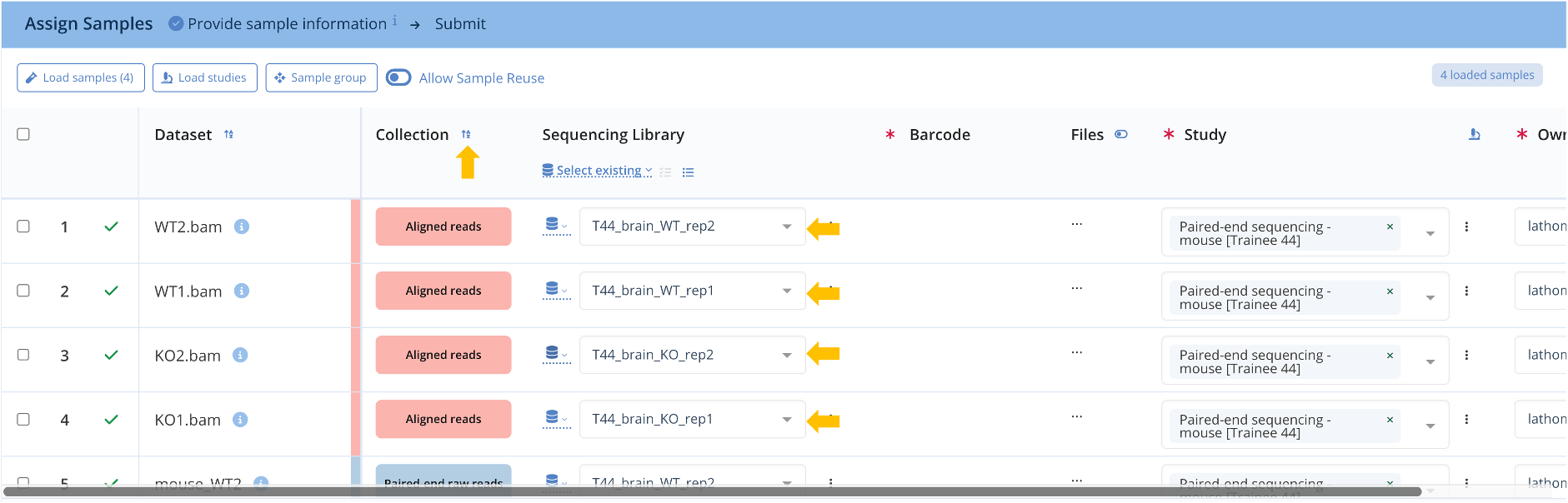
Step 7. Assign samples - Wizard (6/6)
The Assign Sample page is used to assign a sample to every dataset. Also on this page:
- The owner of each dataset can be modified, in case the data is being loaded for different users.
- The Study can also be adjusted per dataset, in case more than one study was selected on the verify page
Here we will use the samples created in the previous tutorial Create specimen and samples.
Create new samples or reuse existing ones
Samples can either already exist — e.g. created earlier within an experiment or reused from a different project — or they can be created automatically on the fly. When created here, a sample's name defaults to the dataset name, but can be adapted.
Here is how the wizard looks like after the previous step, with all datasets staged and ready to be assigned to samples.
Assign Sample page
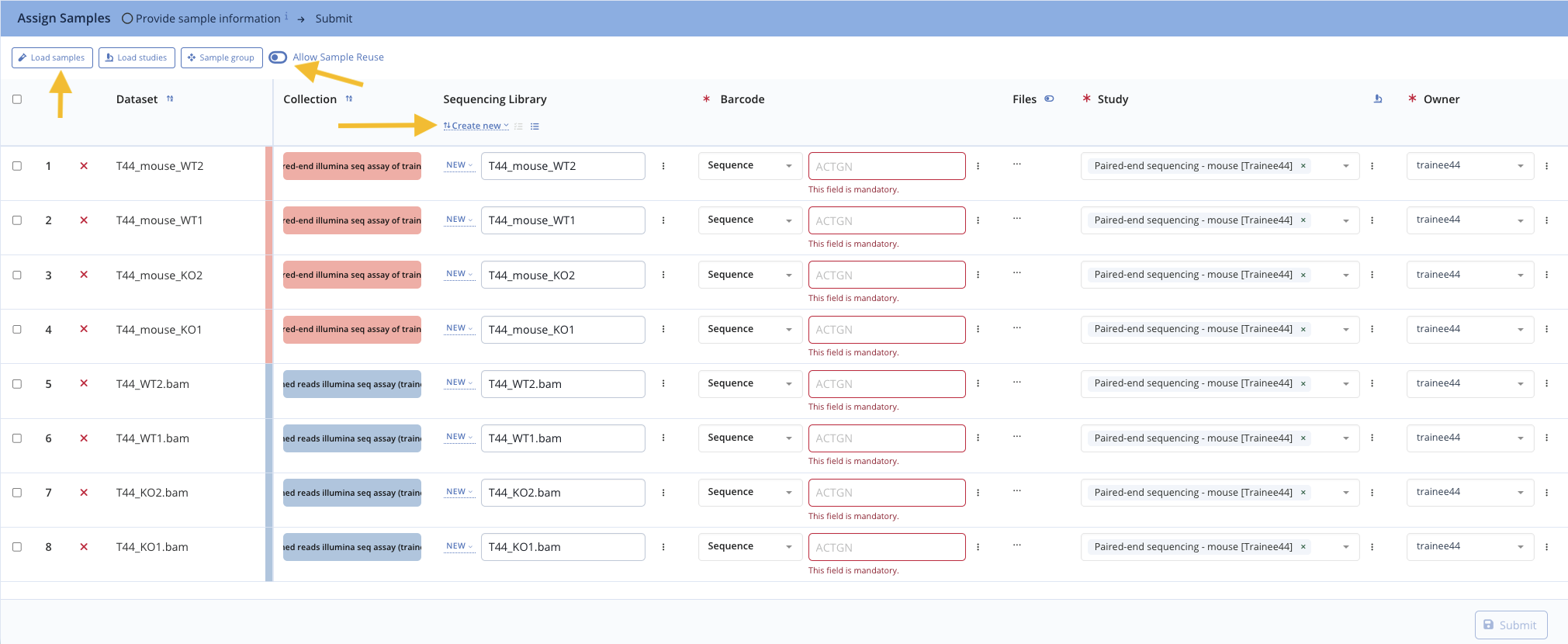
- Make sure the Allow Sample Resue is toggled.
- Click Load Samples at the top left of the Assign Sample page
- In the modal, select the Personal list filter
- Selects the 4 samples created at step 1, then click Confirm
Load samples modal
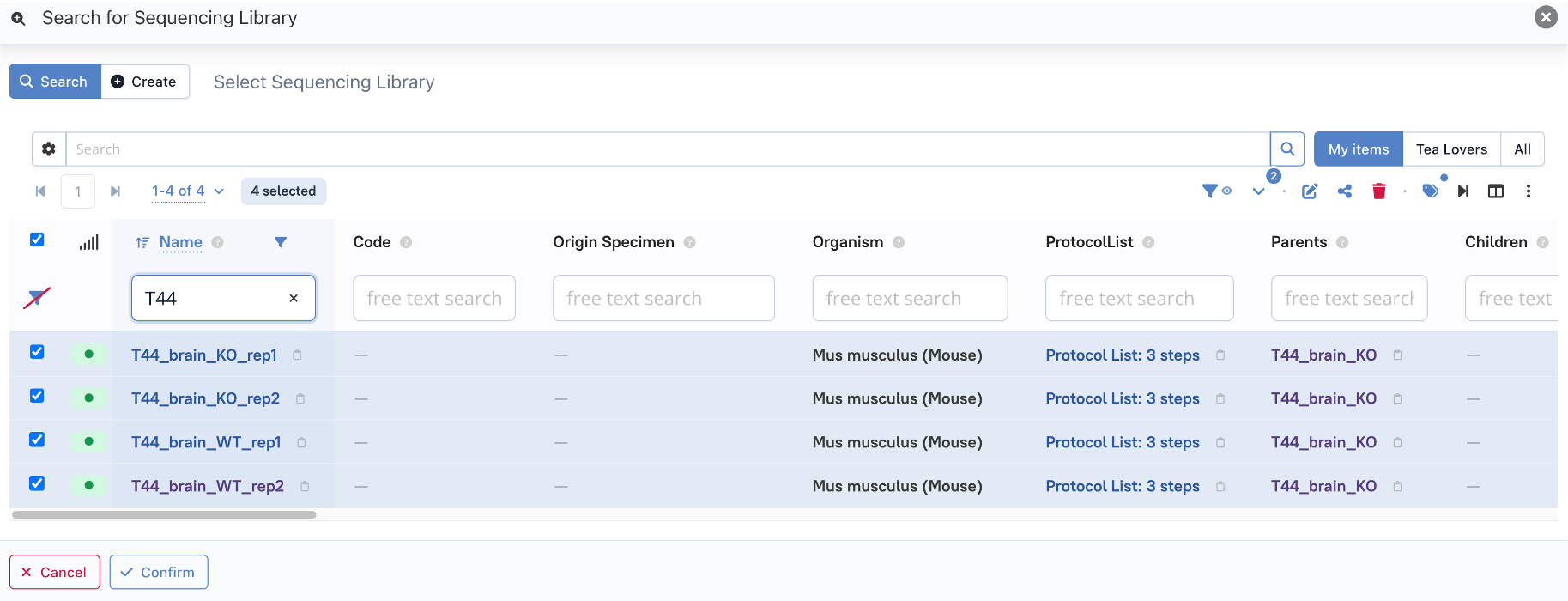
These samples are now available to be selected in the sample column
- Select each relevant sample on each row
Select loaded samples
- When ready, click the Submit button.
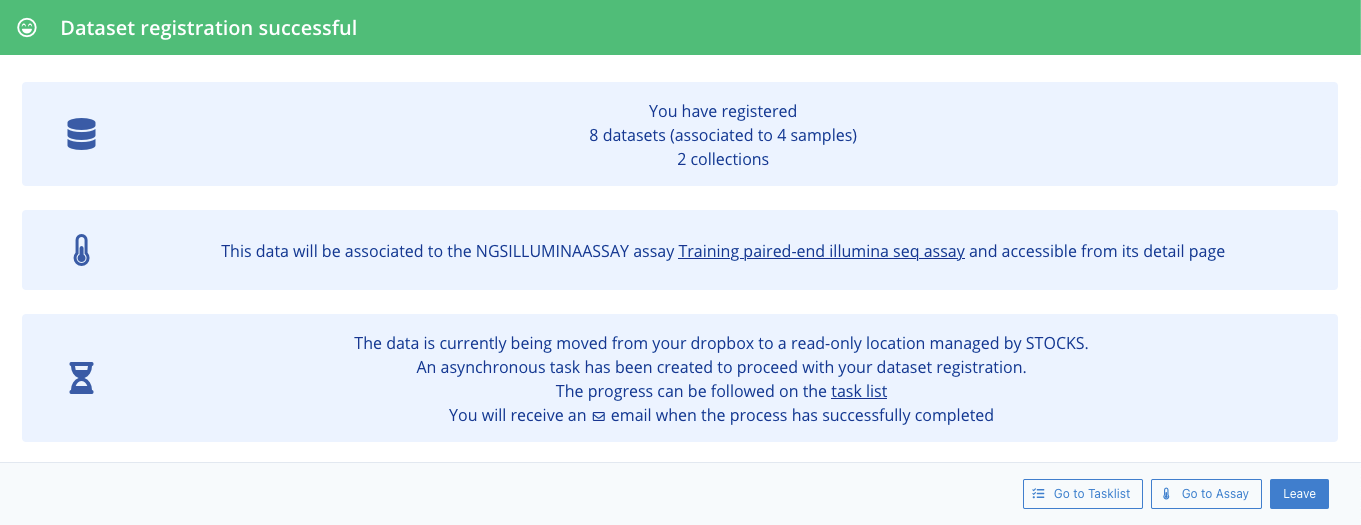
You now have been redirected to a confirmation page stating the data is being loaded: Success
Registration success message
I mistakenly let new samples to be created when I should have linked my existing samples. What do I do ?
When this happens, one can merge both samples into one. Please refer to the hands-on «Sample Management - Sample Merging»
Explore the resulting assay
Once registration is complete, it's worth going back to the assay page to explore what was created:
-
Open the Lineage Graph panel: you'll see the raw
.txt.gzand derived.bamdatasets, but no distinction is made between them — LabID only knows that both came from the same assay, not that the BAM files were actually derived from the FASTQ files. Establishing that parent/child relation would require additional work, similar to the Registering a workflow run: mouse brain image conversion hands-on, where each derived dataset is explicitly linked to its parent raw dataset. -
Scroll down to the assay's embedded Output Datasets table. Notice the Dataset Collections column that tells at a glance which datasets belong to the raw vs the derived collection, and can be used to filter the datasets. If it isn't visible by default, use the column settings () to add it or move it — see Table Customisation for the full reference on adjusting visible columns.
-
Open one of the brain samples (e.g. TXX_brain_WT) and its Lineage Graph: it connects both to the light-microscopy assay and images registered in Registration of raw datasets - mouse brain images, and — via its sequencing libraries — to the sequencing assay and datasets you just registered here. This makes explicit the multimodal nature of the data recorded for this project: imaging and sequencing, both traceable back to the very same biological sample.
Final Sample Lineage
