Registration of raw datasets - mouse brain images 
- 30 min
- Moderate
Overview
This hands-on illustrate how to register raw data coming out of an instrument, such as images acquired with a microscope. This includes:
- Creating a new imaging assay using an existing template assay
- Retrieving data from the user-dropbox
- Navigating through the dataset loader wizard
- Linking datasets to
Study(ies)andSamples
The images will be linked to the corresponding samples that were imaged under the microscope (here mouse brain samples).
The creation of the samples is covered in this previous tutorial Creating specimen and samples.
Reviewing the different registered - and affected - entities (datasets, datafile copies, studies, projects, samples, ...) is done in the following training Post registration Operations
Concepts
- Dataset
- «Dataset» is generally a broad concept meant to refer to any file, set of files, folder, or set of folders, describing a meaningful unit of biological data about some biological material for a given condition and/or treatment. A file - or a directory, etc. - containing data is referred to as a datafile. In many cases, a single datafile is enough to constitute the dataset, i.e. this single entity detains all parts of a meaningful unit of data about a sample. Conversely, in other cases, the meaningful unit is a combination of datafiles
- For example: In single-end sequencing, a dataset is composed of a single file containing all short DNA sequences. Conversely, in paired-end sequencing, the meaningful unit of data is a combination of two files, each containing a part of the information.
- Raw dataset
- A raw dataset refers to the primary dataset acquired - during an assay - by analyzing some biological material, using a specialised scientific instrument. Ideally, the raw data is presented in the same exact format as outputted by the instrument. Raw formats vary among instruments and disciplines (e.g. sequencers commonly output
FastQfiles, the raw text format used to store short DNA sequences). - Assay
- An assay corresponds to an acquisition, analysing some biological material (a sample) with a scientific instrument to obtain the raw data
The inputs of an assay are one or multiple sample(s), while the outputs are the dataset(s).
Walkthrough
In this walkthrough, we will be registering images of mouse brain (czi files). These have been acquired from mouse brain samples, using a specific microscope (already registered in LabID).
There are 2 czi files per sample (e.g. 2 magnifications or 2 different regions of interest).
This acquisition is represented in LabID as an Assay of type Light Microscopy.
The inputs of the assay are the brain samples and the outputs are the images (raw data).
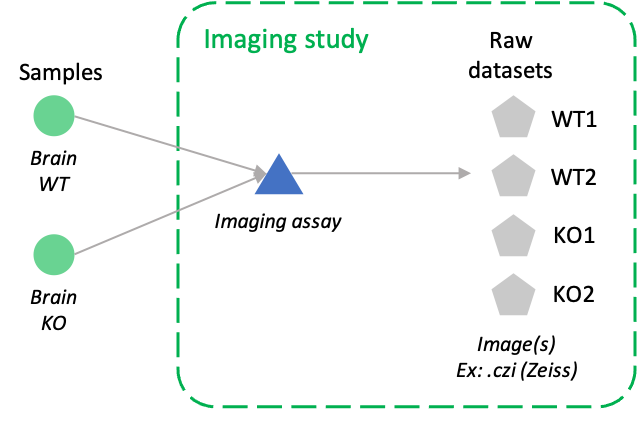
An assay template is already available. It comprises the different channels that are imaged, as well as a reference to the microscope. This template can be reused each time a new acquisition following this assay template is carried out with new samples (also yielding new images).
Using assay templates or previous assays to create new assays
While you can create a new assay from scratch when registering raw data, you can speed up the process by using :
- an assay template - those can be created by admins. Those are meant to be re-used as a base for new assays
- an existing assay previously registered by you or a colleague, that corresponds to the same or similar acquisition settings (e.g channels and/or instrument)
Step 1. Enter the dataset loader
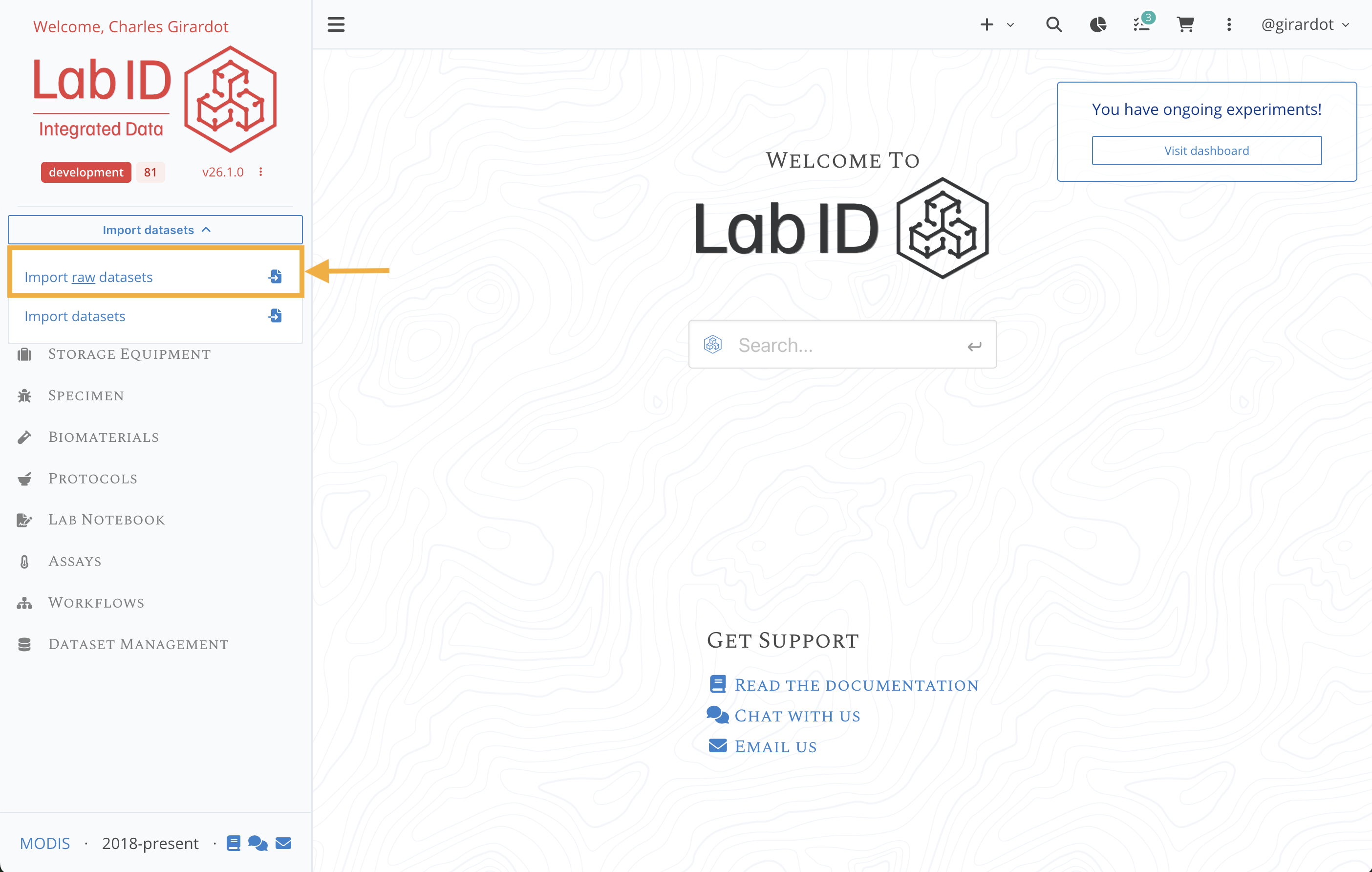
From the left menu of the application: Click Import datasets then Import raw datasets
Start the dataset loader
You now have been redirected to the Dataset Loader Wizard.
The wizard assists users through the different steps needed to register datasets. All pages of the wizard display a progress map at the top. There are at most six steps:
- Select Assay Type
- Select Data
- Create Assay
- Build Datasets
- Verify and Assign Samples
The first page of the wizard is the Select Assay Type page.
Step 2. Select the assay type (and template) - Wizard (1/6)
The wizard progress map at step 1

From the Assay Type Selection, you need to select the type of assay corresponding to your acquisition
- Select
Light Microscopy - Open the dropdown Select template and choose the option
Mouse brain imaging (light-sheet)
Select the Light Microscopy assay type and template
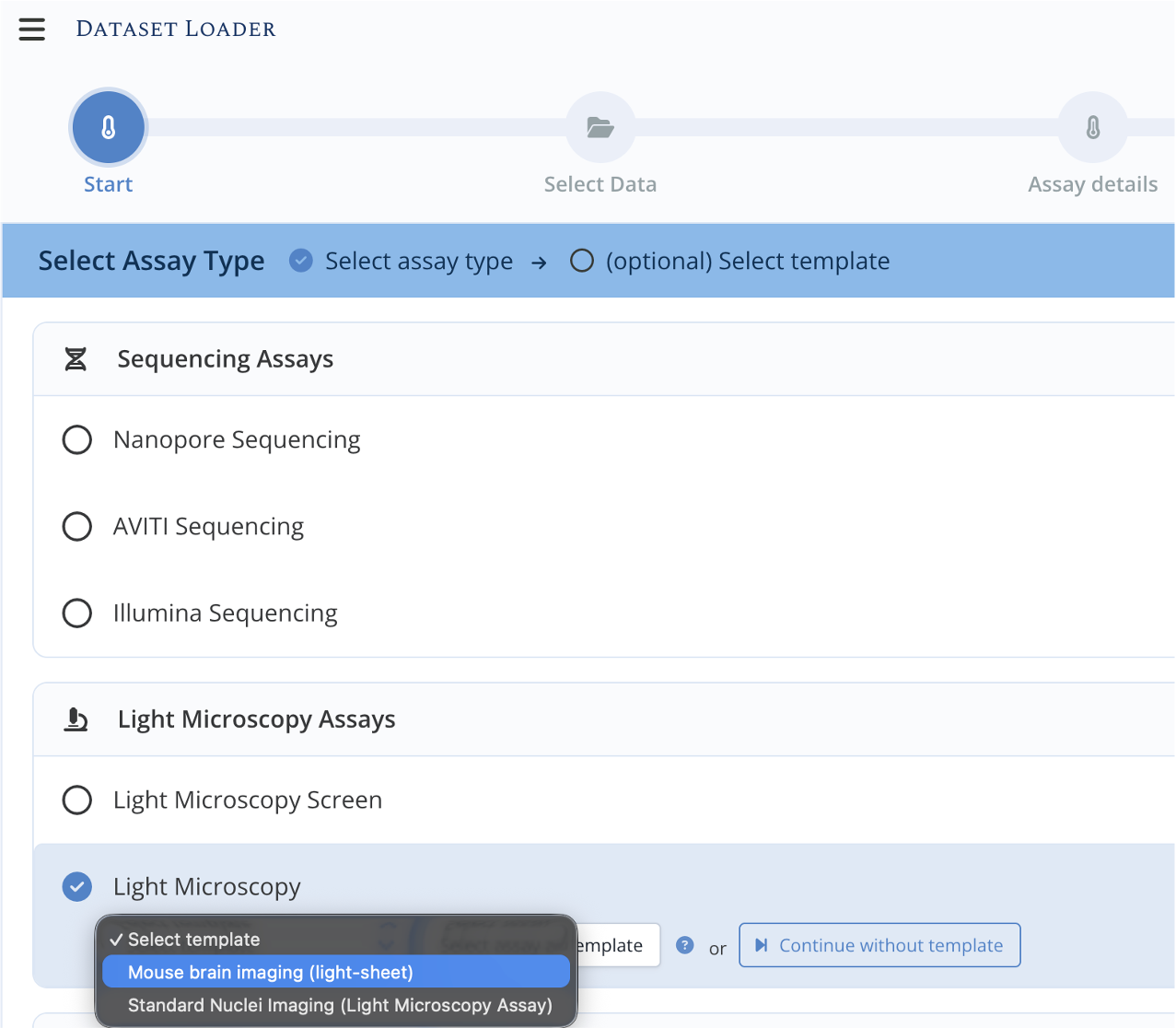
- This opens up a preview of the template where the assay information can be reviewed.
Preview of the selected assay template
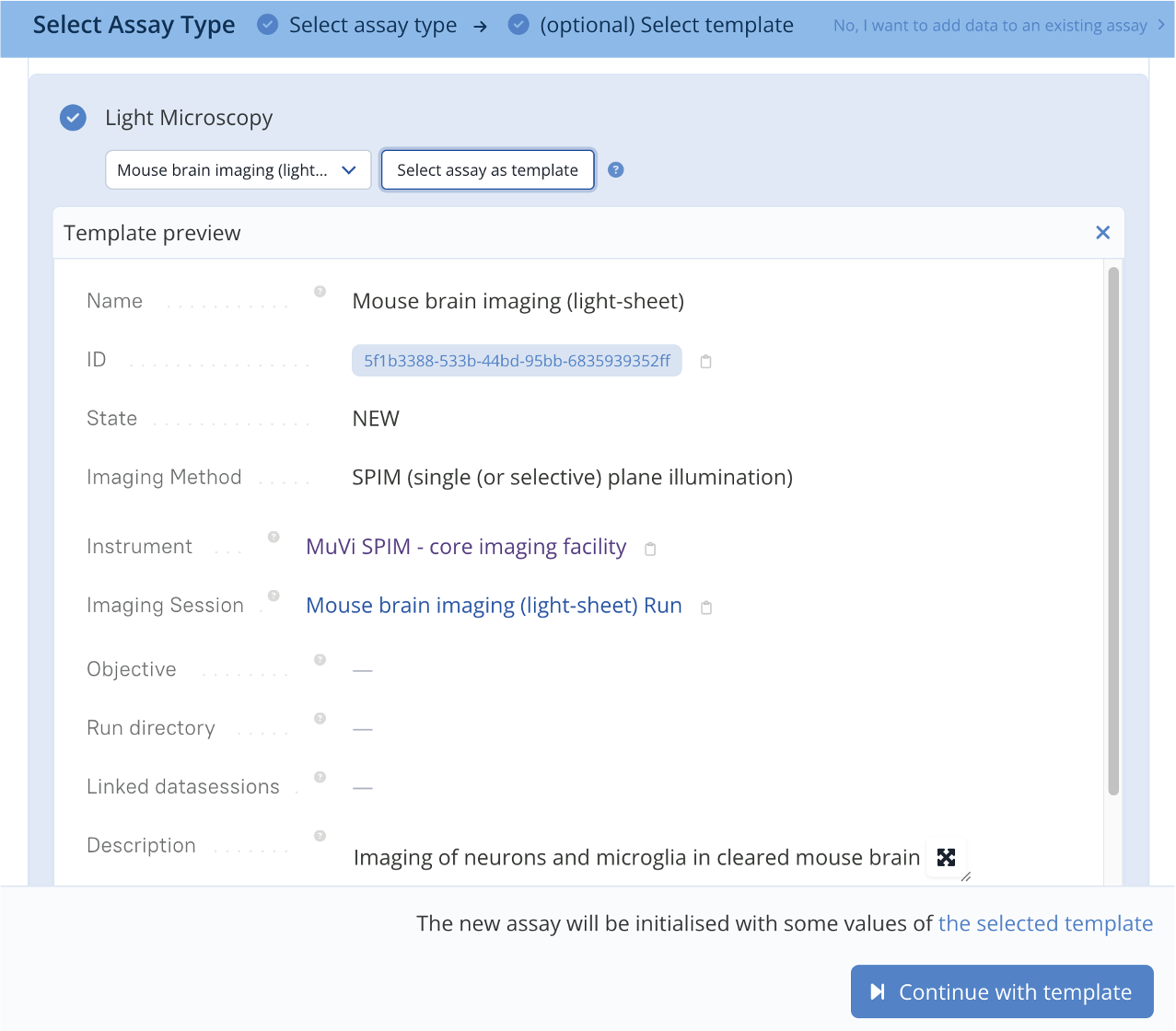
- Click Continue with template at the bottom right of the page.
You now have been redirected to the Select data page.
Step 3. Select data - Wizard (2/6)
On the Select data wizard page, we will now select the images that we were generated as part of the acquisition.
The images are already available in your user-dropbox (nothing to do with the company Dropbox) — a personal staging directory LabID watches for incoming data. Once registered (at completion of this wizard), the data is moved to its final location in the group's managed storage.
User dropboxes, storage, and production systems like at EMBL
The user-dropbox streamlines data registration by loading data from a "local" location instead of uploading data over the network, which is not suitable for very large data. In the current training set-up, users cannot upload data in dropboxes themselves, the data has therefore already been placed in there for you. However, on a production instance (like at EMBL), LabID has access to group storages, where LabID-managed storage folders were deployed on setup. This means users can directly browse to their user-dropbox (available in these LabID-managed storage folders) and drop their data there: this copied data will then be accessible from within LabID dataset loader. See Data Storage Organization, Access & Usage for the full picture of how the group data repository and dropboxes relate.
-
- Make sure the dropbox folder of your group is selected. Be sure to select the group that will be the data owner (see «Choose the right dropbox for your group» below).
- This loads the file explorer with the list of directories and files in your dropbox.
Choose the right dropbox for your group
A user can belong to more than one group, in which case the user will have access to more than one dropbox (one per group).
It is very important to deposit the data to the dropbox of the group that will own the data, to make sure its final location is the correct group folder. -
- Select the folder containing the images mouse_brain_imaging, this is our "run" folder.
- This populates the right panel of the file explorer with files information from the run folder
Wizard - Select Data
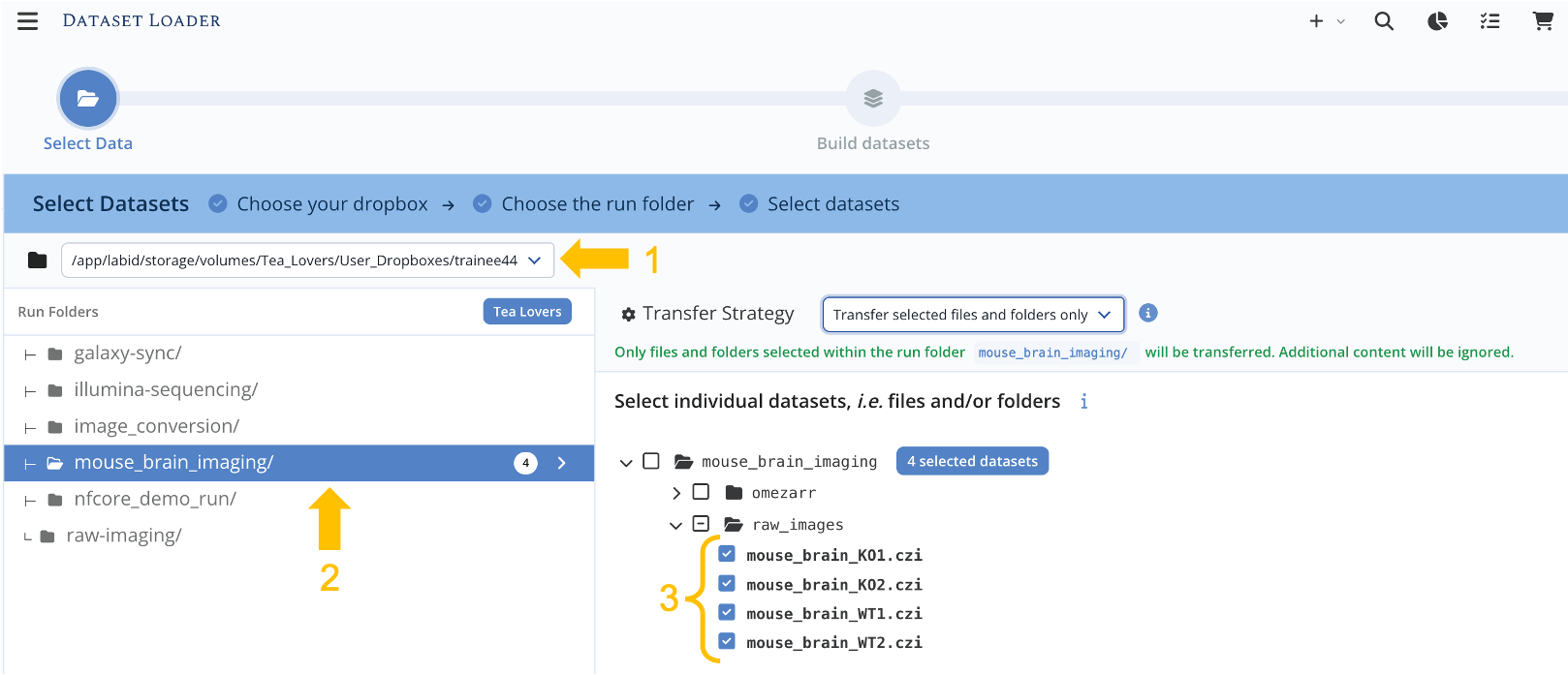
The Wizard «Select Data» view with a dropbox selected (orange arrow 1), run folder selected (orange arrow 2), 3 files selected. -
Extend the subdirectory raw_images.
Then select the 4 czi images by ticking the tickbox next to their filename, or double-click the tickbox of the parent folder raw_images.
The wizard should indicate that 4 datasets are selected. -
Select the Transfer Strategy
Transfer selected files and folders onlyfrom the dropdown
Transfer Strategy options
- Transfer the whole run directory (default): the entire folder is transferred to the group's storage, including files that weren't selected as datasets (e.g. acquisition metadata).
- Transfer selected files and folders only: only the ticked files/folders are transferred. This option is preferred when the folder contains data that does not require to be stored in LabID; or data that will be registered in a second pass.
We use the second option here since we don't need the extra run-level files. See Importing raw data for the full reference.
Selecting individual files vs folders (vs expanding a folder)
There are three ways to turn a folder of files into dataset(s):
- Select individual files (our current case): each file becomes its own dataset. Best when each file may be managed, annotated, deleted or shared individually — e.g. each file corresponds to a different sample.
- Select the whole folder: the folder becomes a single dataset (one datafile of type folder). Best when the files it contains are tightly linked and always managed together and there is no need to adress these files separately.
- Select the folder, then expand it: still a single dataset, but each matching file inside becomes a separate datafile of that dataset (using the Expand button and a filename pattern, at the later Build Datasets step). Best when you need to annotate or inspect files individually while keeping them grouped as one dataset — overkill otherwise. See Register raw imaging data for a walkthrough.
In this hands-on, each folder contains multiple files that each constitutes a dataset, so we select individual files.
- When done with selecting datasets, click Continue at the bottom right of the page.
You now have been redirected to the New Assay page. This has been initialised with the information extracted from the template
Step 4. Create the new assay - Wizard (3/6)
On the New Assay page:
- Update the name of the assay to make it different and unique, so you can easily find it later.
For instance, Mouse brain imaging (light-sheet) - Trainee XX, as usually replace XX with your trainee number. Notice how information (instrument and the channels) as been imported from the template.
New Assay Page
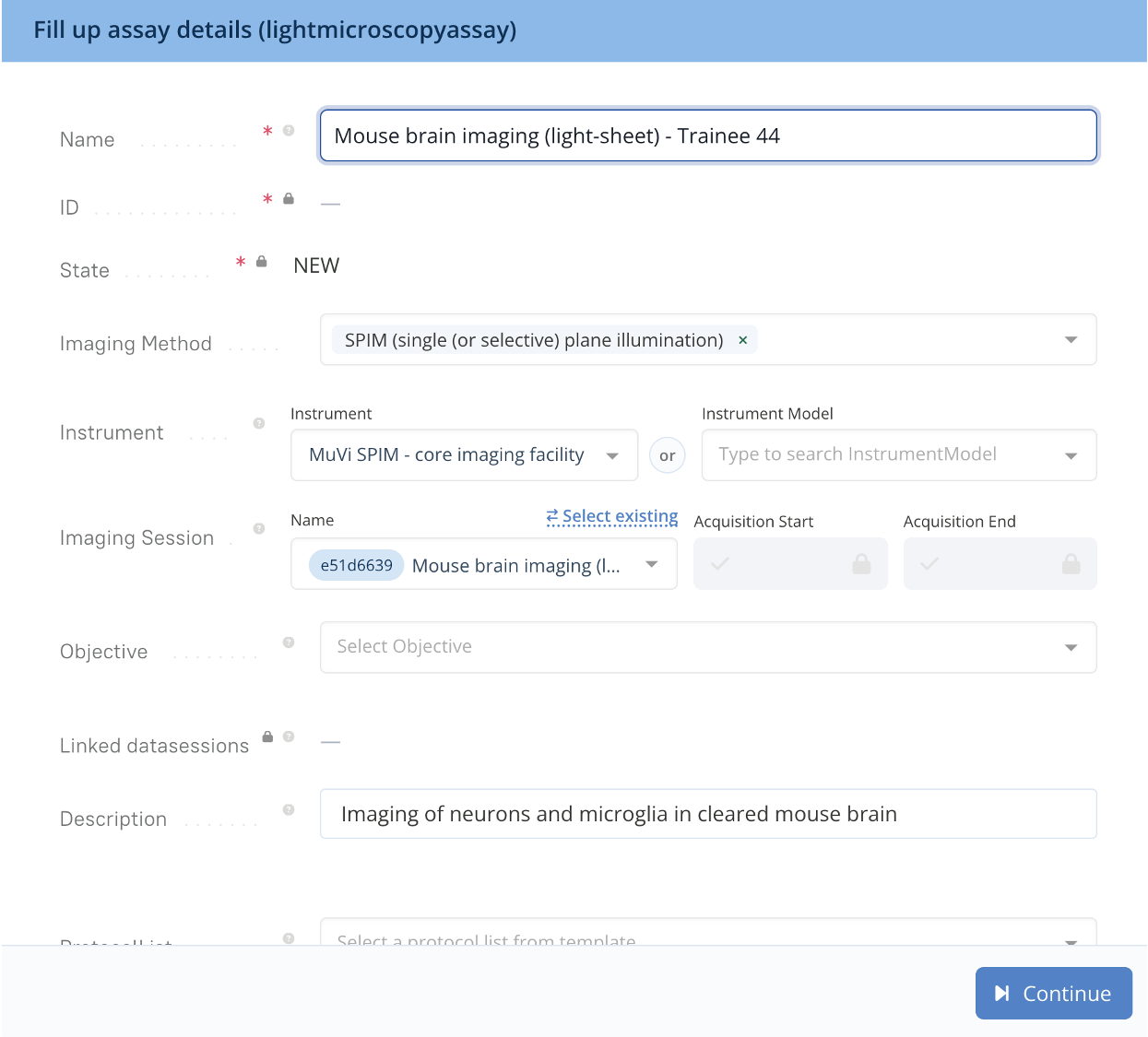
- Click Continue
You now have been redirected to the Build Datasets page.
Step 5. Build datasets - Wizard (4/6)
At this step, the Dataset Builder lets you assemble files and directories into Datasets, and optionally group these datasets into Collections.
In this walkthrough, the data is simple, datasets are made of a single czi image and all datasets are collected into a single collection. This is the default set up when entering this dataset builder step, still we may want to rename the collection.
When to create more than one dataset collection?
A Collection groups datasets that share the same nature or role. You'd typically split into several collections when different subsets of datasets serve different purposes — for example separating raw data from processed data, raw data from metadata files...
- Replace the default Name for this collection with e.g.
Mouse brain images - <date> - Trainee XX - Make sure the option Raw data is actived
-
- Click Stage All
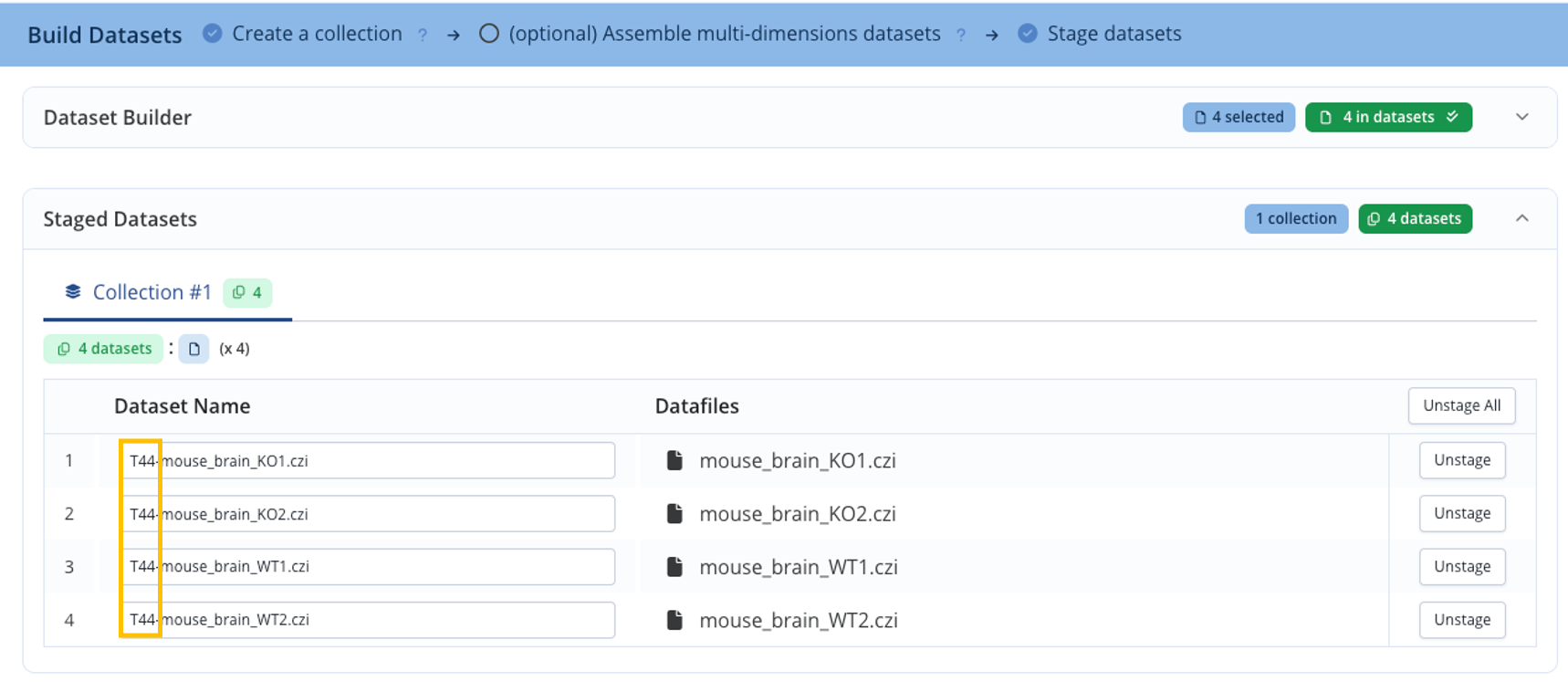
- Once staged, datasets appear in the Staged datasets bottom panel.
By default, the datasets are named according to the file.
Why is this step needed ?
The dataset builder is a powerful tool to build multipart ( or multi-dimensional) datasets (i.e datasets composed by two or more dataset files) and organise datasets into different collections.
It can also be used to adjust the dataset names with regex. Advanced dataset builder features are addressed in other parts of the training material.
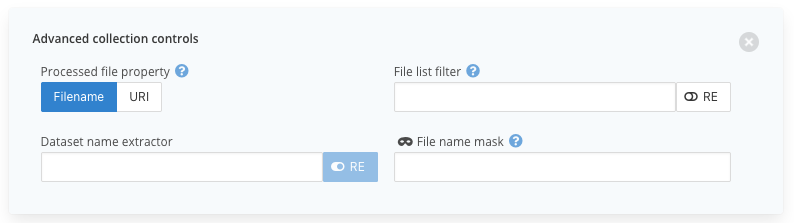
Wizard - Build Datasets - «Dataset Builder» Panel
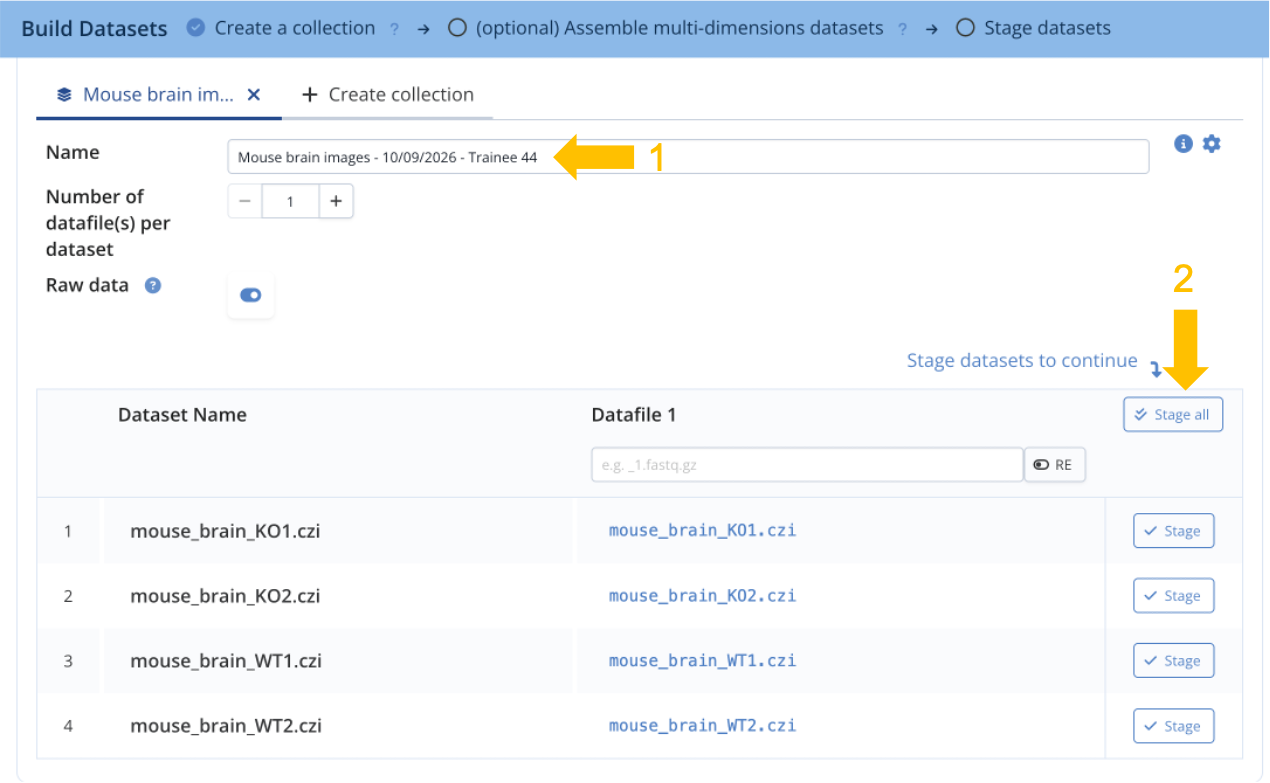
- As raw data is being registered to a new assay, it is mandatory to have at least one raw data collection.
We will now rename the datasets, to include your trainee number (this will facilitate some steps in the next tutorial).
- in the column Dataset Name, add
TXX-before the dataset name, replacing XX with your trainee number (e.gT44-) -
- When ready, click Continue
- While you can freely rename the datasets, the file and folders on disk cannot be renamed, those should be renamed before starting the registration wizard.
Wizard - Build Datasets - «Staged Datasets» Panel
You now have been redirected to the 5th page of the wizard, the Verify page.
Step 5. Verify - Wizard (5/6)
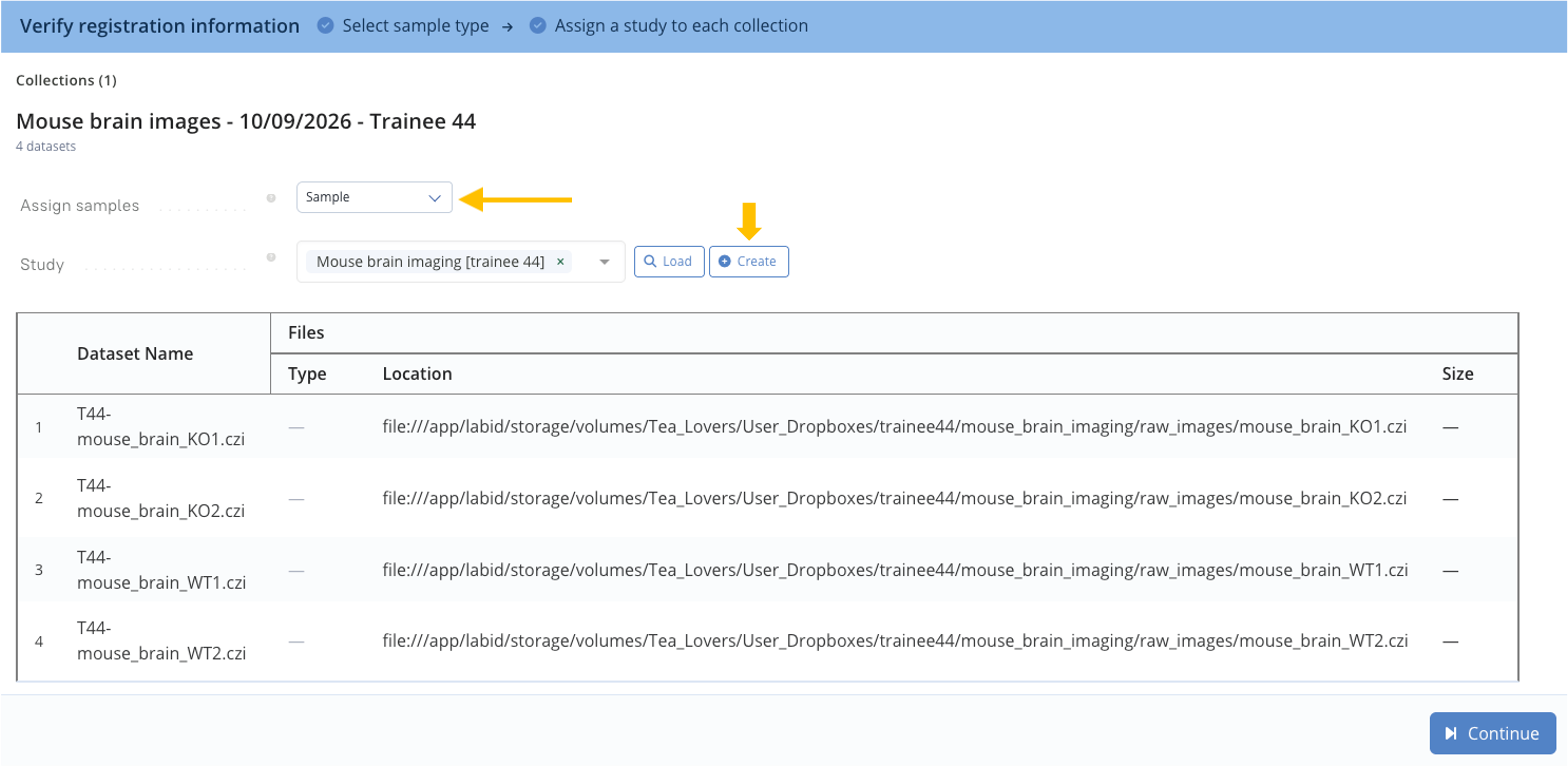
The Verify page has two purposes:
- to double-check the information that has been assembled so far
- position the type of samples at the origin of the datasets (samples are mandatory for raw data produced by an assay) and position the Study(ies) in which to put the datasets (multiple studies can be selected, in case all datasets belong to different studies). This information is needed for the next final step of the wizard, the Assign Samples page.
One could use a pre-existing study, but since we did not create one beforehand we create a new one as part of the registration.
-
Make sure the Assign samples property is set to the
Sampletype. -
Create a new study:
-
- Next to
Study, click Create - This opens a pop-up with a «New Study» form.
-
Fill in the study form
- Name:
Mouse brain imaging [TraineeXX] - Project: select the project
Trainee XX Brpf1 KO vs WT neurons(created in the previous tutorial) - (Optionally) Fill in any other field.
- Name:
-
- Click Create Study to confirm and close the pop-up
- The new study now appears selected in the Study dropdown
- Next to
-
Wizard - Verify
- When ready, click Continue
You now have been redirected to the final page of the wizard, the Assign Samples page.
Step 6. Assign samples - Wizard (6/6)
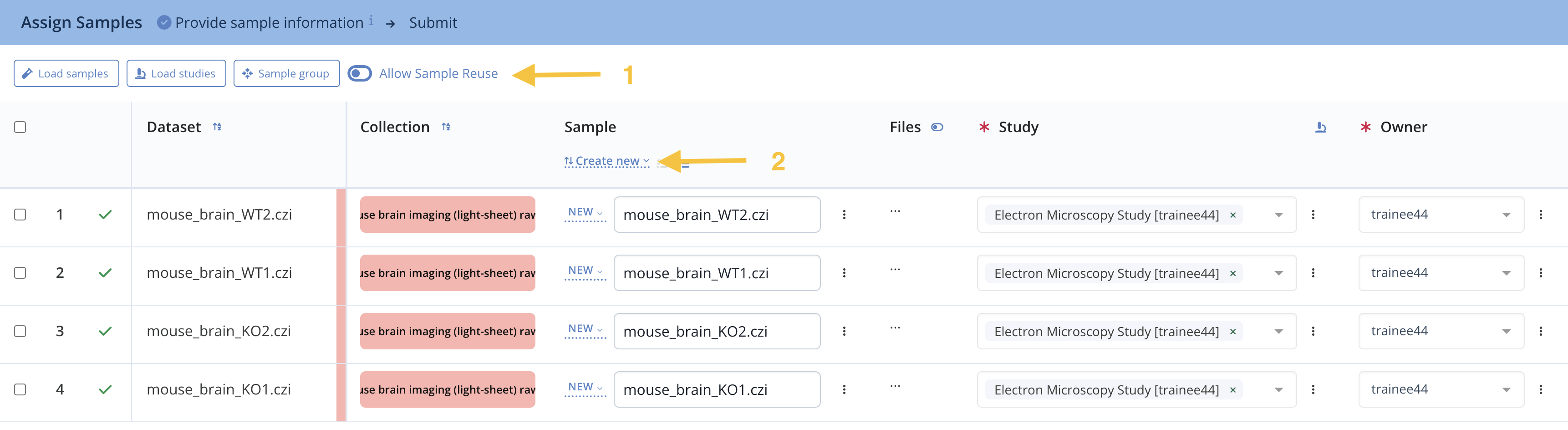
The Assign Samples page is used to assign a sample (or a group of samples) to every dataset. This step also lets you adjust:
- the dataset owner, e.g. in case your are registering datasets that belong to other users
- the study the datasets you be associated to, e.g. in case your are registering datasets that belong to different studies.
For this tutorial, the samples were already created in the previous tutorial (see Creating specimen and samples), so we directly link them instead of creating new ones.
Create new samples or use existing ones
Samples can either already exist — as is the case here, whether created earlier within an experiment or reused from a different project — or they can be created on the fly, directly from this page. When creating a sample here, its name defaults to the dataset name, but can be adapted.
- Make sure the option
Allow sample reuseat the top is toggled (see arrow 1 below). Indeed each sample was imaged twice, resulting in 2 datasets for each sample.
Wizard - Assign Samples
-
- Under the
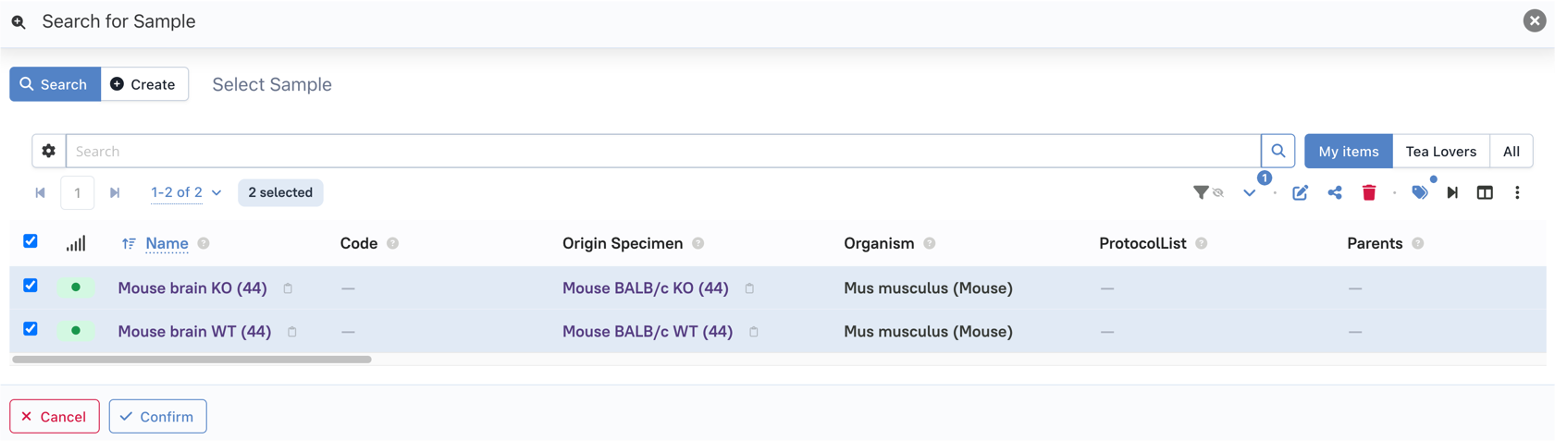
Samplecolumn header, click the dropdown and chooseSelect existing(see arrow 2 above). A dialog opens allowing you to search for existing samples, and select the ones you need . - Here select the 2 samples previously created by ticking the tickbox next to their name.
- You can click at the top right on "My items" to only see the sample you own, and not the one of your complete group
- Under the
Dialog - Search for Sample
-
Click Confirm to close this dialog
-
Back on the Assign Samples page, use the dropdowns in the column Sample for each dataset to select the corresponding sample (WT or KO)
Select the sample for each dataset
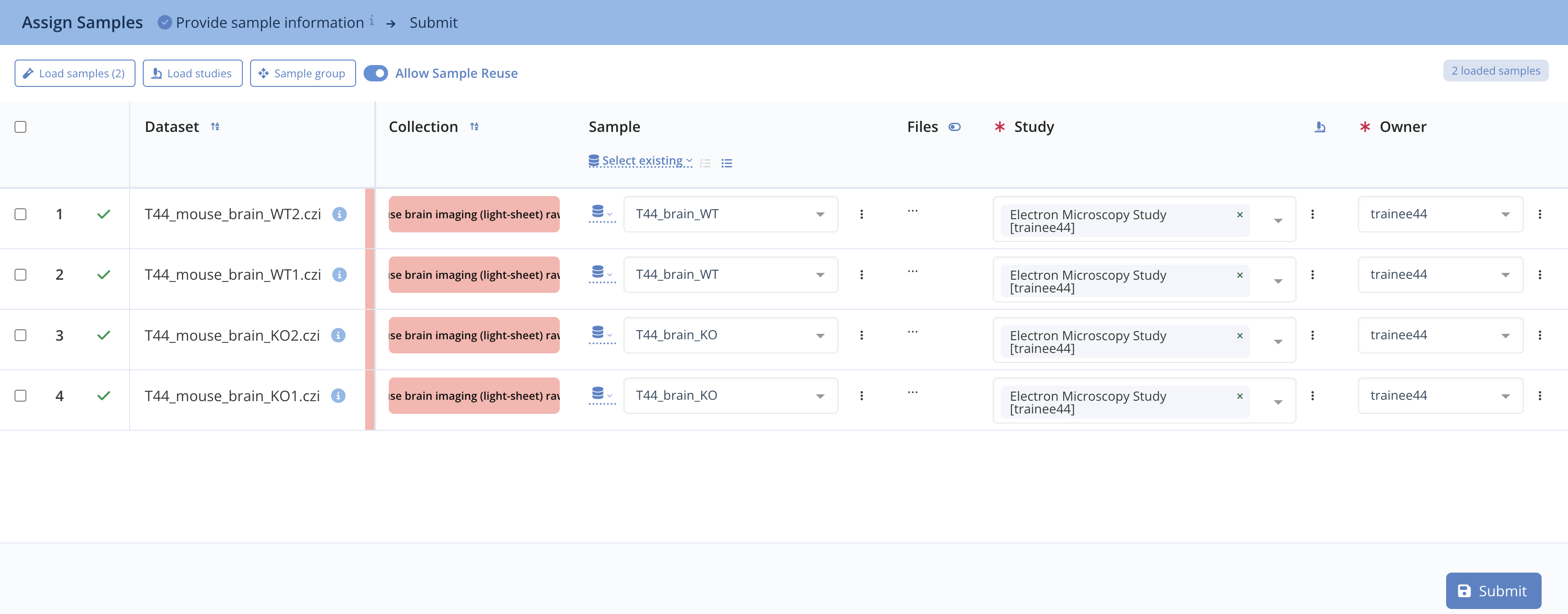
- Finally, click the Submit button
Step 7. Open the resulting assay
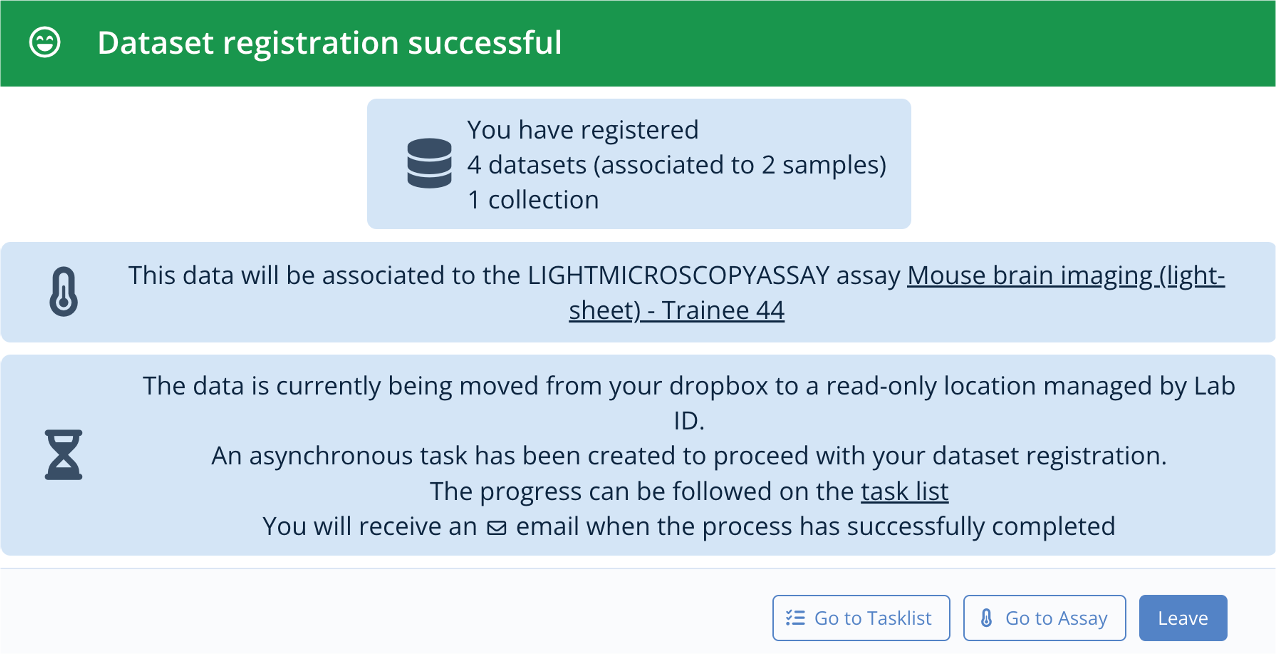
The data is now registered and available in LabID.
Click on the button Go to Assay to access the newly created assay page.
Wizard - Registration Success
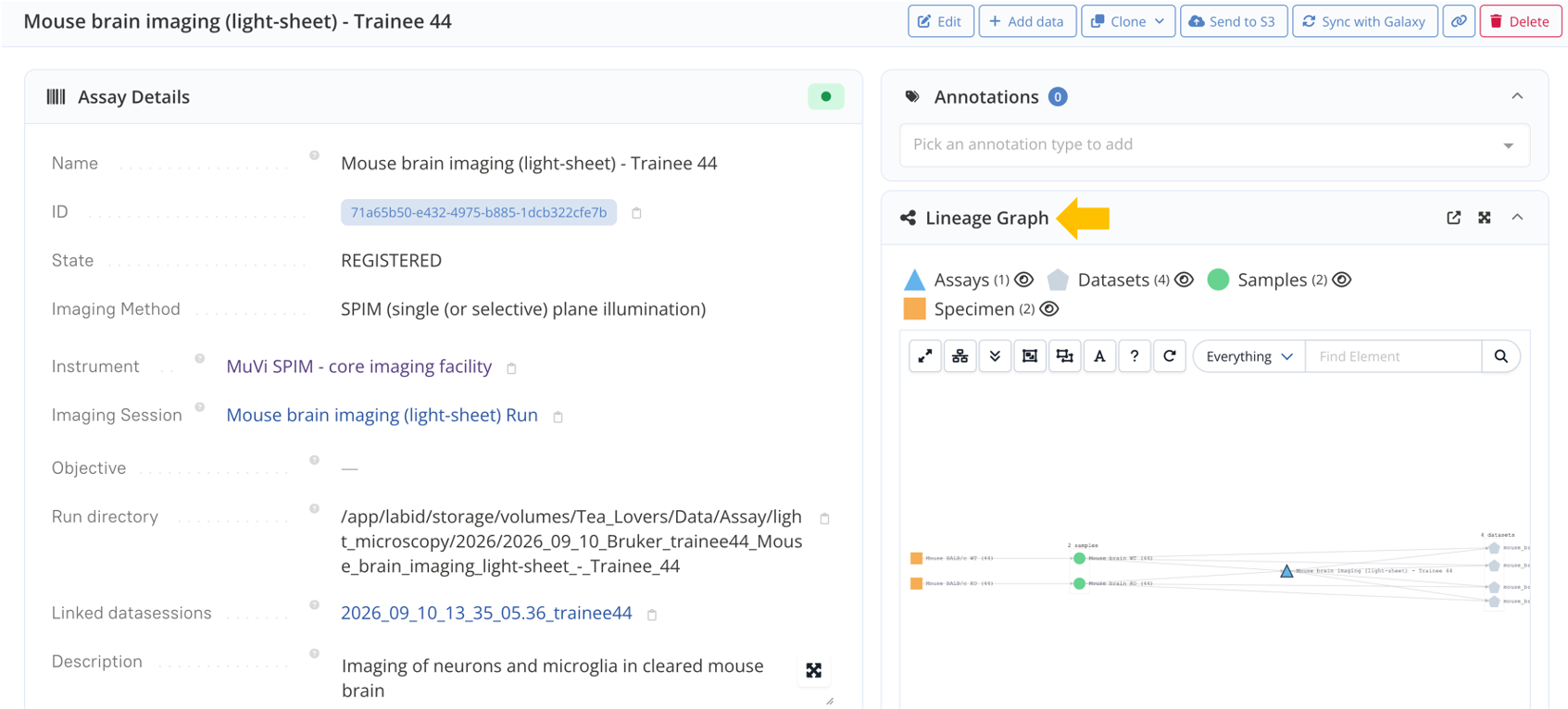
On the assay page, open the Lineage Graph to view the relations between the samples, assay, and datasets:
The assay's Lineage Graph
To learn how to find and modify this data, follow the post-registration operations hands-on. Or continue to dataset registration hands-on (Register raw data - sequencing) to learn how to assemble datafiles into multi-dimensional datasets with the dataset builder.
Congratulations, you have completed the hands-on on registering raw datasets of mouse brain images.