Hands-on: Exporting and exploring workflow and workflow run RO-Crate
- 40 min
- Medium
The Research Object Crate (shortened to RO-Crate) is a proposed standard (actively developed) to package and share research data together with associated metadata, that is self-describing and machine-readable. The RO-Crate is already used as a format to submit data to research repositories such as WorkflowHub, and might be used in the future for the exchange of image-datasets (see GIDE RO-Crate).
A RO-Crate is typically made of a directory containing the data to share, and a special json file containing the metadata, encoded in a standardised "graph" or "schema".
The RO-Crate is meant to be universally applicable. For computationnal workflows the "base RO-Crate profile" has been derived into 2 specialised profiles:
-
the Workflow RO-Crate describes the workflow itself (files composing it, programming language or workflow engine, parameter names and types)
-
the Workflow Run RO-Crate describes the execution of a workflow, and typically includes the data used and generated by the run, the value used for the parameters... It typically also includes the workflow itself (or at least a link to it).
LabID lets you export both Workflow and Workflow Run RO-Crates enabling reproducible sharing and ingestion by other software tools. The Workflow RO-Crate is currently supported as a format for submission and export to/from WorkflowHub (LabID allows direct submission to WorkflowHub). Workflow Run RO-Crate can be generated by a few workflow engines such as Galaxy, Nextflow and Snakemake. LabID can also directly import runs from Workflow Run RO-Crate via the CLI (see Register workflow runs with the CLI), with the added benefit of besides automating the process, also extracting additional metadata.
Walkthrough
This tutorial guides you through the export of Workflow and Workflow Run RO-Crates from LabID, and exploring the resulting crate. We will use the platform NovaCrate that provides an interactive way to browse RO-Crates. For the sake of the example, we will use a simple workflow and workfow run, with a minimal number of files. The concepts are the same for larger workflows and runs.
The steps of this tutorial were recorded as part of a training (september 2026).
Workflow RO-Crate
Step 1. Exporting a workflow RO-Crate from LabID
You can export a RO-Crate for any Workflow Version registered in LabID.
- Go to the list of Workflow versions, by navigating on the left to Workflows > Workflow versions
- click on the name of a Workflow Version to be taken to its detail page
-
- make sure the Workflow Version has some value for the fields
Computer LanguageandLicense(required by the RO-Crate standard) - To set these values, edit the workflow version by clicking Edit at the top-right
- make sure the Workflow Version has some value for the fields
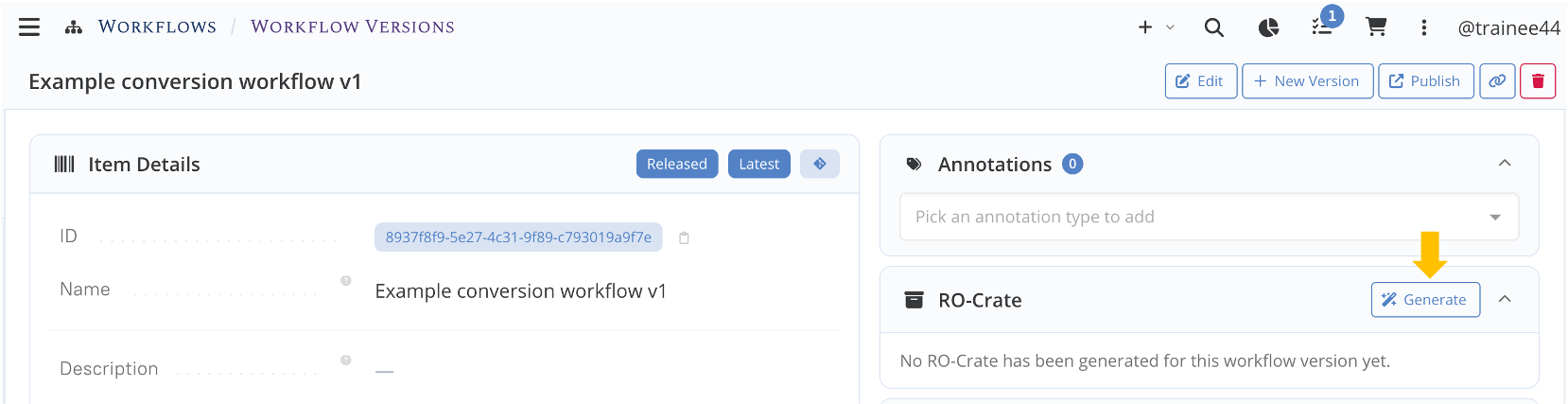
- click the Generate button in the RO-Crate panel to start the RO-Crate generation
- after a short moment, a new ".zip" entry should appear, you can then click on its name to download the Workflow RO-Crate on your machine
Alternatively, you can also download the following Example WF crate, which corresponds to a fictive conversion workflow imported from GitHub in a previous tutorial.
Generating the Workflow RO-Crate for a workflow version
Step 2. Quick check of the RO-Crate
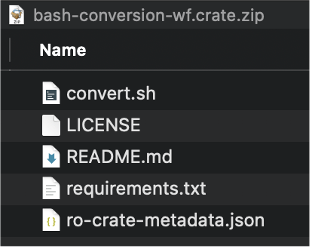
You can check the content of the resulting zip.
It basically contains the files of the GitHub repository, with the addition of a special json file the ro-crate-metadata.json.
It is this file that contains the metadata, and turns this directory (or zip) into a valid RO-Crate.
While you can open the json file in a text or code editor, it is more convenient to visualize it with a dedicated tool like Novacrate, which is explained in the next step.
The content of the Workflow RO-Crate
Step 3. Open the Workflow RO-Crate in NovaCrate
NovaCrate is one of the few tools you can use to interactively browse an existing RO-Crate. It also lets you create RO-Crate from scratch or edit an existing one (not covered here).
- Go to https://novacrate.datamanager.kit.edu/editor
- Click on "Import RO-Crate"
- Select the zip file you downloaded at the previous step
- you should now see something like the following
The Workflow RO-Crate in NovaCrate
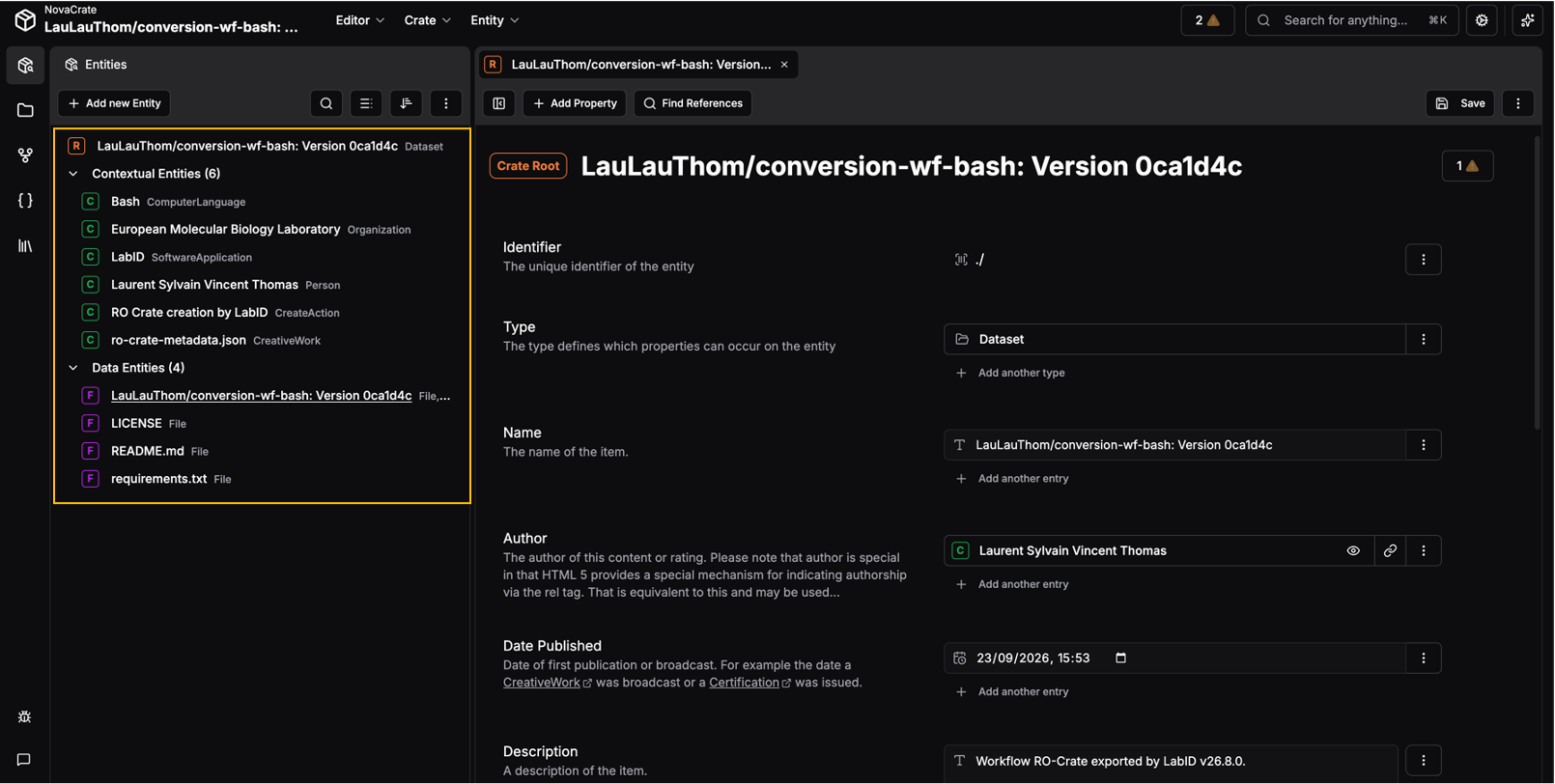
What you see is the "detail" page of the root entity of the crate (the "root dataset"), which is the crate directory itself (a "dataset" in RO-Crate vocabulary is a directory).
On the left, you can see a hierarchical tree, with 2 sub-categories Contextual Entities and Data entities.
Under Data entities are listed the files contained in the RO-Crate (except the file convert.sh is depicted with the name of the repository, let's ignore this for now).
The ContextualEntities each describe one piece of metadata (e.g author, institution, programming language) and are connected to the data entities via relationships.
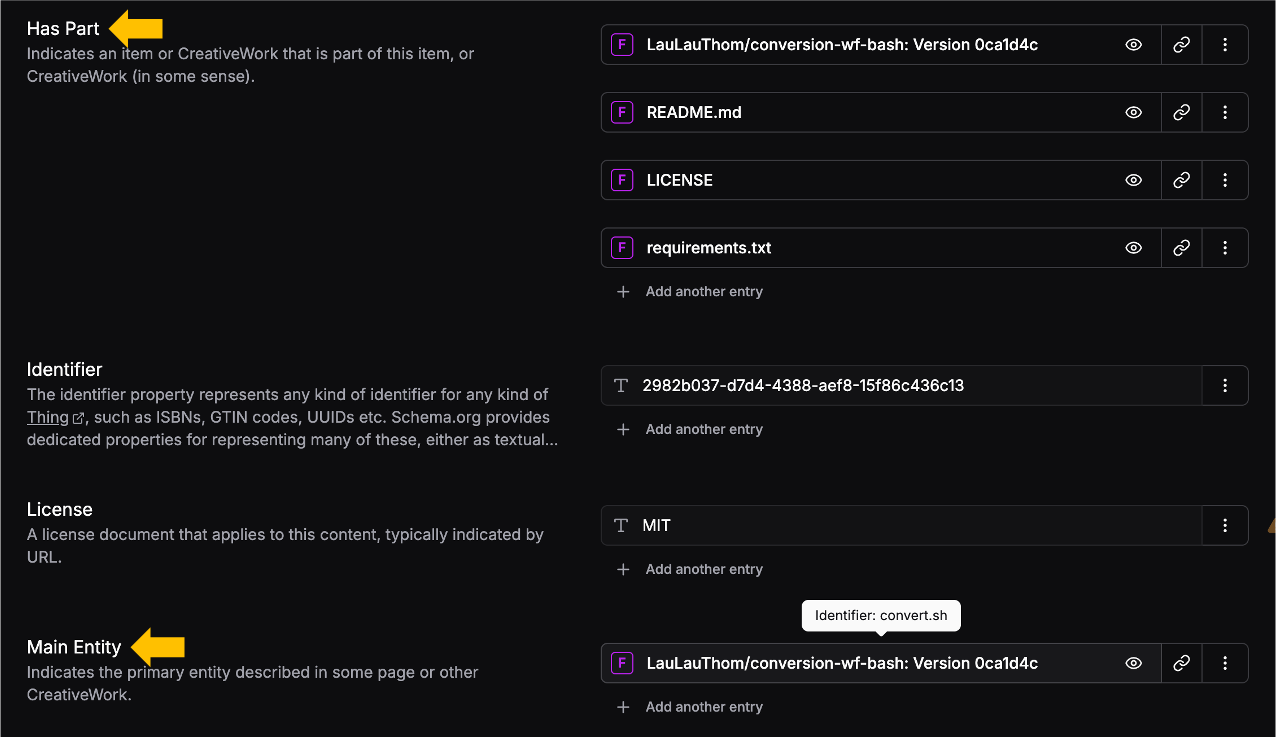
If you scroll-down on this detail page for the root entity, you will see under HasPart the list of data-entities contained in the root dataset (as on the left side).
Another important field is the Main Entity of the crate, which for a Workflow RO-Crate is the workflow itself, and points here to the main worklow file (this is a bit confusing here, this entity represents the workflow as a all, but has to point to the main workflow file. The field name of this entity is thus set to the name of the workflow version, but if you hover the mouse over it you see that it corresponds to the main workflow file).
The attribute Has Part and Main entity of the crate
Step 4. Explore the data-graph
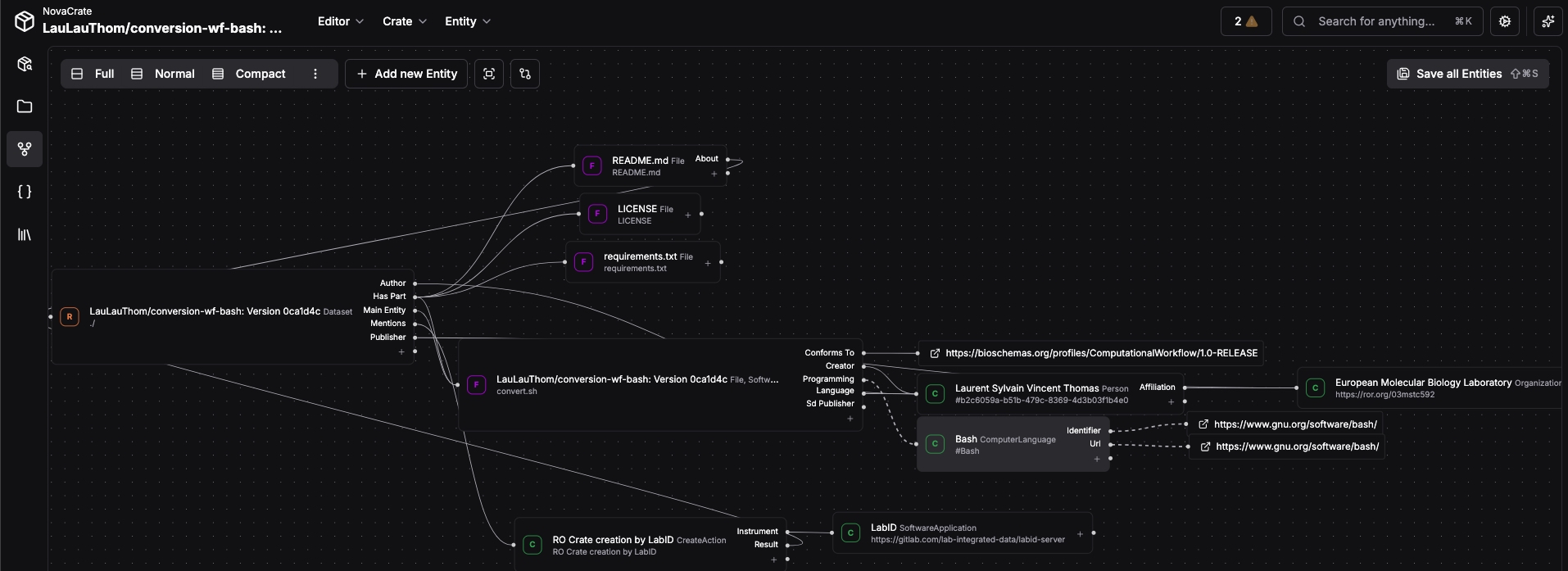
NovaCrate also lets you visualize the relations between the entities encoded in the json as a graph, by clicking the graph icon on the left of the interface. The graph can be quite dense and complex, but here are a few things you can observe (see graph below):
- on the left is our root dataset (the ro-crate directory)
- the workflow uses
Bashas programming language - the author of the crate (Laurent Sylvain Vincent Thomas), is affiliated to the EMBL Heidelberg
These metadata were available in LabID and have been saved in the RO-Crate, using standardised terms.
Workflow RO-Crates can also document input/output parameters
A Workflow RO-Crate can also document the list of parameters, input and output data the workflow can accept and generate. This information is optional, and would be listed under input and output of the main crate entity (the workflow), using FormalParameter entities (see Complying with the Bioschemas computational workflow).
These parameters only "describe" each "parameter slot" with a name, type, and optional description. The value actually used by parameters during a run is documented in the related Workflow Run RO-Crate (see below).
Workflow Run RO-Crate
A Workflow Run RO-Crate is an extension of a Workflow RO-Crate, containing information about a particular execution of a workflow (a "run"). Besides a reference to the exact version of a workflow that was executed, it also includes the data used and generated by the workflow, some information about the execution environment (workflow engine, version...), and can also include the values used for the parameters.
Workflow Run RO-Crate can be large !
A Workflow Run RO-Crate packages all the input and output data of the run, often together with the workflow files, which can result in relatively large zip archive. Generation such RO-Crate may also take some time.
Step 1. Exporting a workflow run RO-Crate from LabID
You can export a RO-Crate for any Workflow Run registered in LabID, unless the run was already imported as a RO-Crate (in which case the original crate is served instead).
- go to the list of Workflow runs, by navigating on the left to Workflows > Workflow runs
- click on the name of a Workflow Run to be taken to its detail page
-
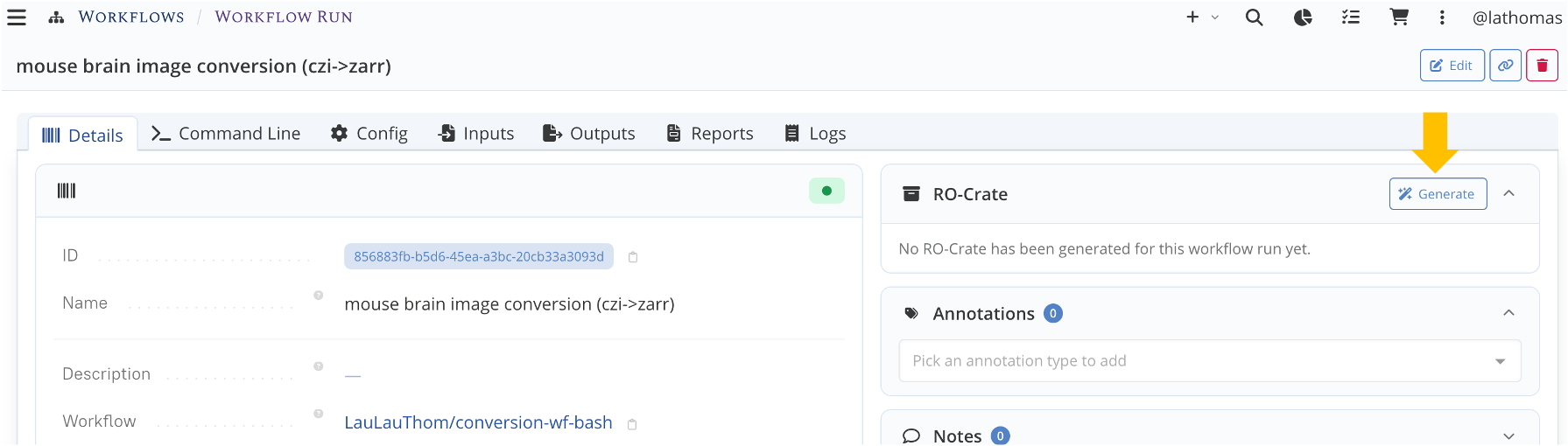
- click the Generate button in the RO-Crate panel to start the RO-Crate generation
- Like for the Workflow RO-Crate, the Workflow Version used for the run should have a
Computer LanguageandLicenseset, otherwise a warning will be issued when trying to generate the RO-Crate.
-
contrary to the export of workflow RO-Crate, the Workflow Run RO-Crate are saved in your LabID user-dropbox by default (again because those can be fairly large). The path to the generated RO-Crate will be displayed shortly after
-
navigate to your user-dropbox, the RO-Crate should have been saved in a subdirectory
labid_rocrates
Alternatively, you can directly download the following Workflow Run RO-Crate, which corresponds to the execution of the workflow of the previous section with fictive data.
Generating the Workflow Run RO-Crate for a workflow run
Step 2. Quick check of the RO-Crate
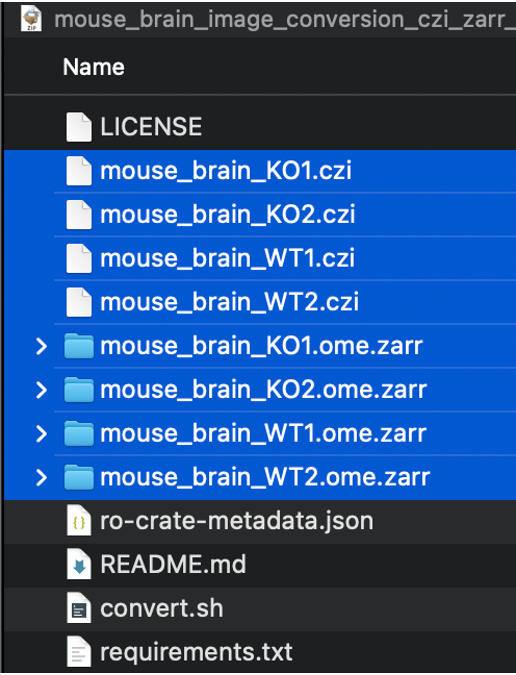
As for the Workflow RO-Crate, you can inspect the content of the resulting zip. The content is the same than the Workflow RO-Crate at the previous step, with the addition of the input/output data (highlighted in blue below), respectively the czi images (input) and the ome.zarr directories (resulting from the conversion).
The content of the Workflow Run RO-Crate
Step 3. Open the Workflow Run RO-Crate in NovaCrate
As done previously for the Workflow RO-Crate, you can open the Workflow Run RO-Crate in NovaCrate to explore its content interactively.
- Go to https://novacrate.datamanager.kit.edu/editor
- Click on "Import RO-Crate"
- Select the zip file you downloaded at Step 1
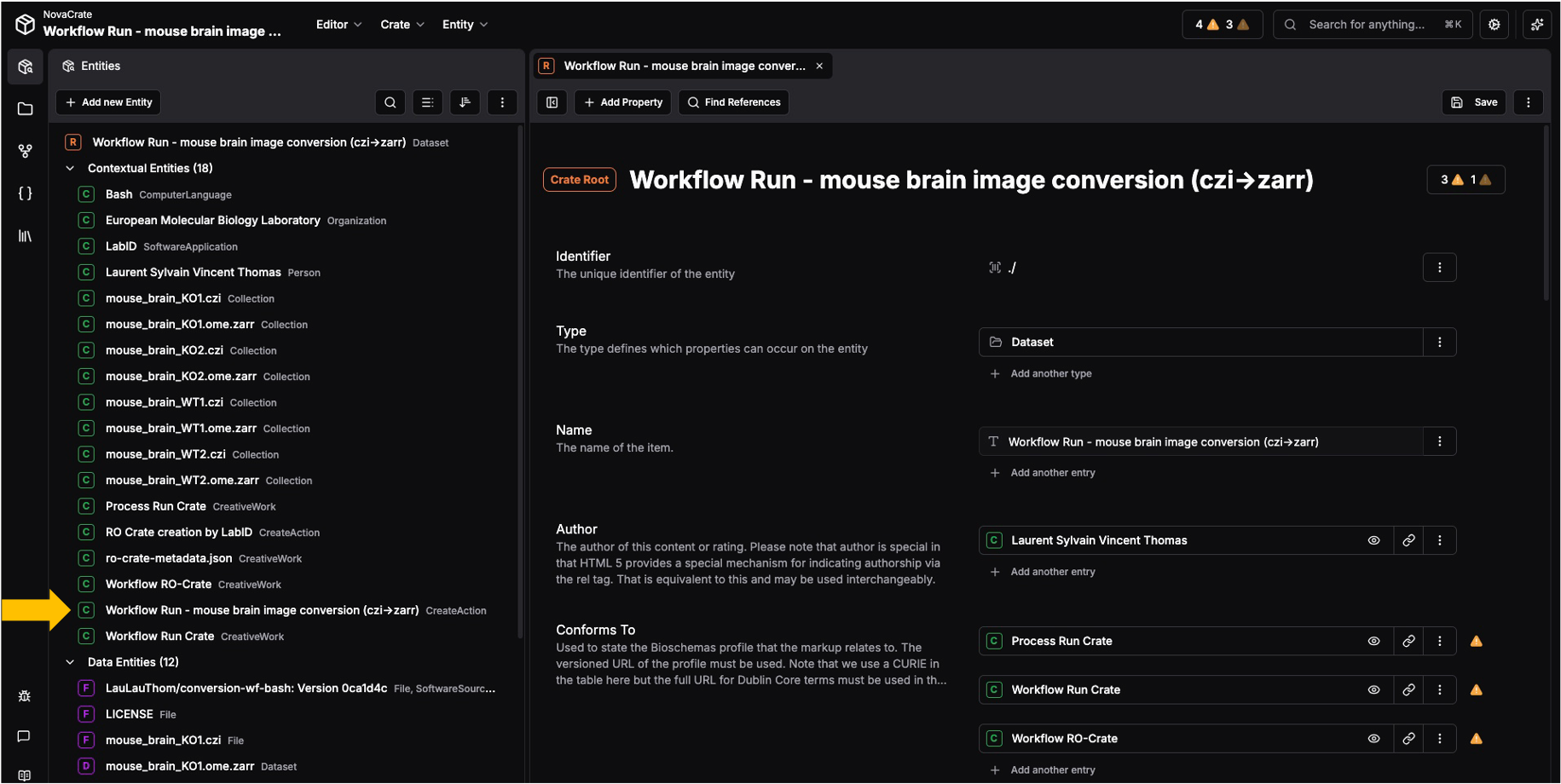
The Workflow Run RO-Crate in NovaCrate
Why do the czi files and ome.zarr appear twice ?
You might notice that each input/output of the workflow run appears twice in the NovaCrate interface, once as a Contextul Entity of type Collection, and once as a data entity (referenced by the Collection entity).
The reason is that we map LabID Datasets as RO-Crate Collection, and the LabID Datafile contained in the Datasets are then mapped to the data entity (File or Directory entity).
Step 4. Looking at a few entities
While you can again look at the graph, this time the number of entities is such that it becomes a bit impractical. Instead you can navigate the crate by clicking on individual entities.
- start by clicking on the one before last
Contextual Entityindicated by the yellow arrow above, starting with "Workflow Run - ...".
This is the metadata entity describing the run, it has the type CreateAction, which is a standardised term used to describe any process creating some output
You should now see something like:
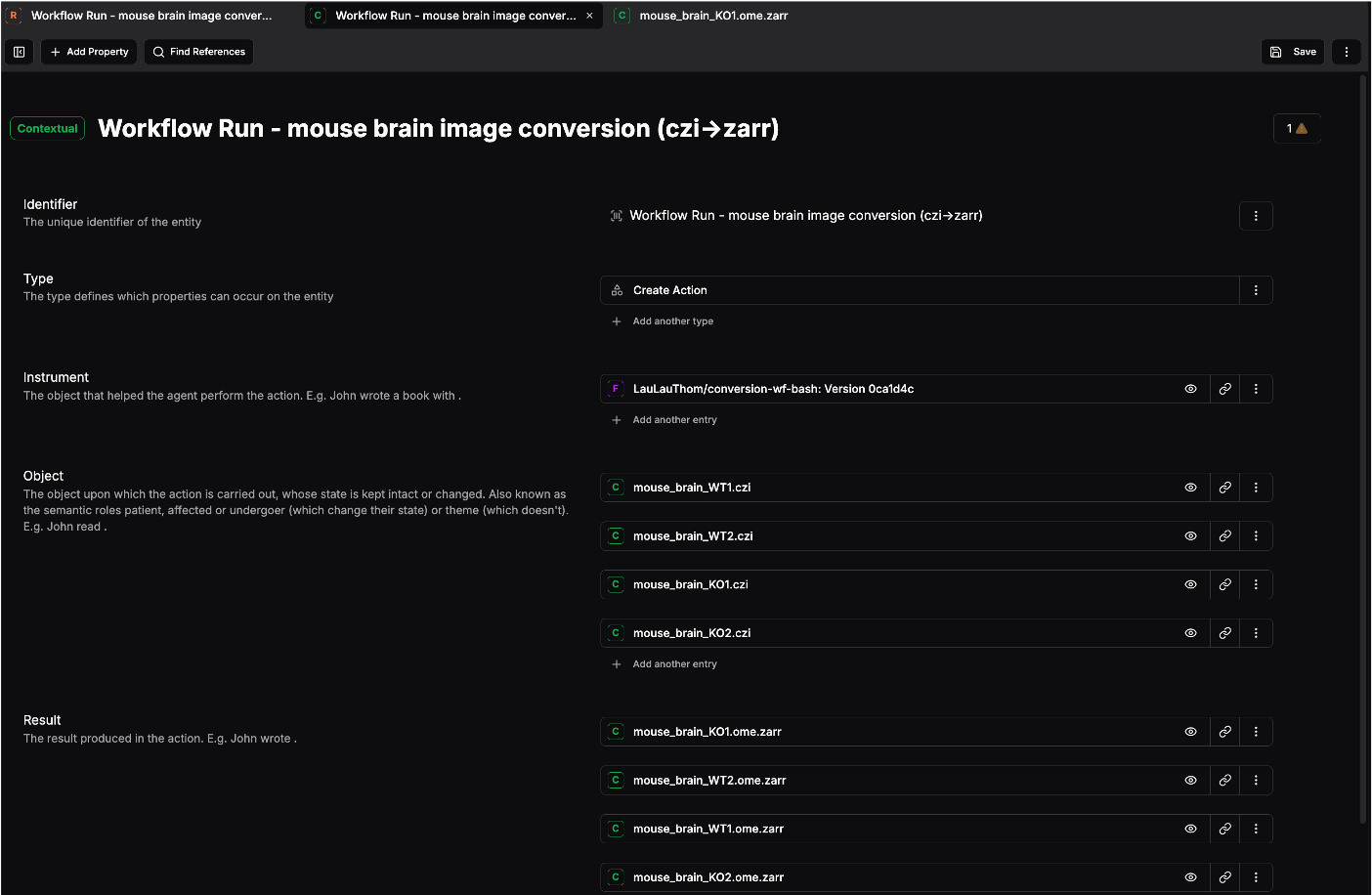
This entity exposes a few valuable information about the run:
- the
Instrumentis a reference to the workflow that was executed - the
Objectcontains the list of the input to the run, here the list of czi images that were converted - the
Resultlists the output of the run, which are here the ome.zarr
LabID Datasets as RO-Crate Collections
As mentioned above, the file/directory entities are not directly listed under Object/Result but rather ContextualEntities (depicted as a green "C") corresponding to the LabID Dataset referencing these file/directories.
Now click on one of the OME Zarr entity listed under Result.
You should see something like:
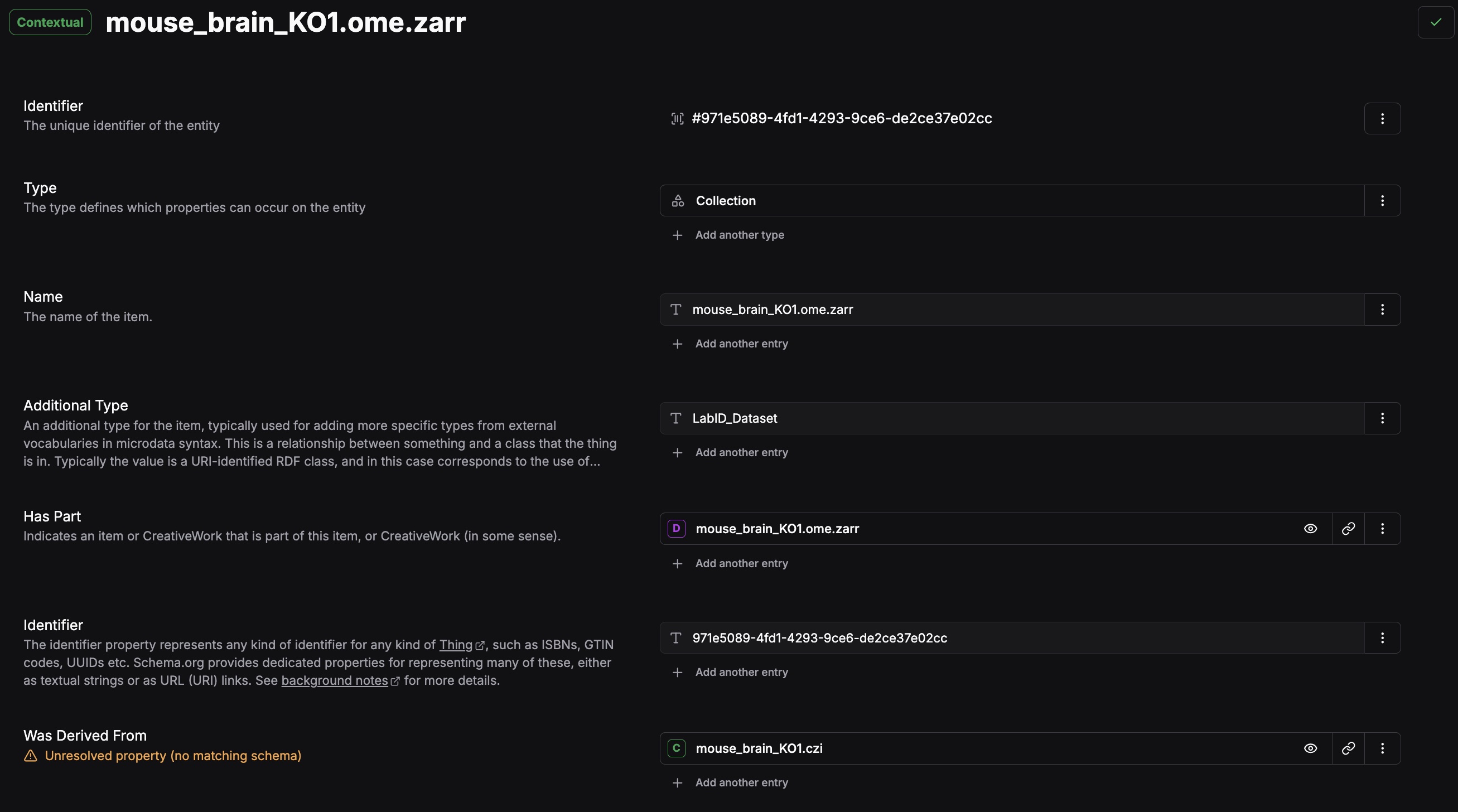
From this page, you can learn the following:
- this entity is of type
Collection(RO-Crate vocabulary), theadditionalTypefurther refines the type to aLabID_Dataset - this
Collection(or LabID Dataset) references a single directory entity (with the same name) viaHas Part - the field
Was Derived Fromindicates the parent czi image for this ome.zarr (i.e which image was converted to yield this OME.Zarr)
This way most of the information available in LabID is encoded in the RO-Crate.
Congrats! You now have completed this hands-on!